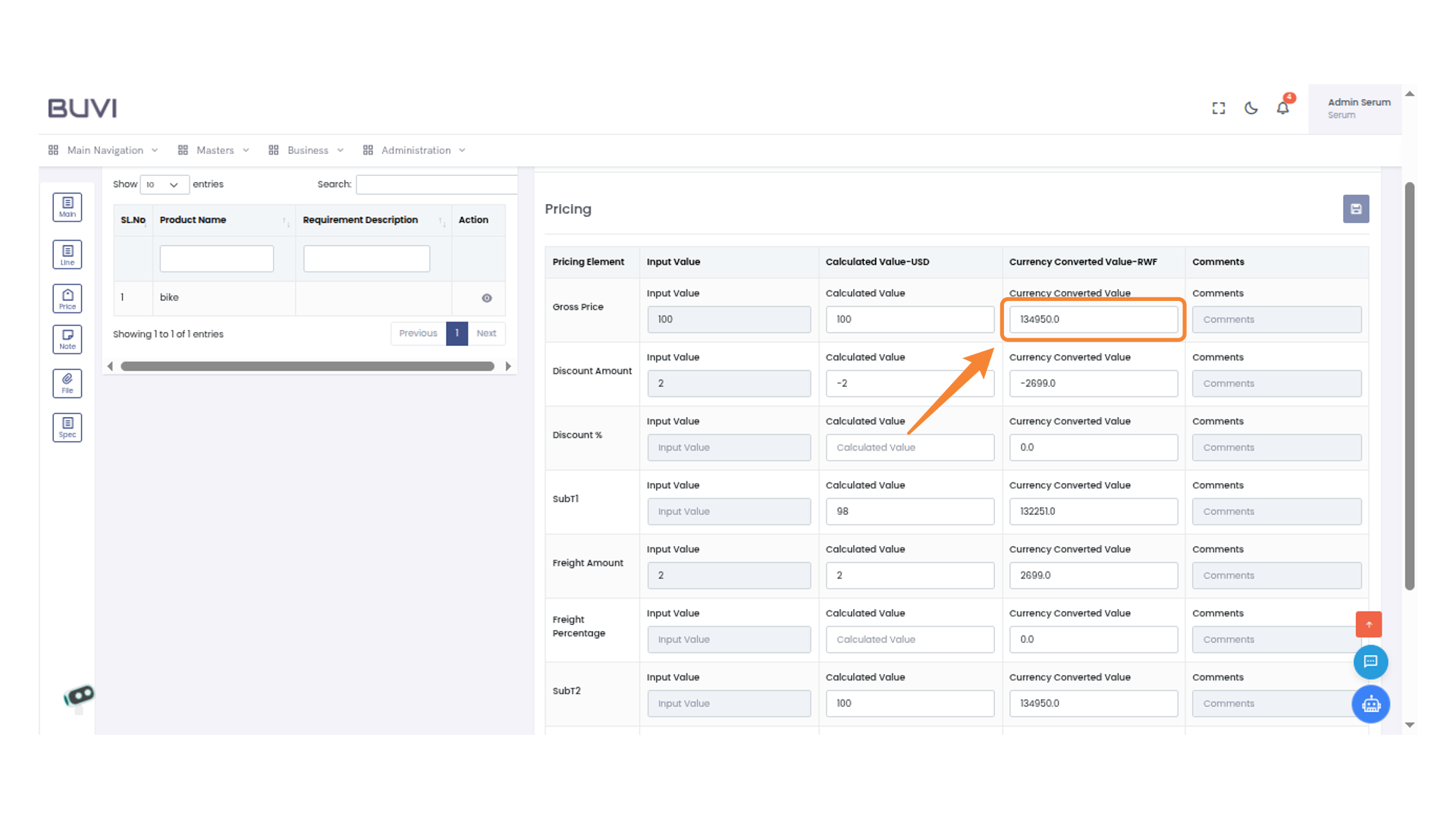
Currency Conversion
1. Login Button
Loginto the application
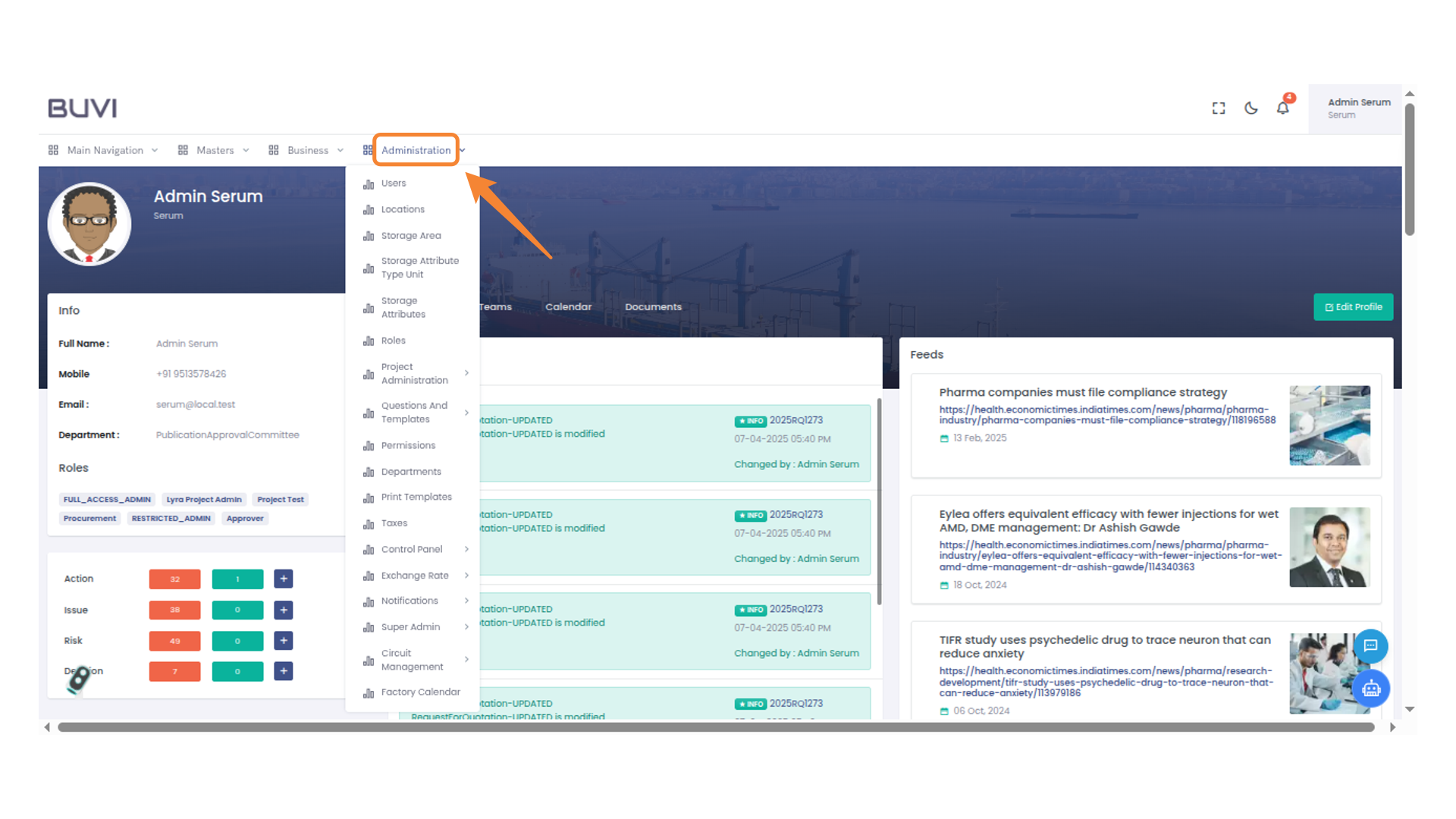
2. Administration Panel Access
Click on Administration menu
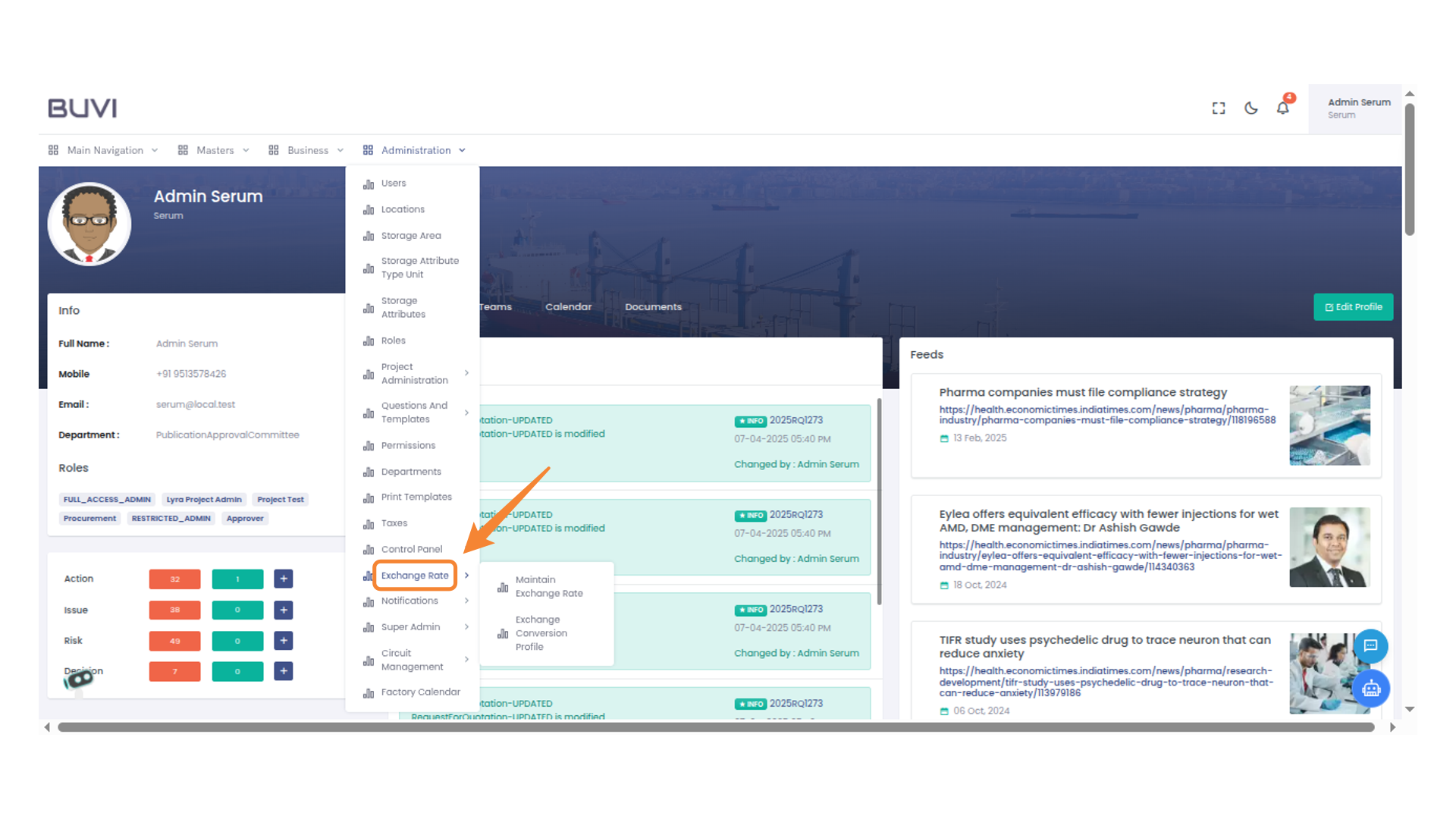
3. Exchange Rate Options
Select the 'Exchange Rate' menu to view and maintain the current exchange rates.
4. Maintain Exchange Rate
Click on Maintain Exchange Rate menu
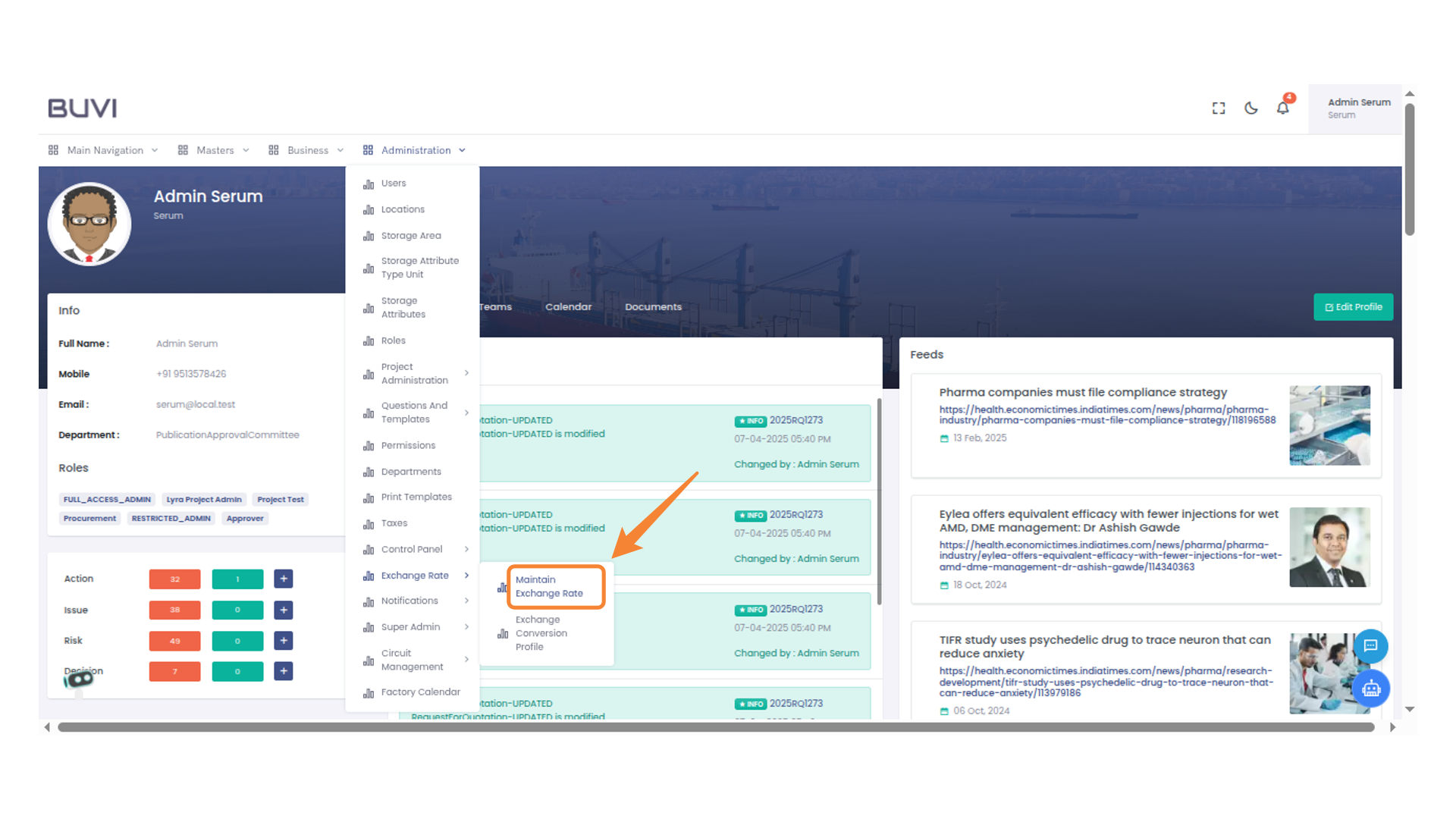
5. Create Maintain Exchange Rate
Click on Create Maintain Exchnage Rate
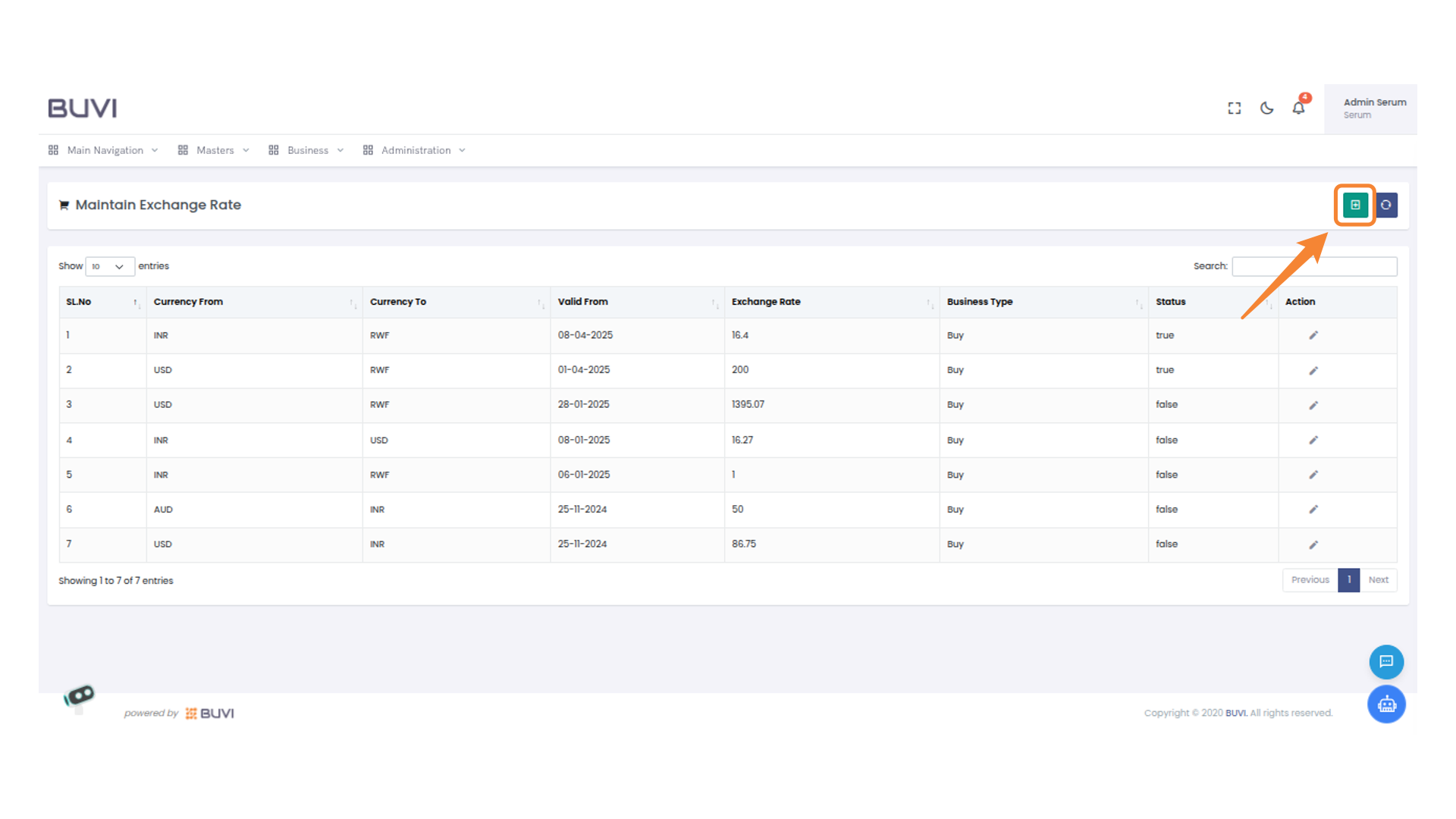
6. Select Business Type
Choose the appropriate business type from the dropdown menu.
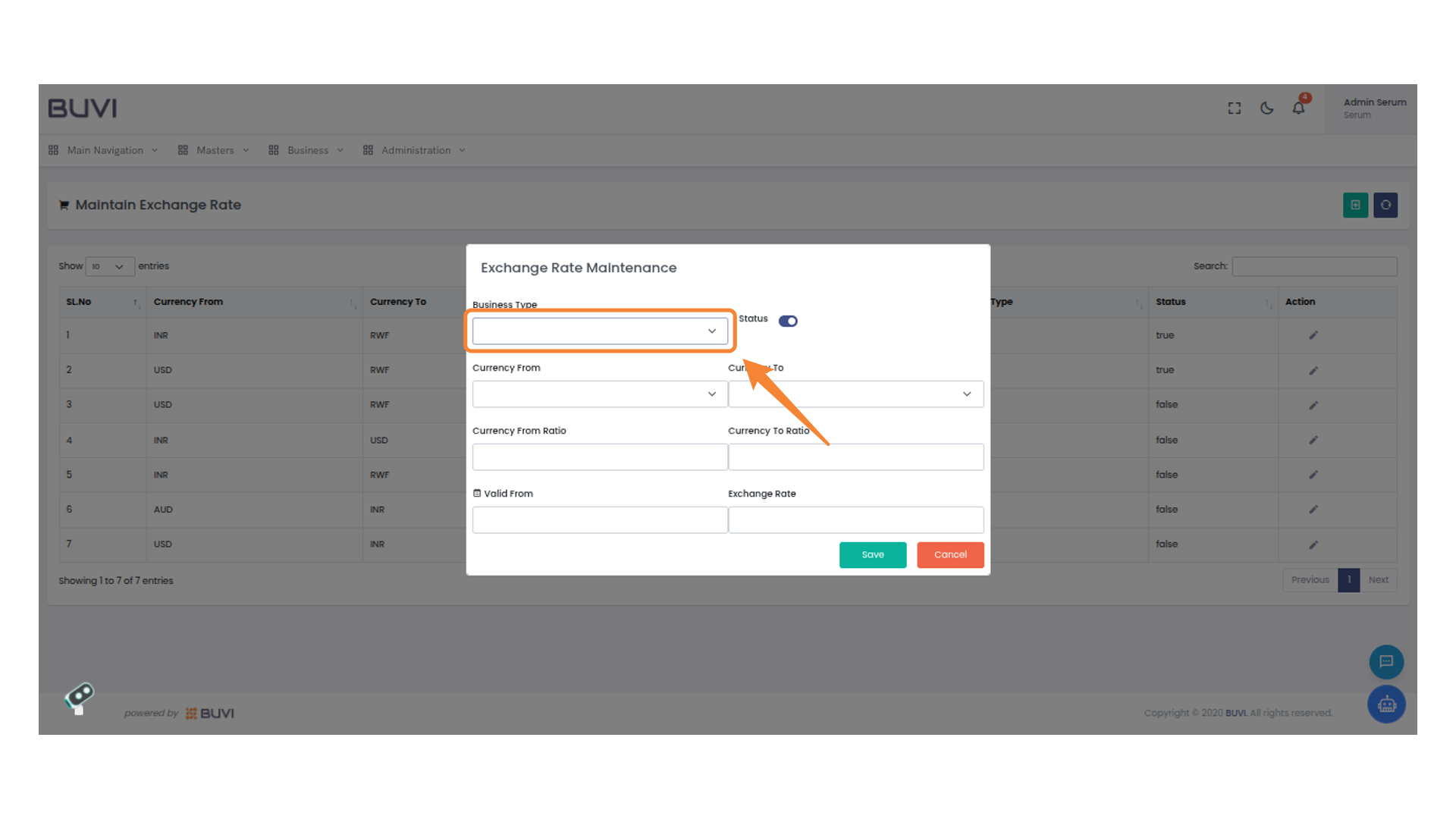
7. Select Currency From Dropdown
Choose the initial currency from the dropdown to set the exchange rate.
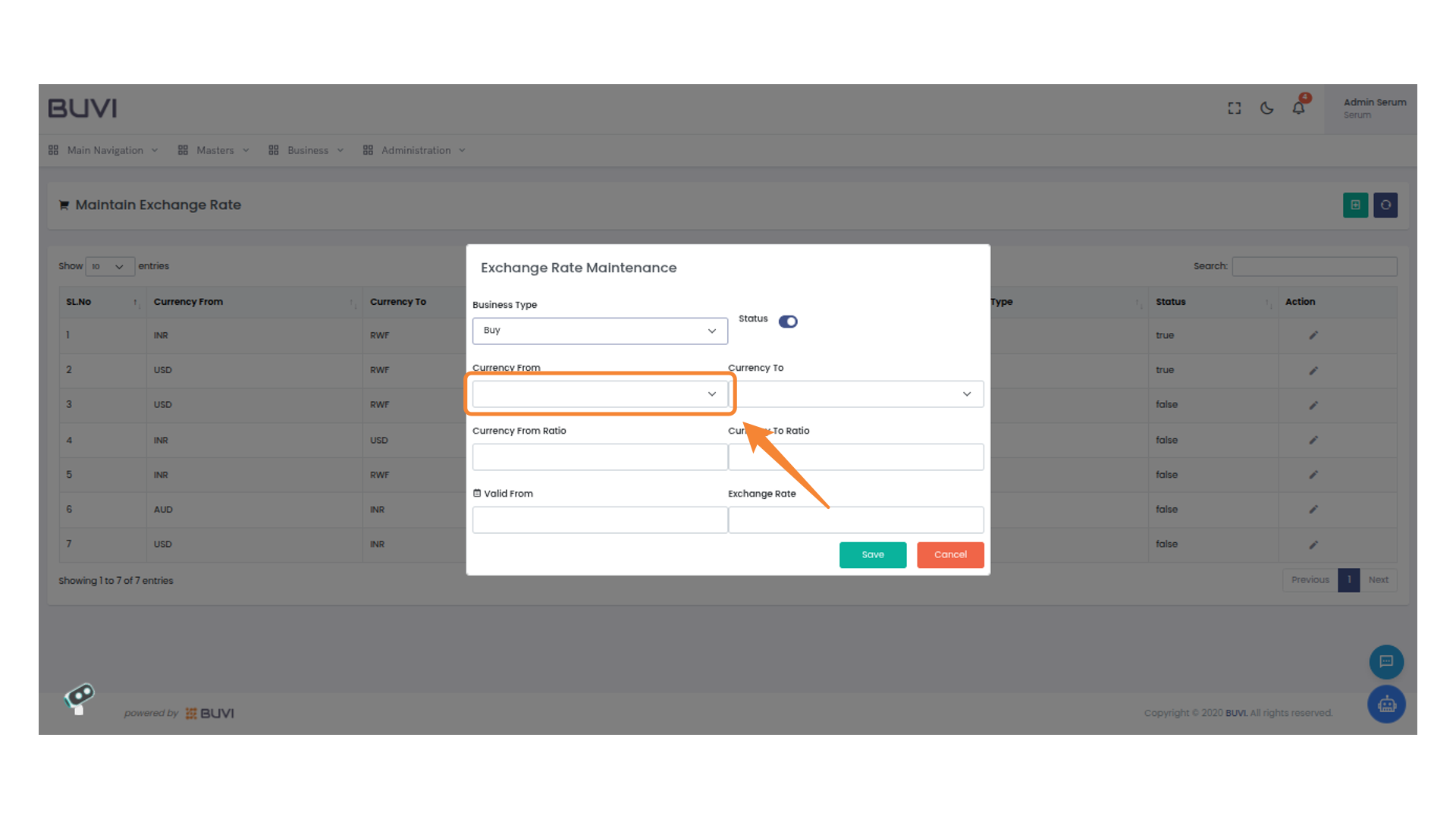
8. Currency Selection for Exchange
Choose the target currency for the exchange operation.
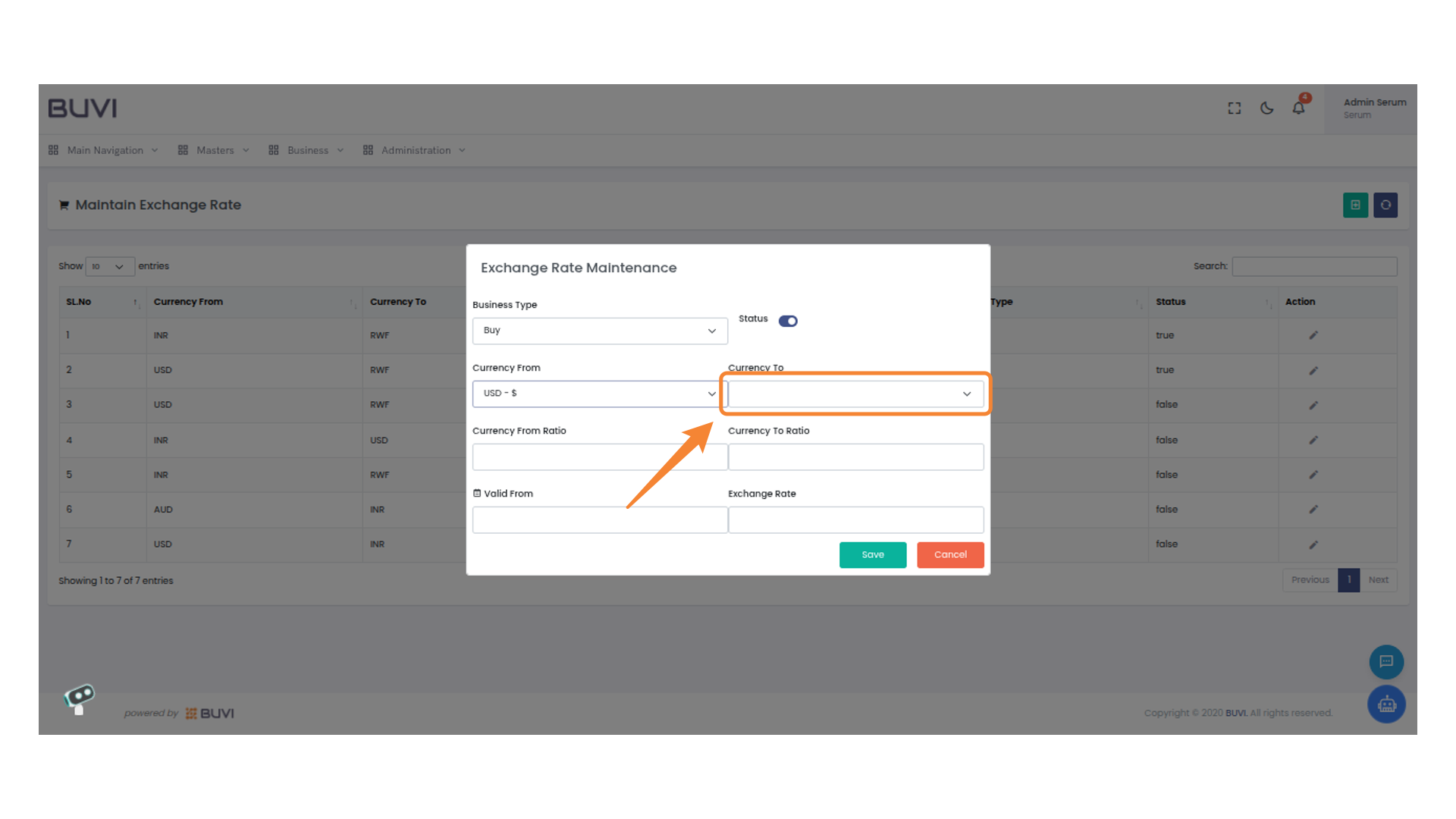
9. Currency From Ratio Input
Enter the initial currency ratio value for the selected exchange.
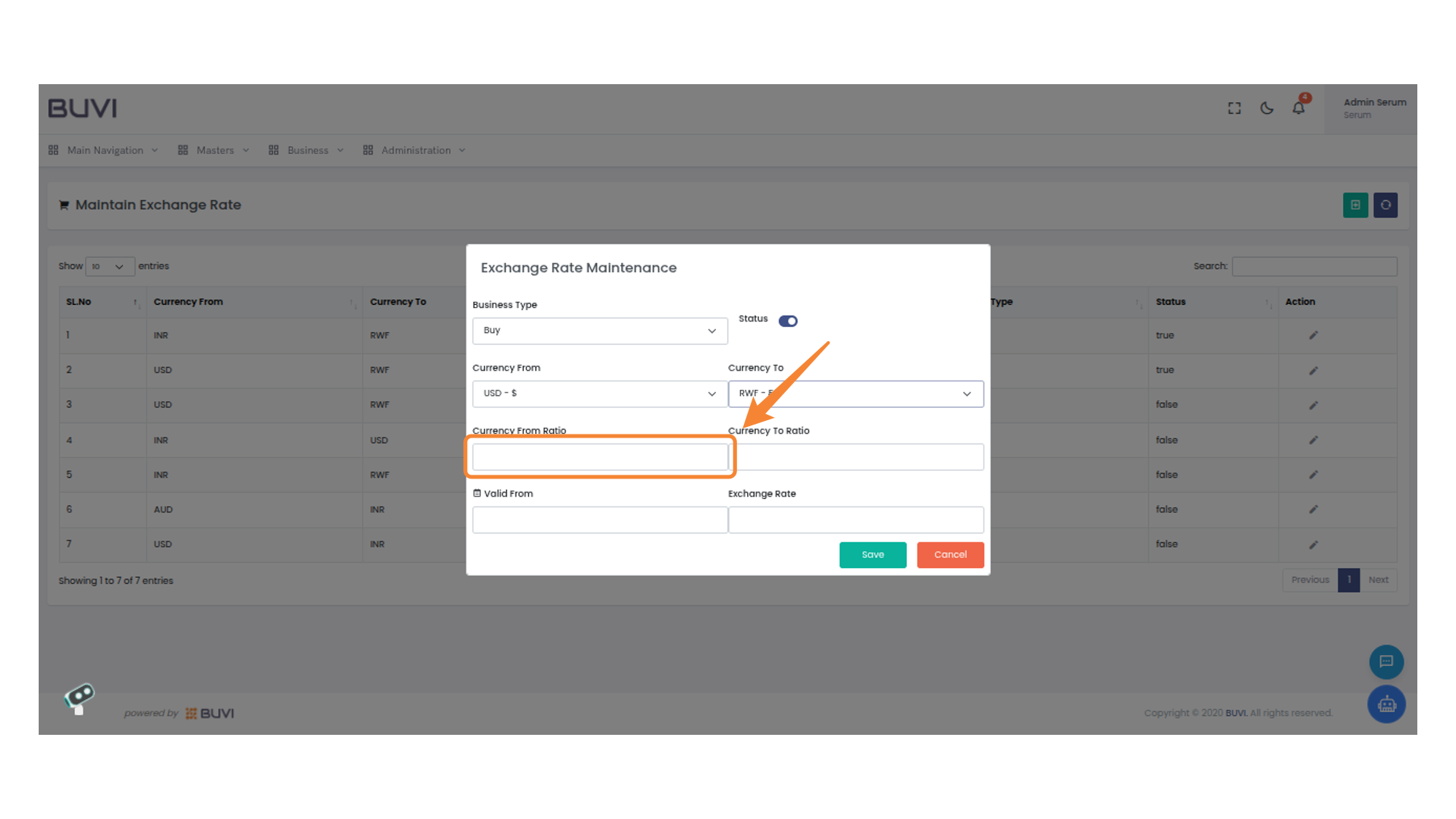
10. Currency To Ratio Input Field
Enter the currency to ratio for the exchange calculation.
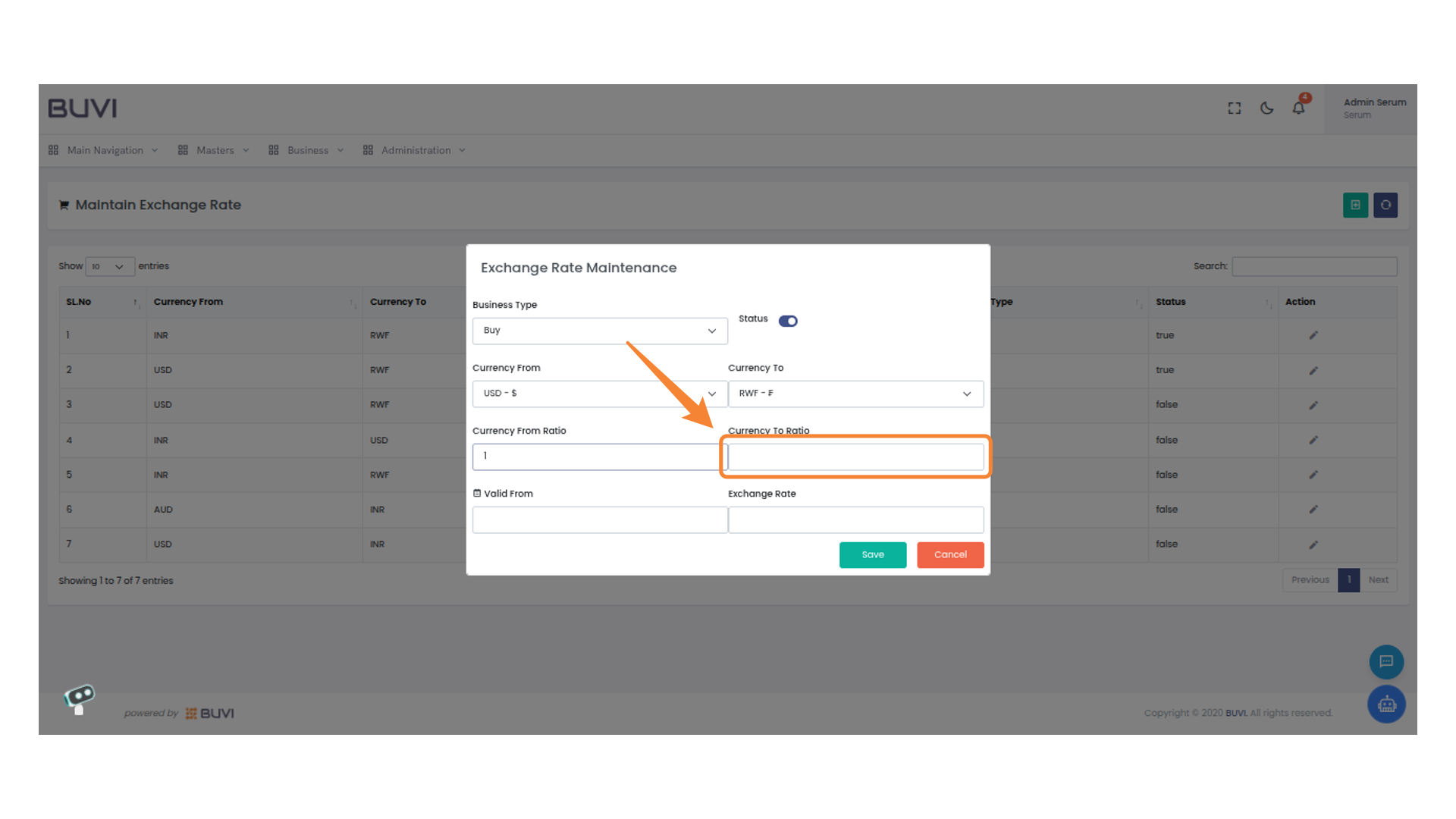
11. Exchange Rate Input Field
Enter the exchange rate in the provided field.

12. Calendar Date Selection
Select the date by clicking on the desired day number within the calendar interface.
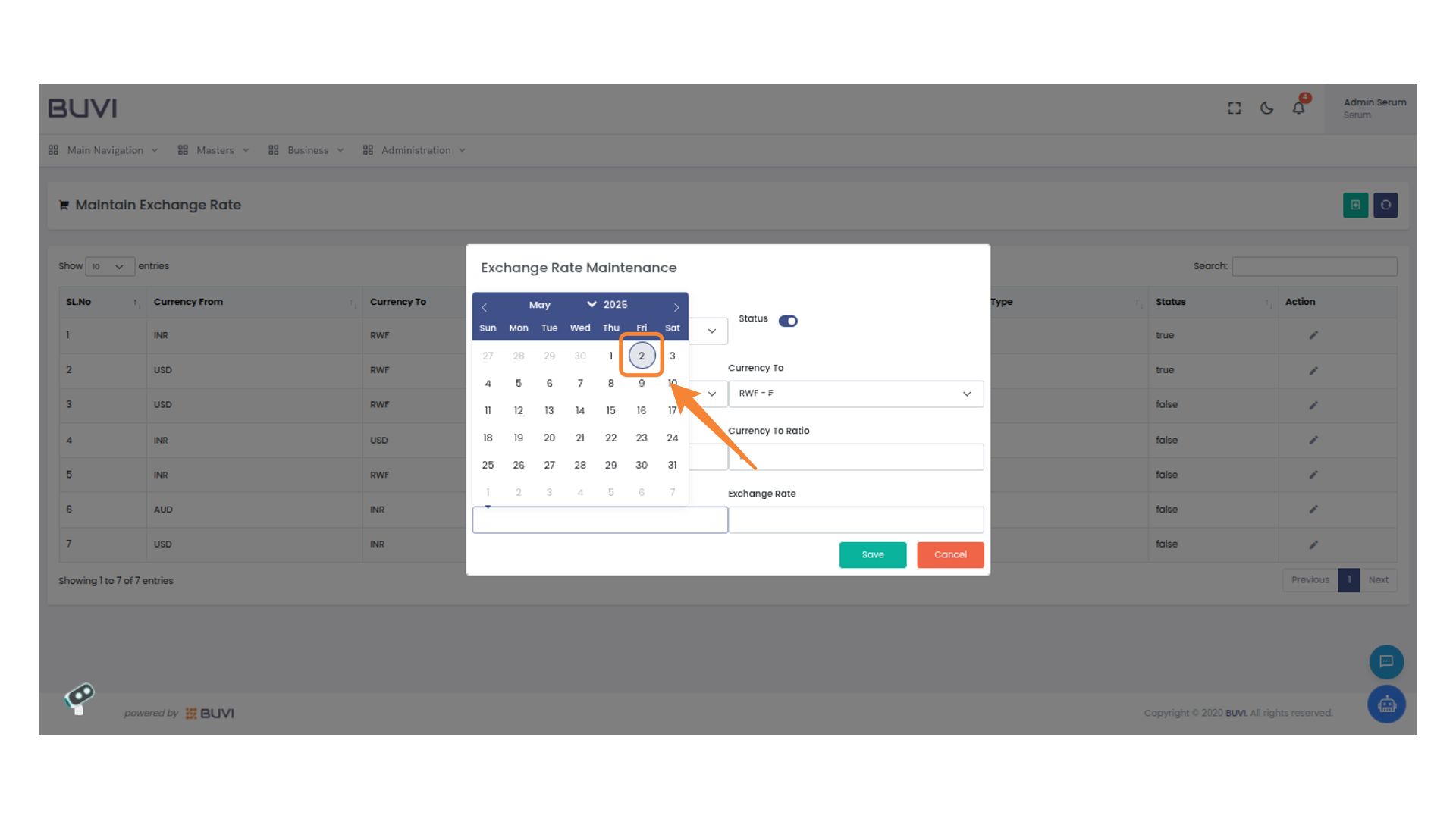
13. Currency Exchange Rate Input
Enter the desired exchange rate value in the provided field.
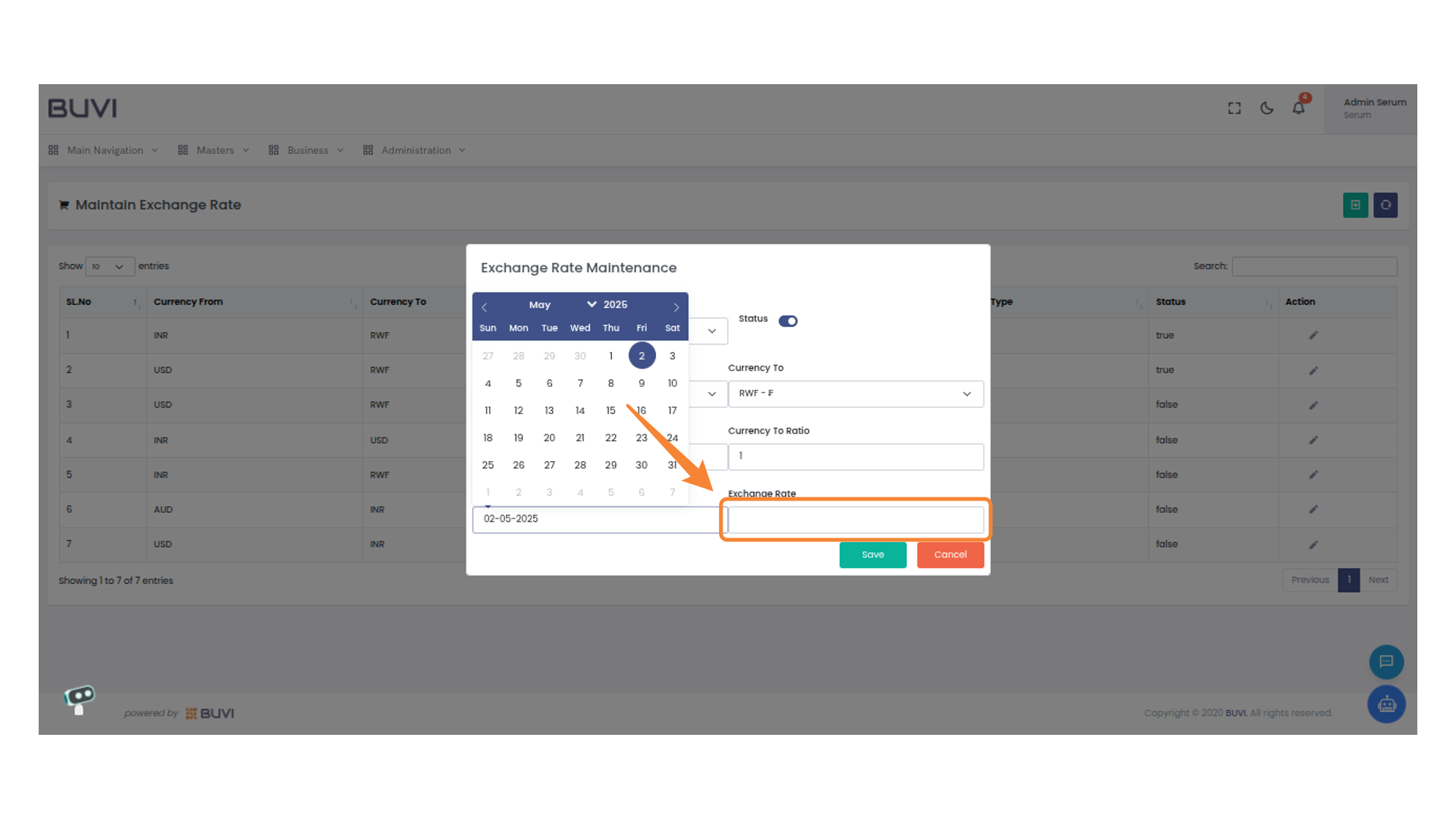
14. Save Button in Exchange Rate Maintenance
Click to save the changes to the exchange rate settings.
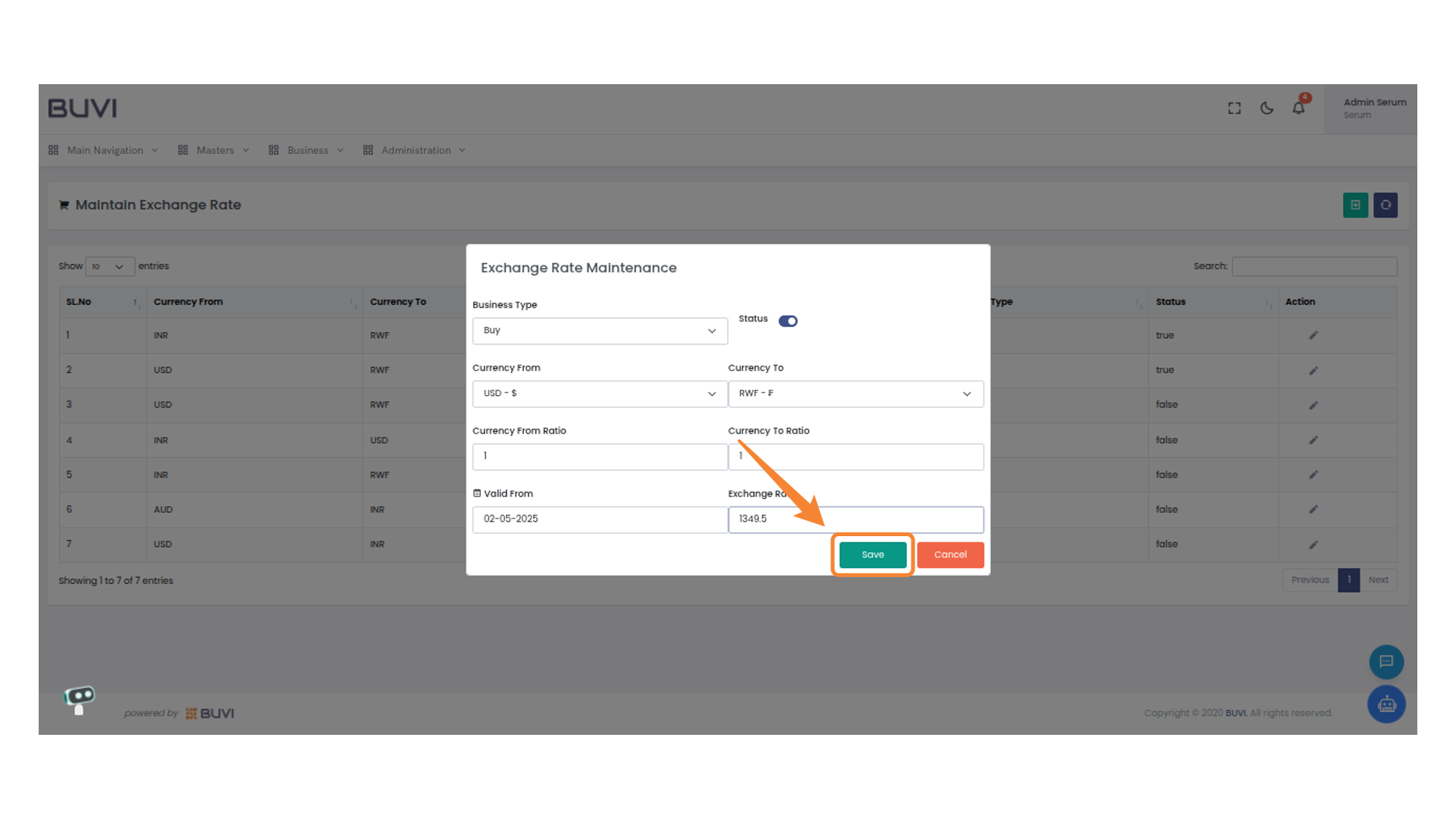
15. Administration Menu
Click on Administration Menu
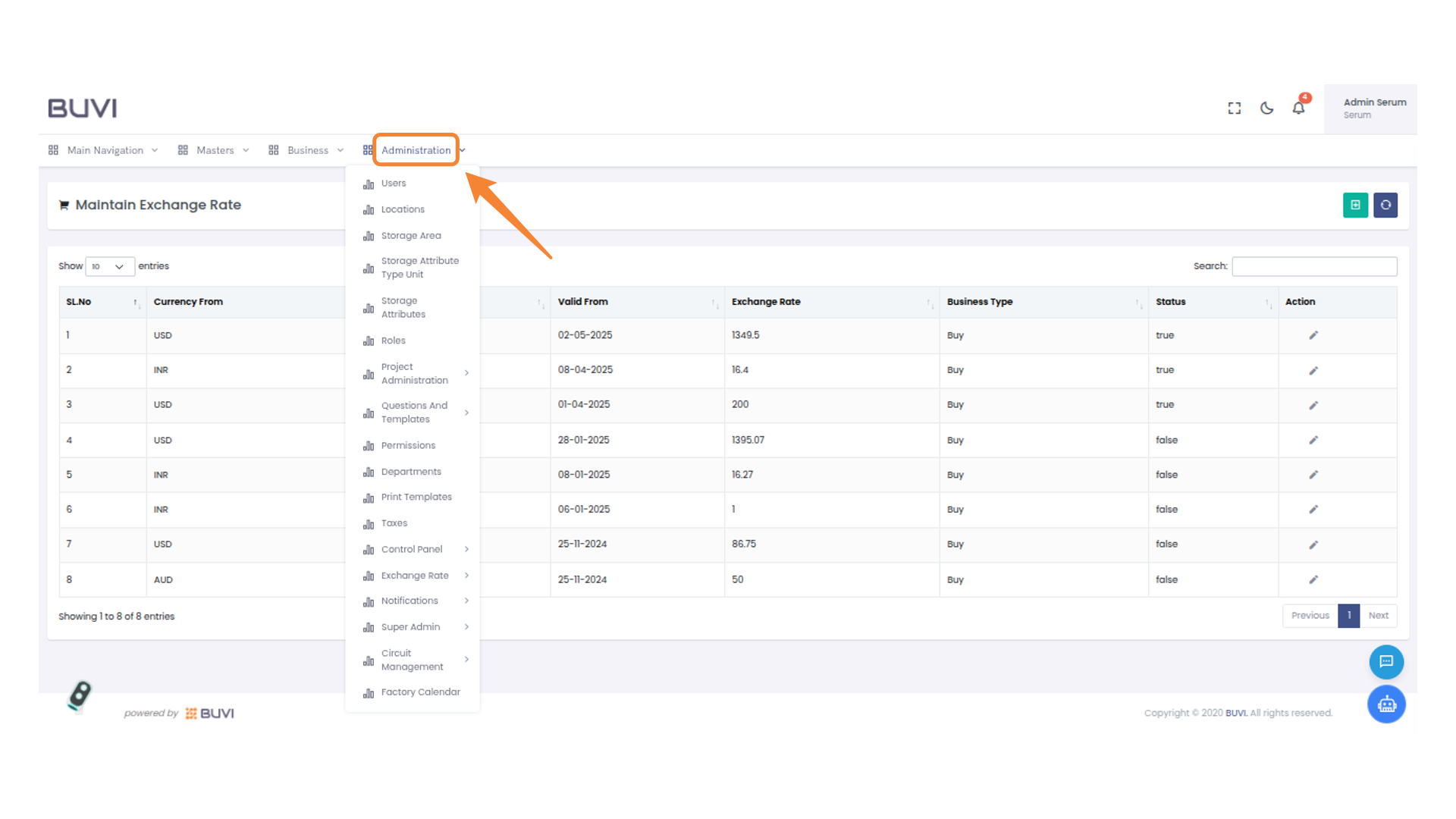
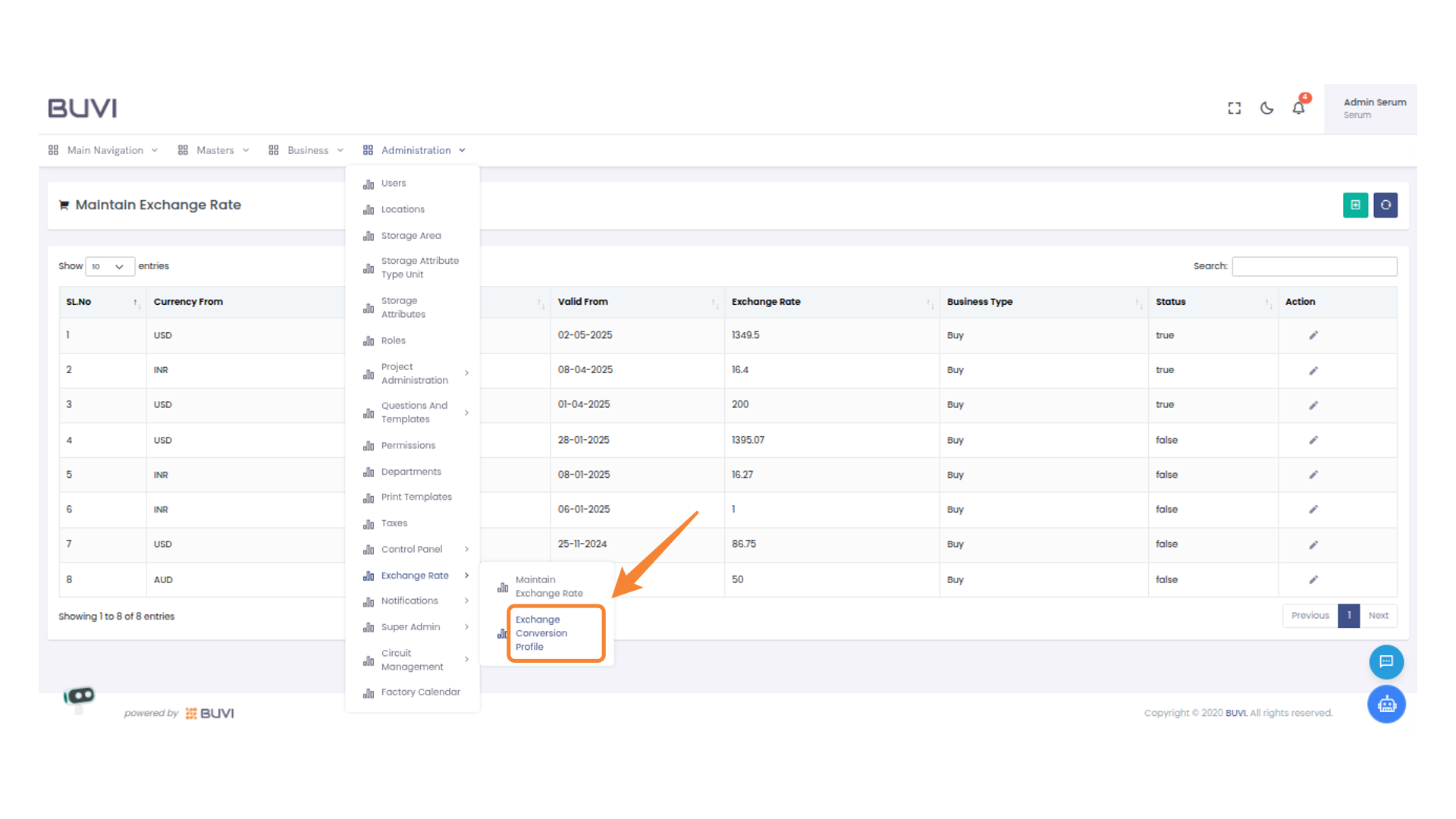
16. Exchange Rate Menu
Select the 'Exchange Rate' option to manage currency exchange rates and view related profiles.
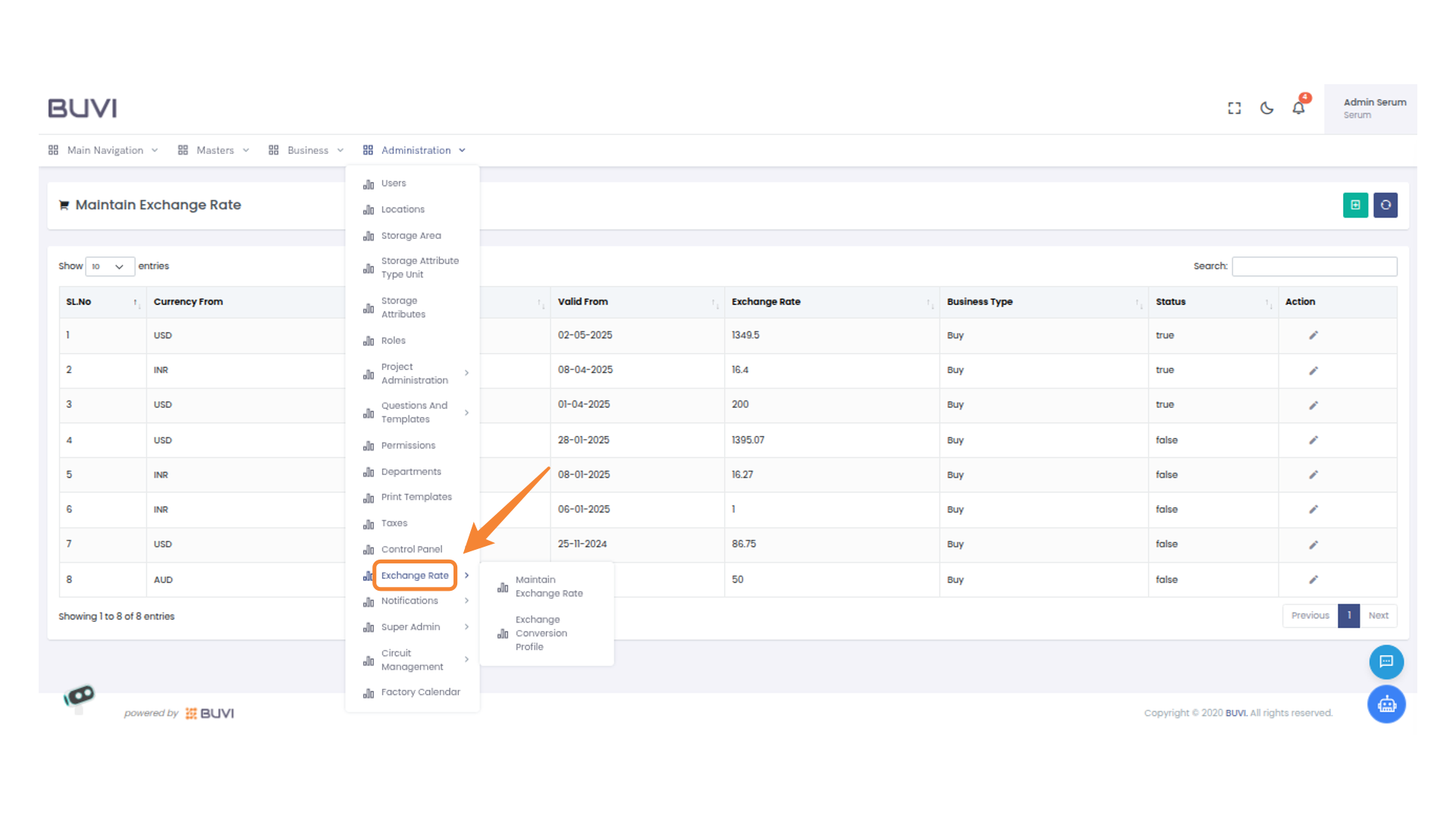
17. Exchange Conversion Profile Menu
Select this option to manage exchange conversion profiles in the application.
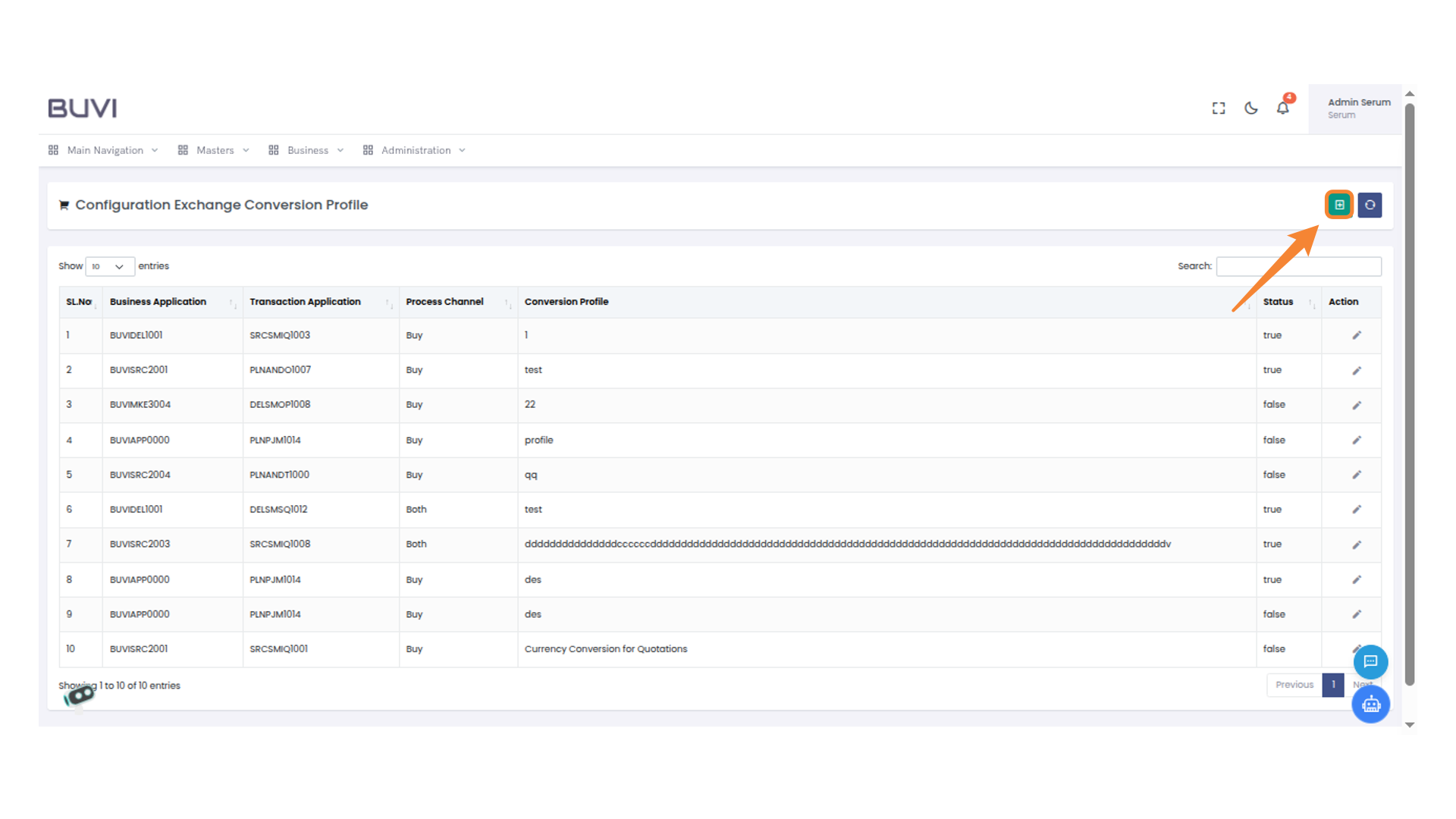
18. Create New Configuration Exchange conversion Profile
Click on Create button
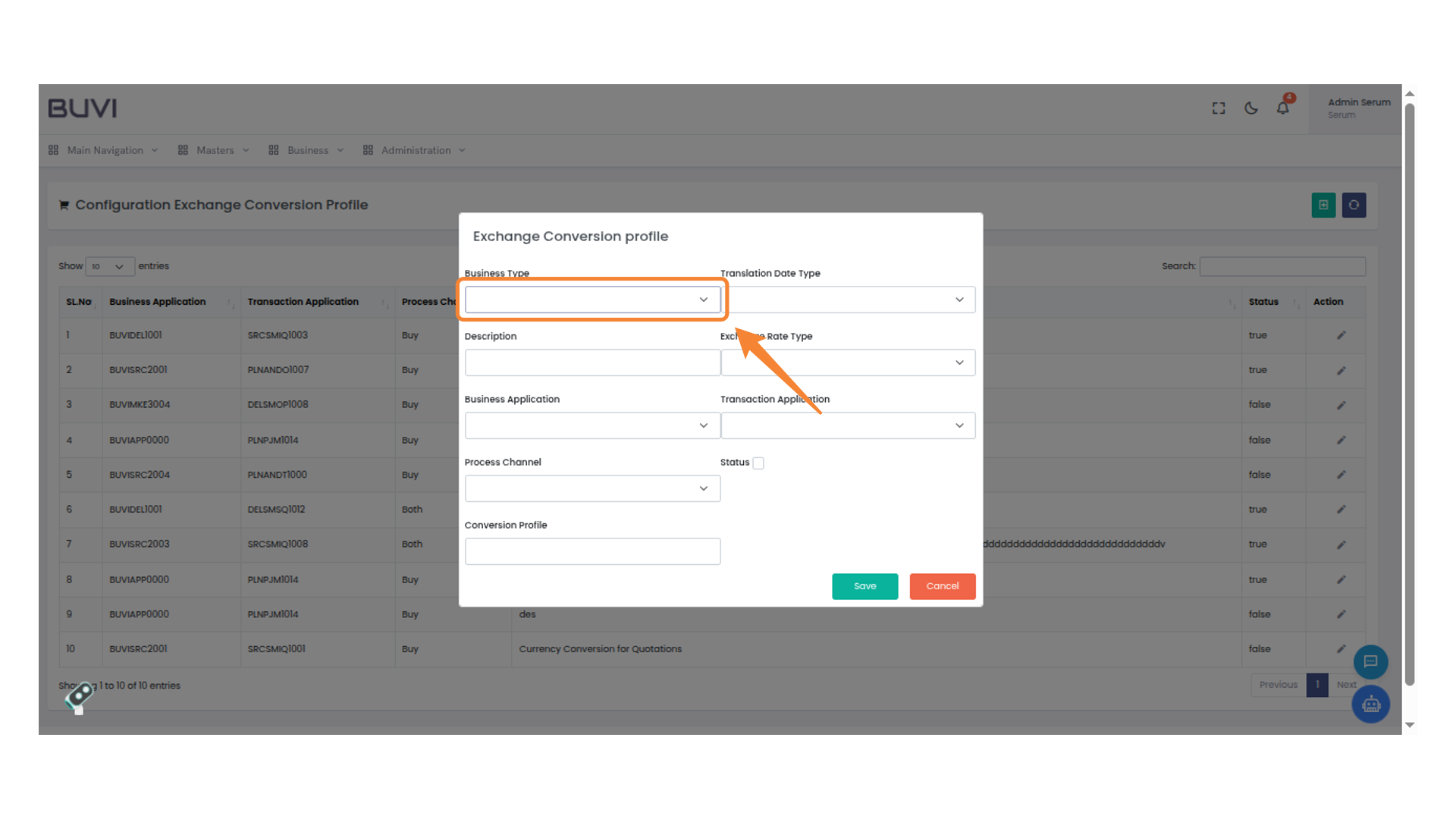
19. Business Type Selection
Choose a business type from the dropdown menu.
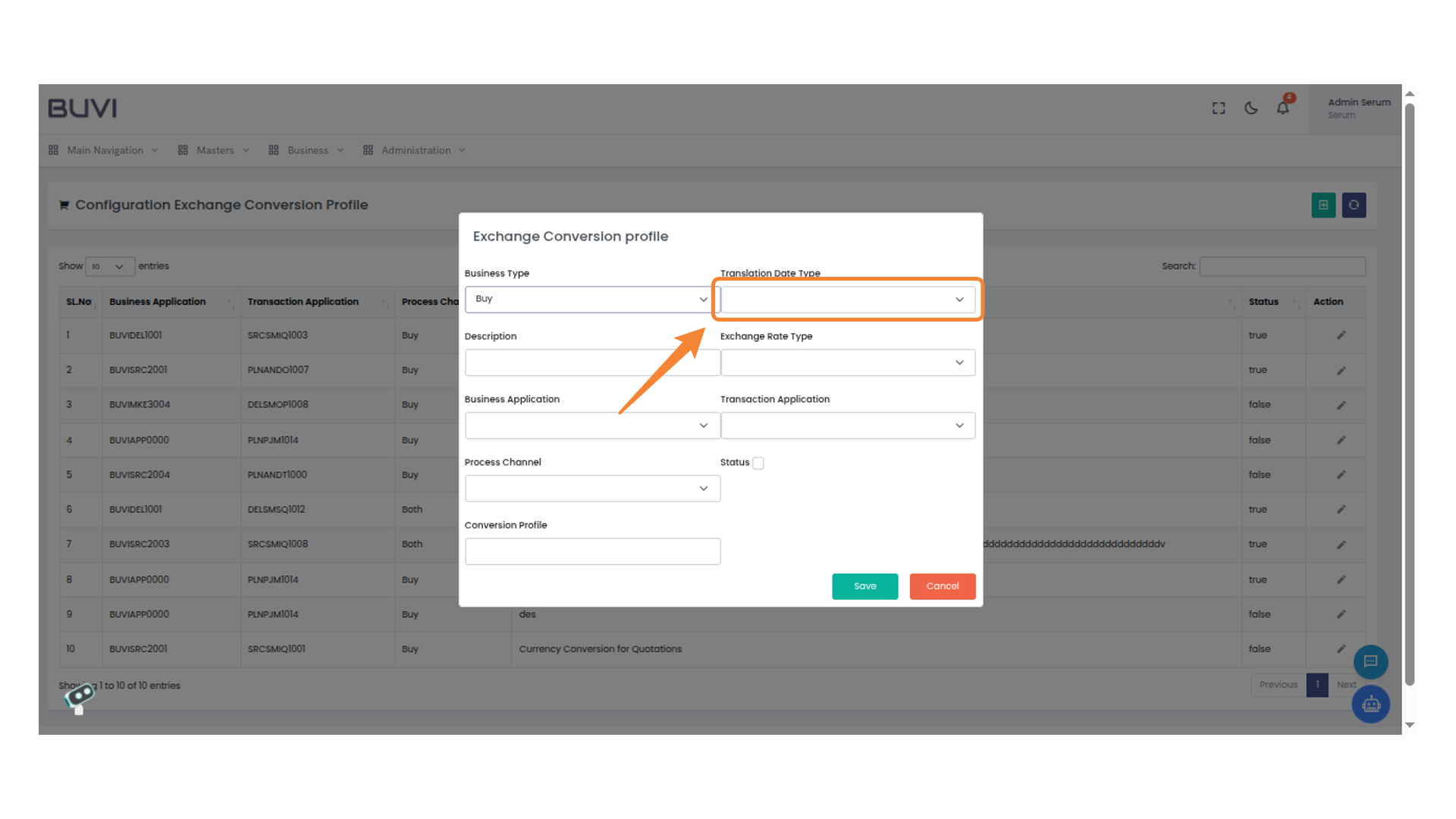
20. Translation Date Type Field
Select the appropriate translation date type from the dropdown menu.
21. Description Field
Enter a detailed description of the exchange conversion profile.
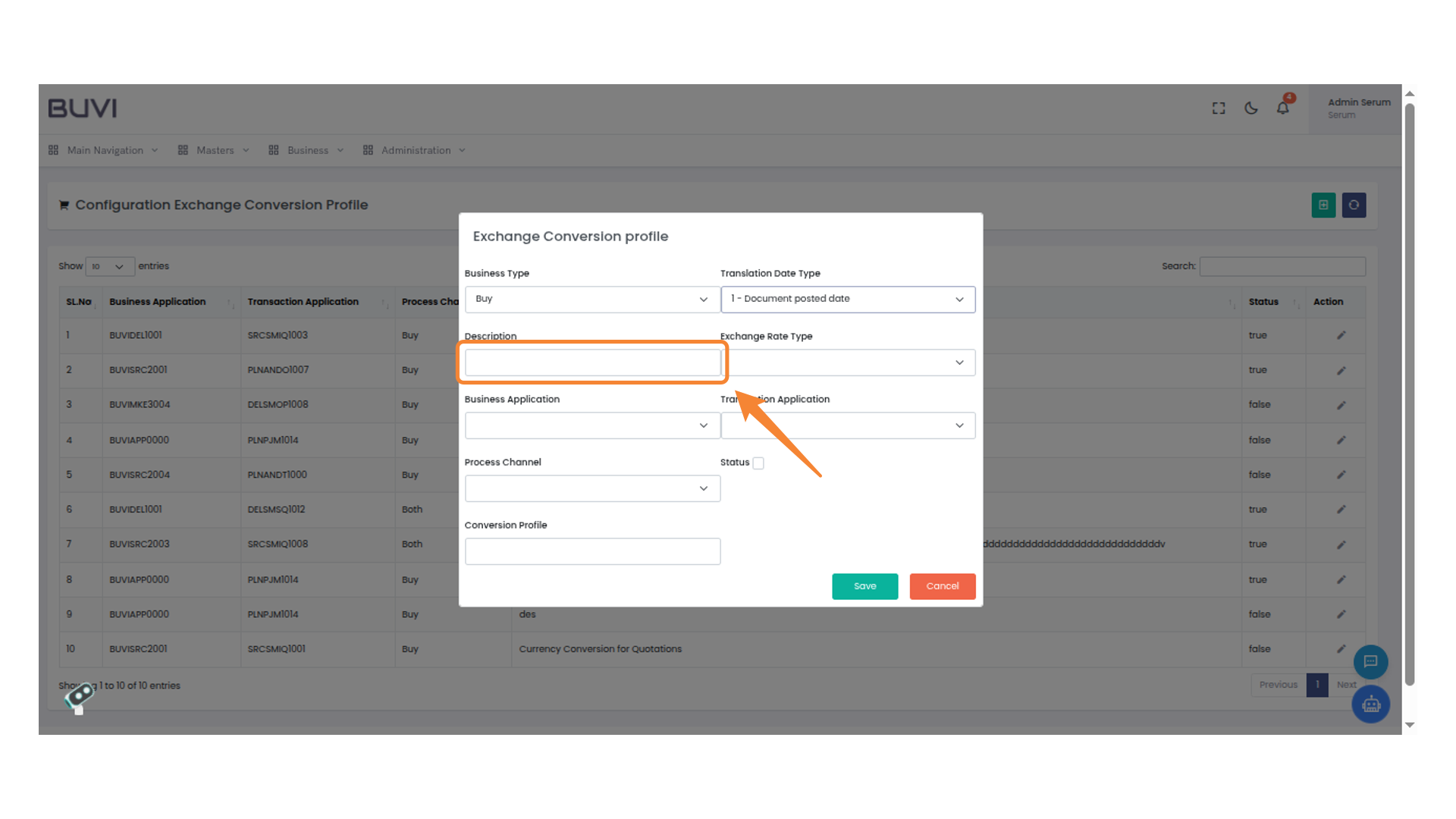
22. Exchange Rate Type Selection
Choose the appropriate exchange rate type from the dropdown menu.
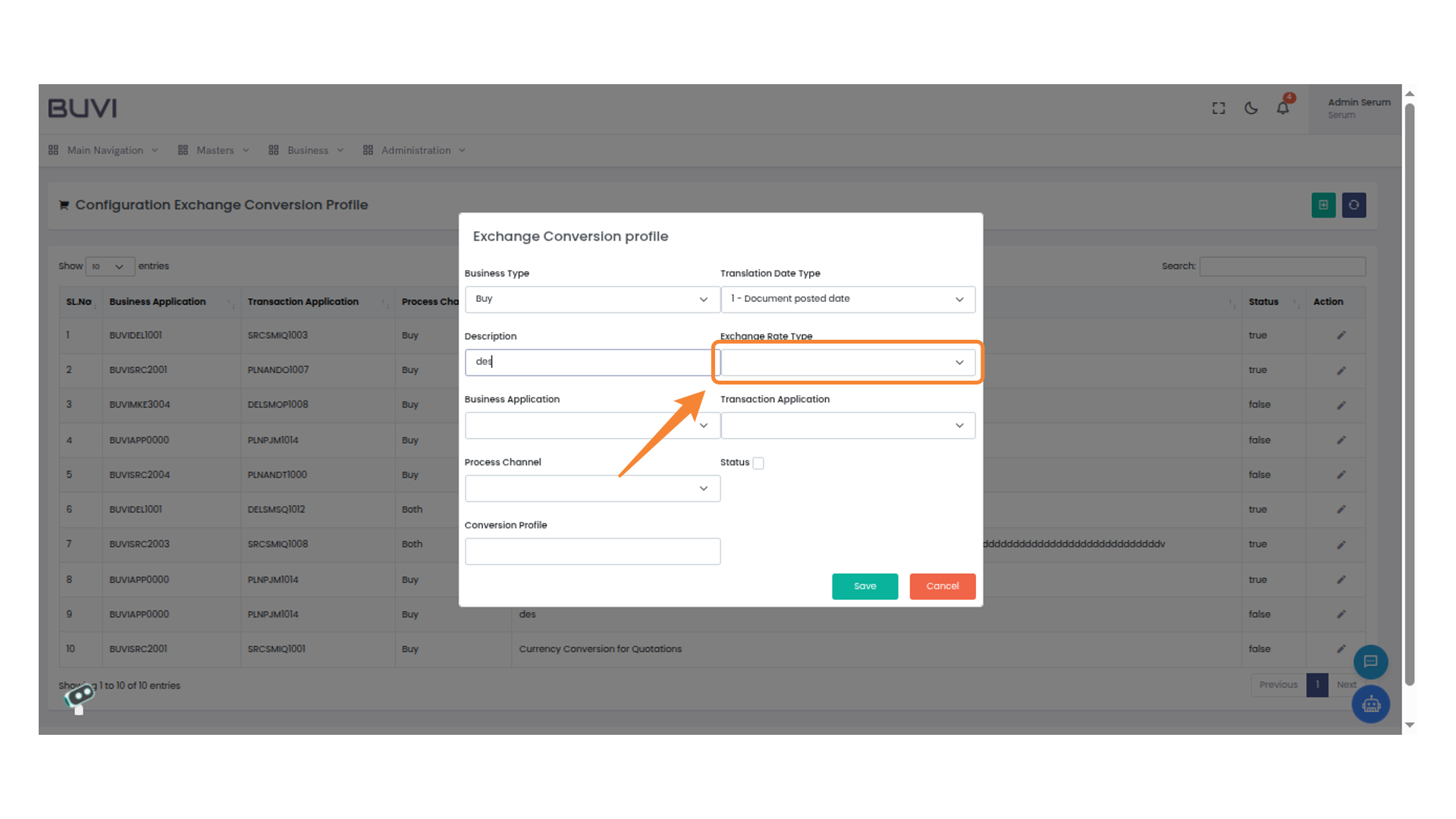
23. Select Business Application
Choose the appropriate business application from the dropdown menu.
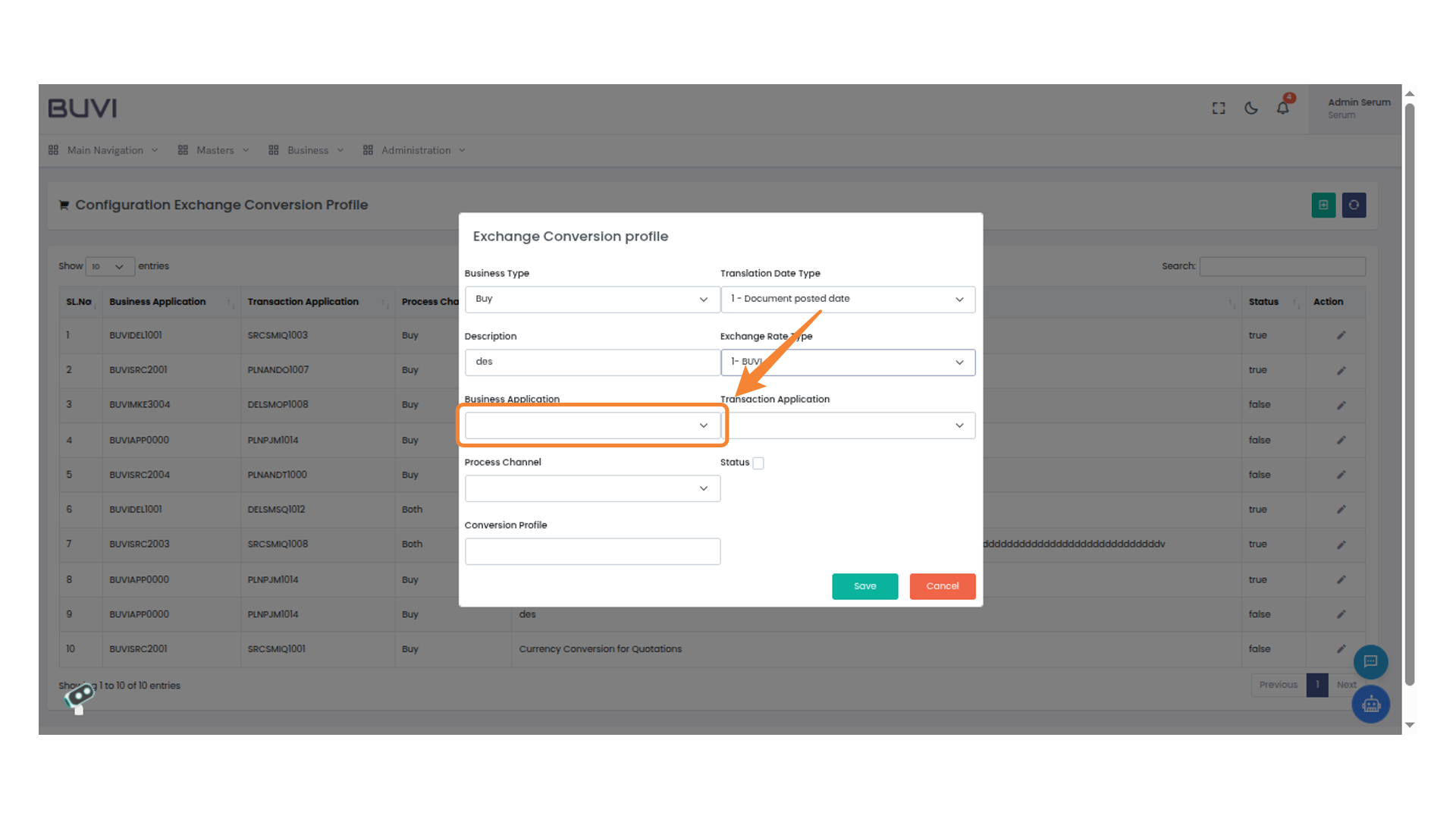
24. Transaction Application Selection
Choose an appropriate transaction application from the dropdown menu.
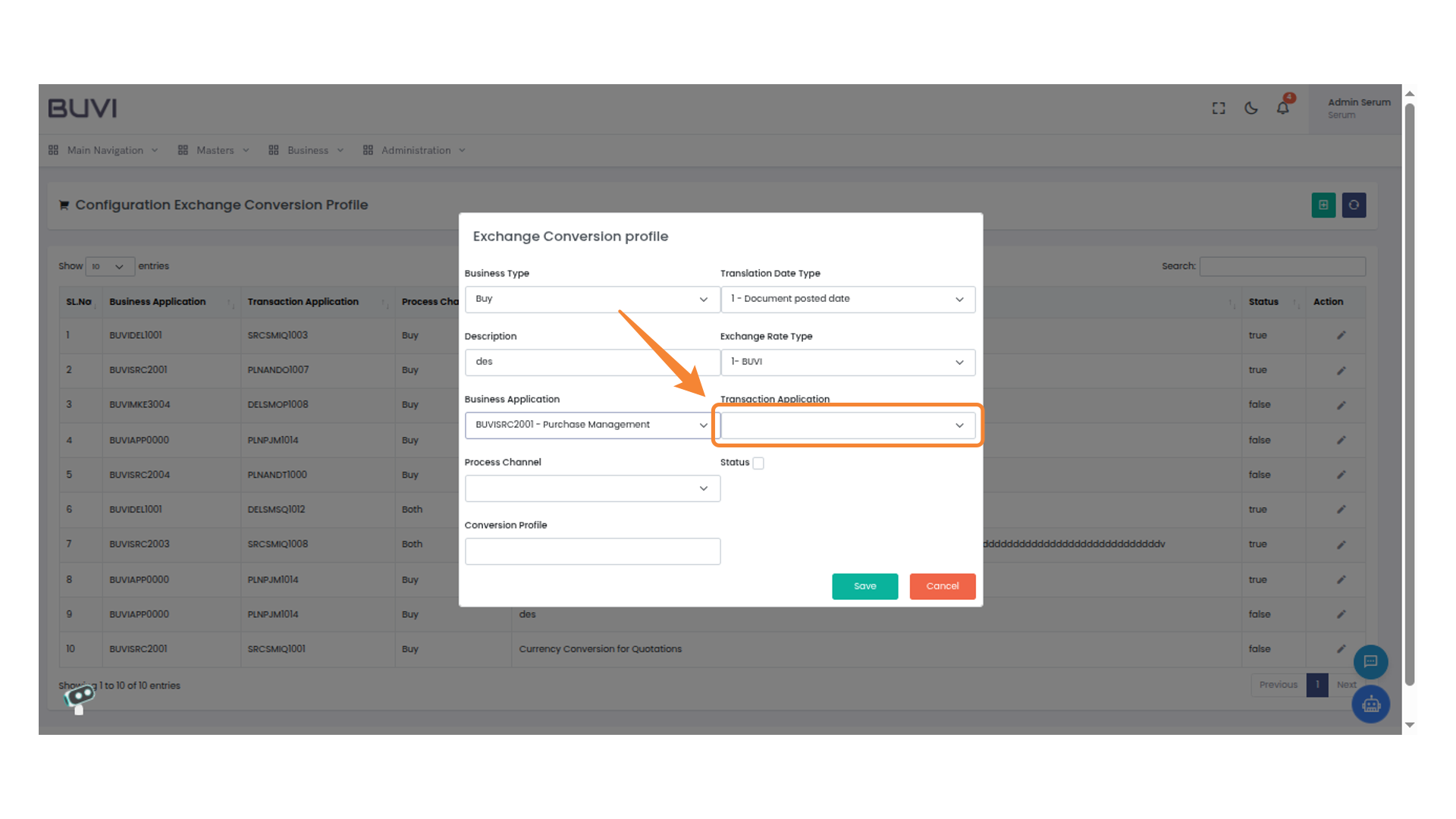
25. Selection Dropdown
Choose an option from the dropdown menu.
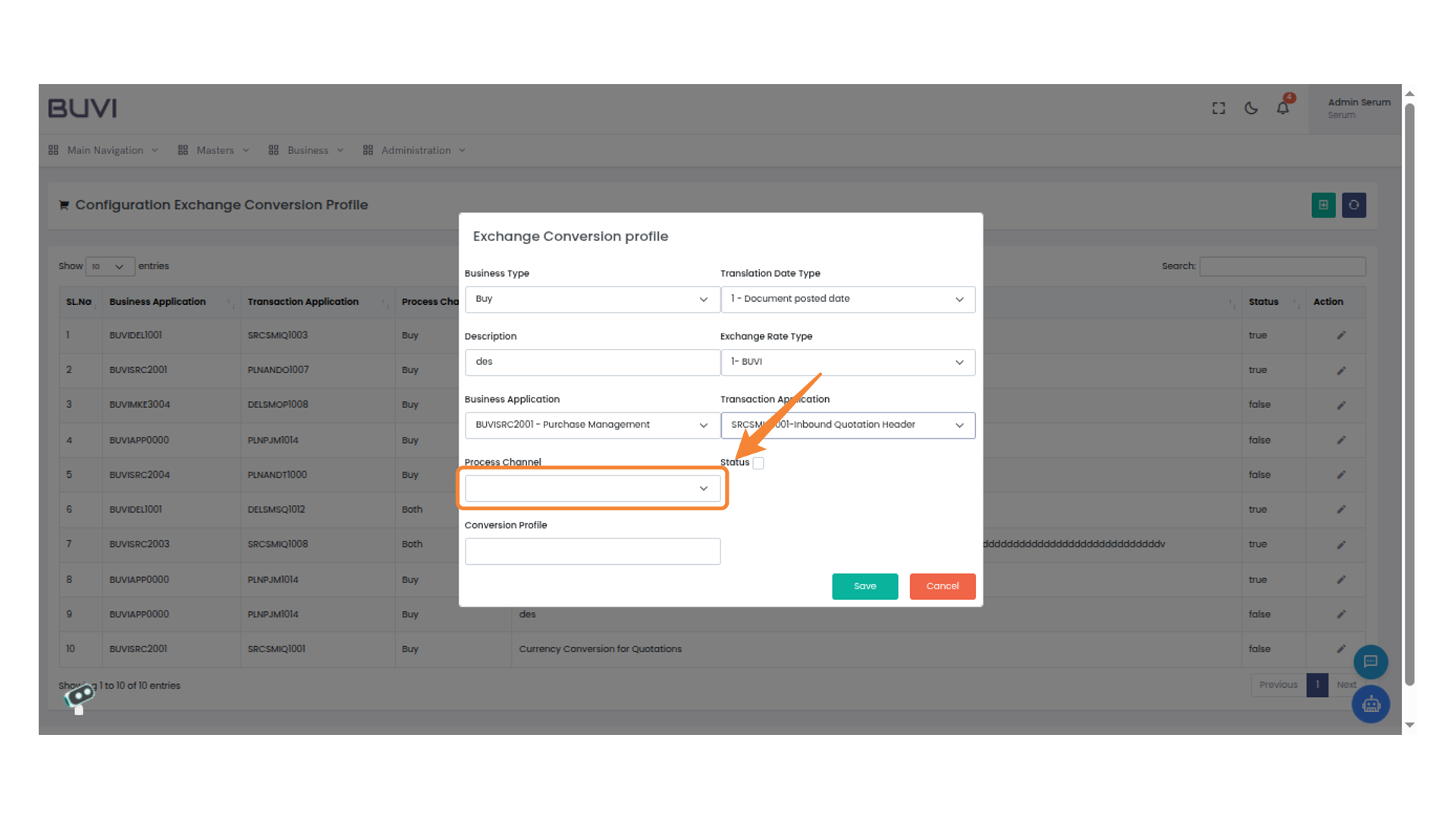
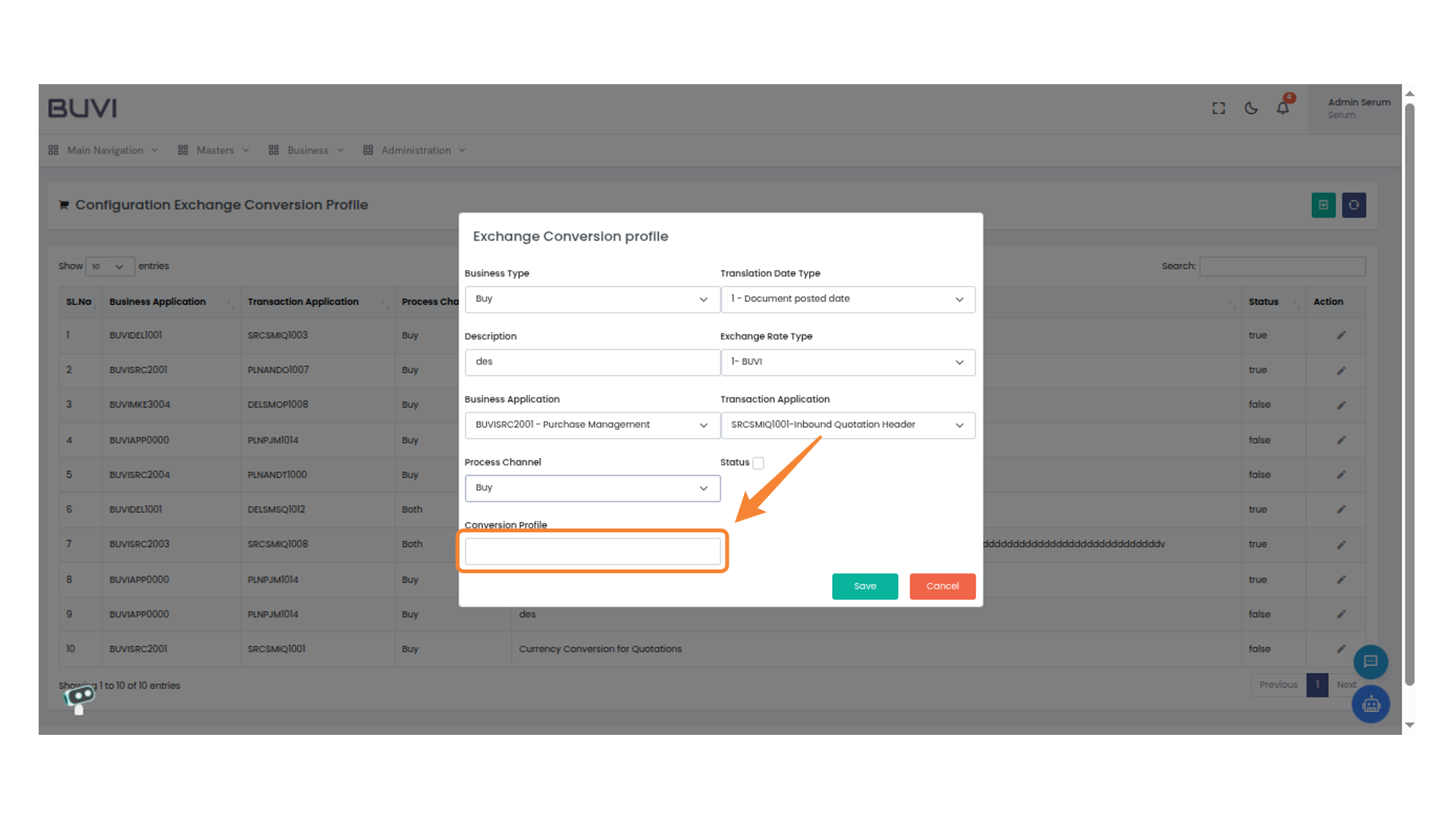
26. Conversion Profile Input Field
Enter the appropriate conversion profile details.
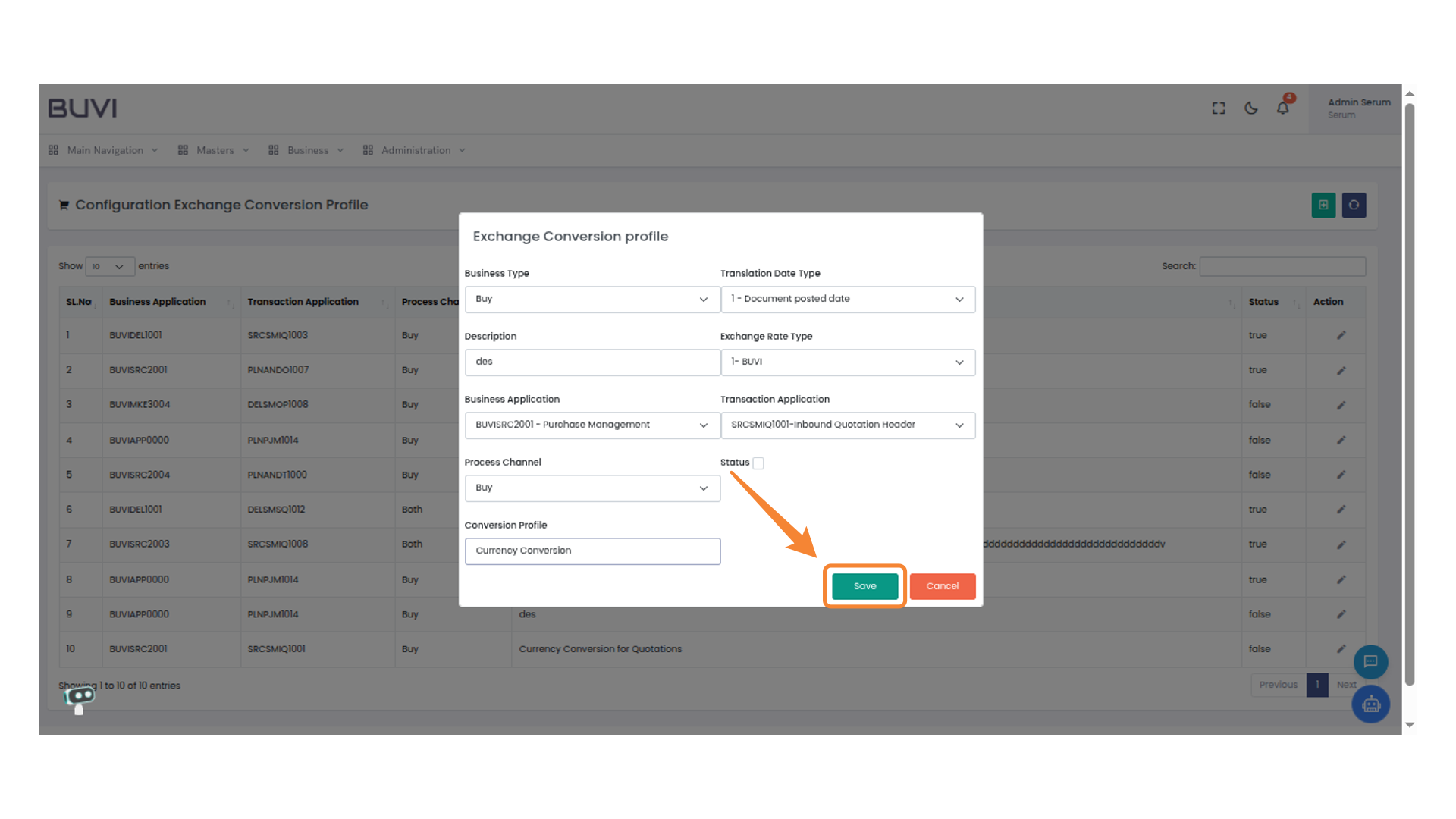
27. Save Button
Click to save the current settings and apply changes.
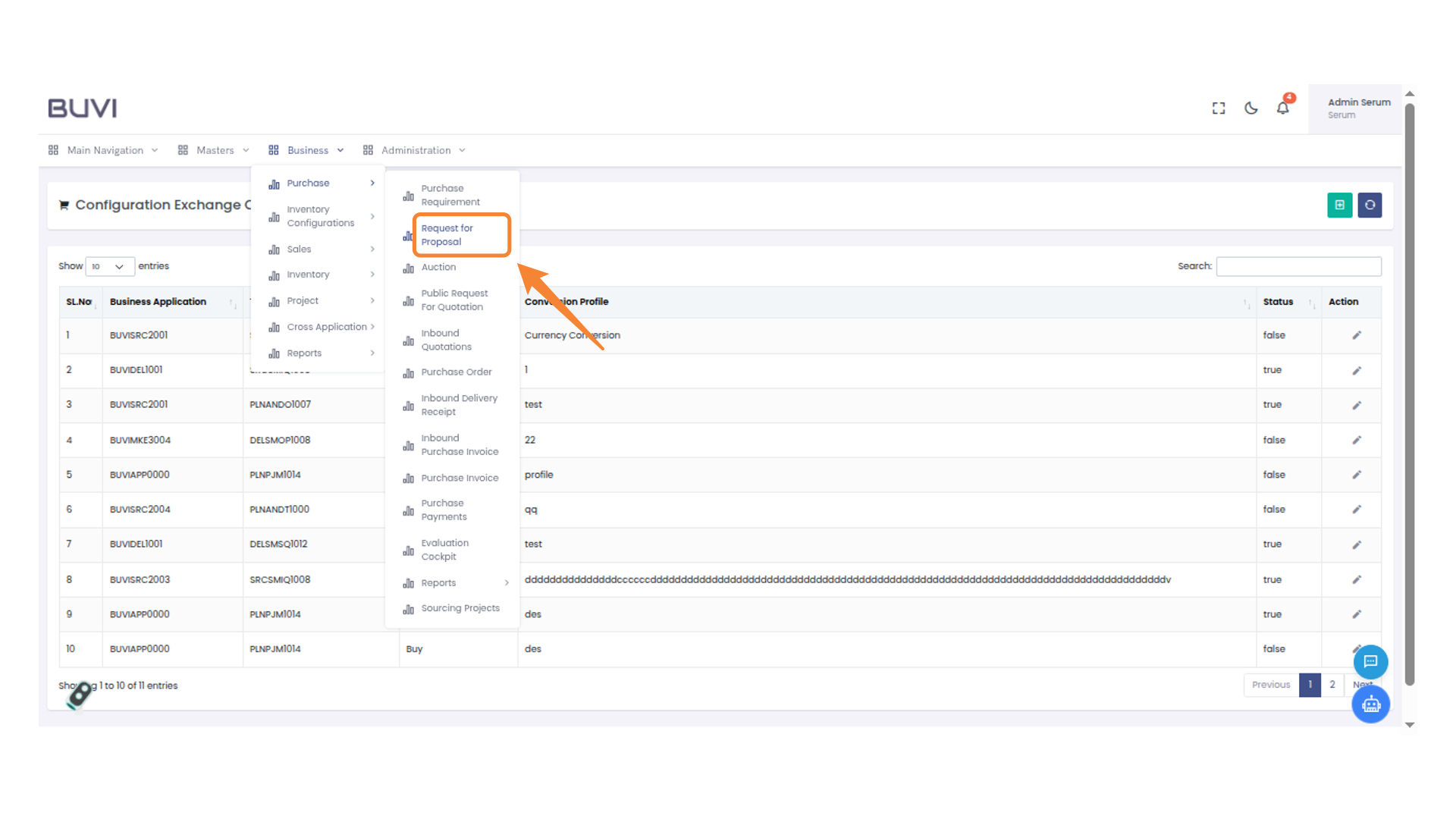
28. Request for Proposal Section
Go to Request for Proposal menu under Purchase under Business
29. Create New Request
Click to initiate a new proposal request.
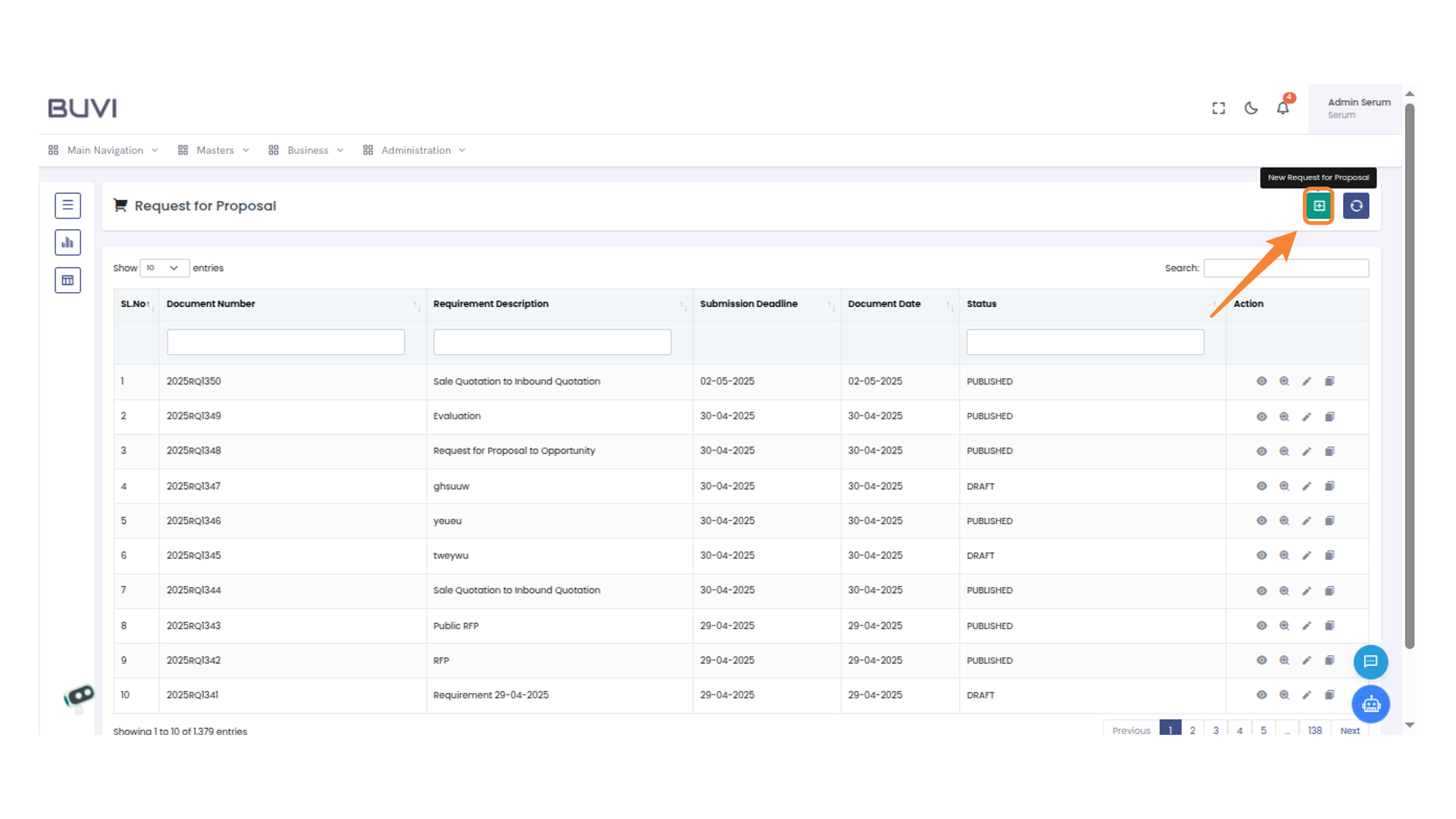
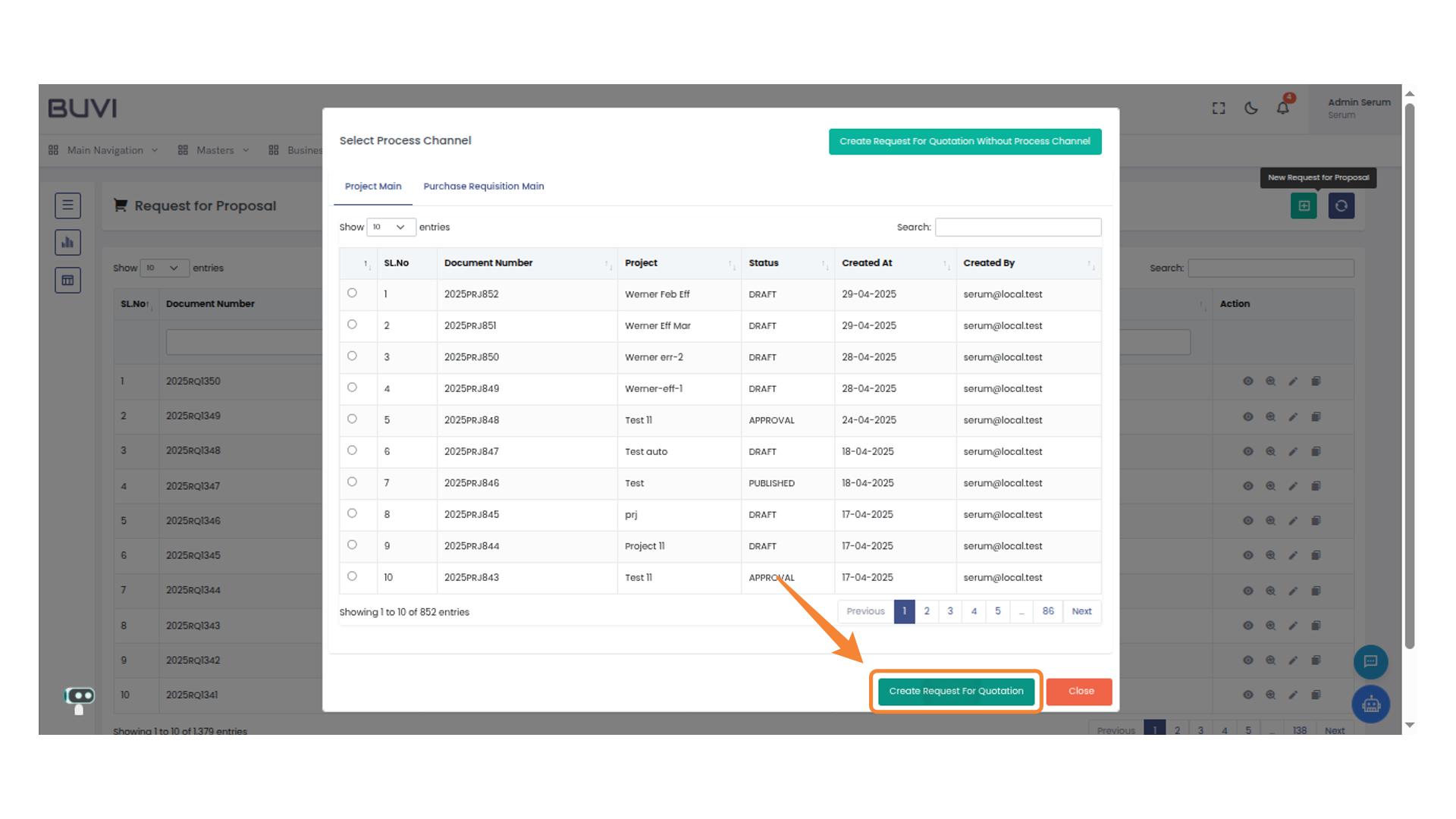
30. Create Request for Quotation Button
Click to initiate a new request for quotation.
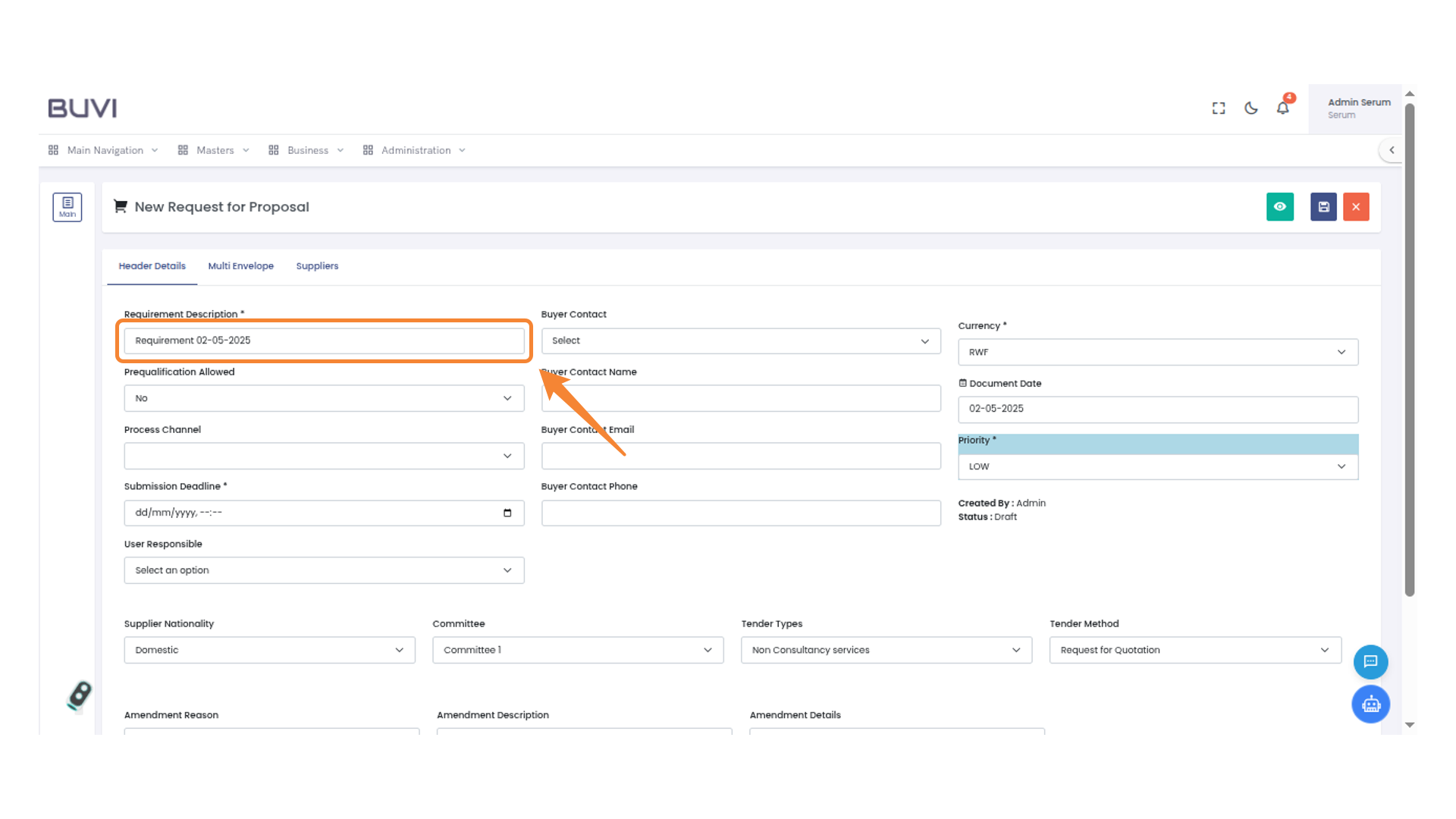
31. Requirement Description
Enter the requirement details
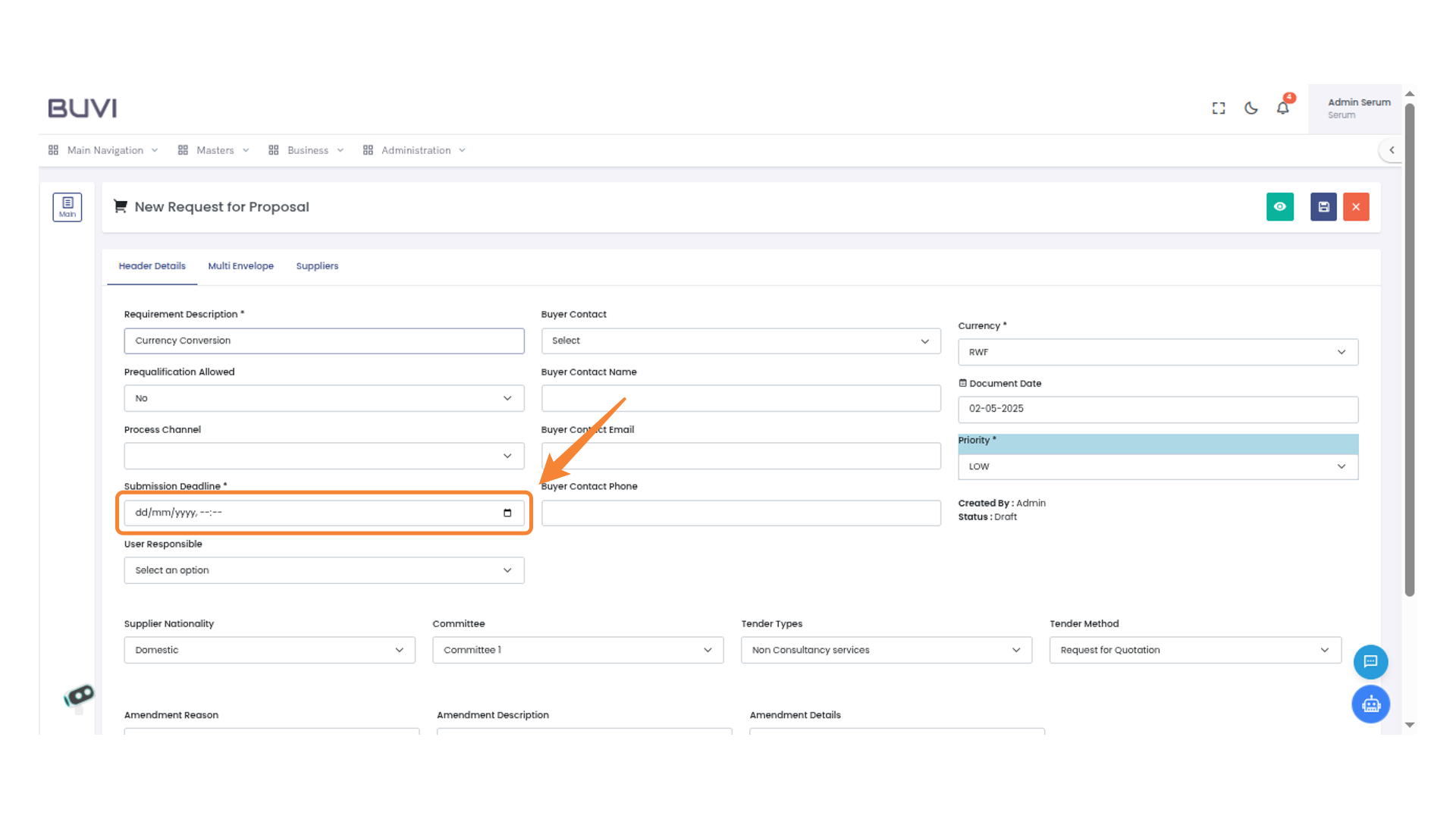
32. Submission Deadline Field
Enter the submission deadline date and time using the provided format.
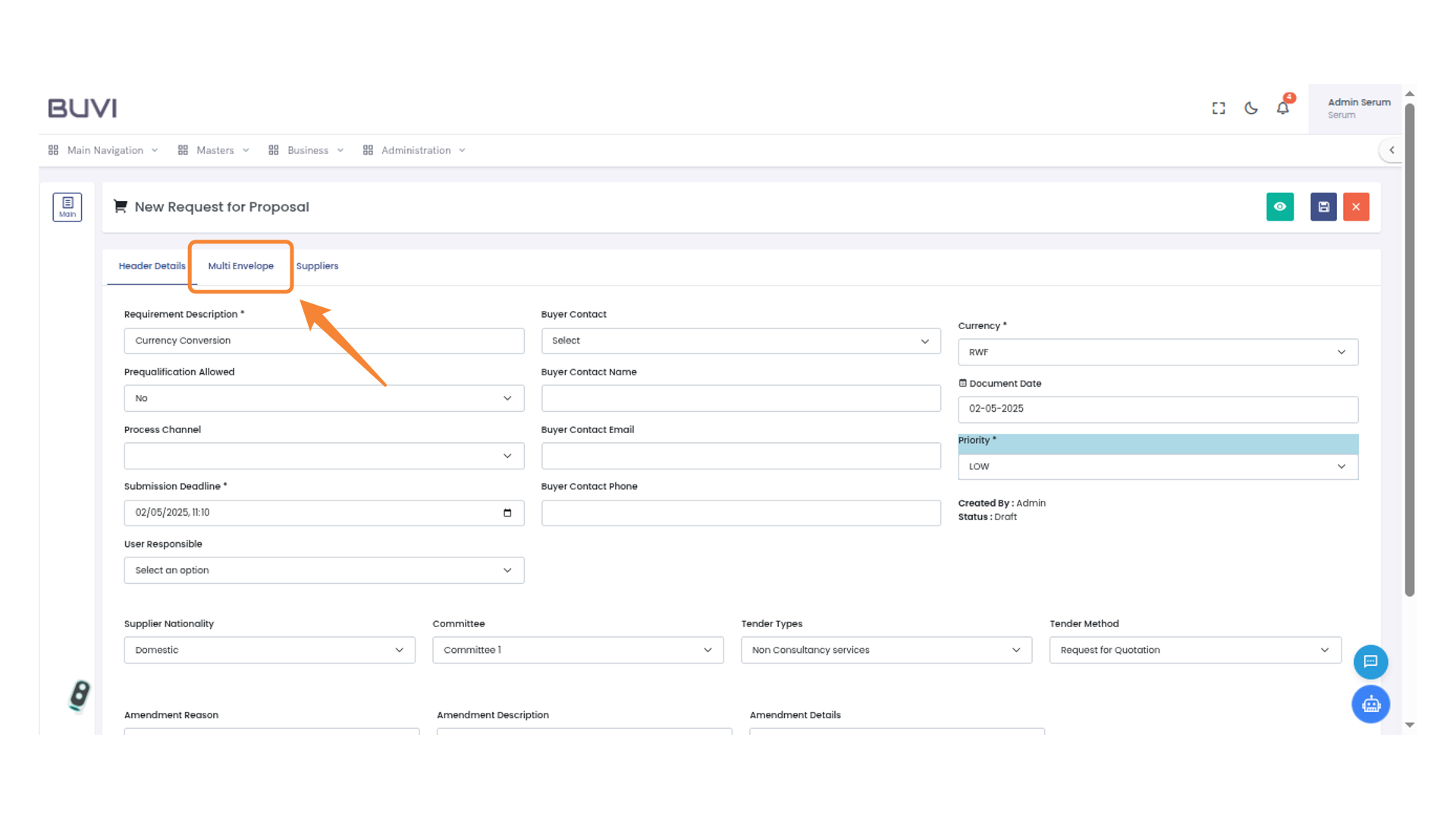
33. Multi Envelope Tab
Access and configure the multi-envelope settings for the proposal.
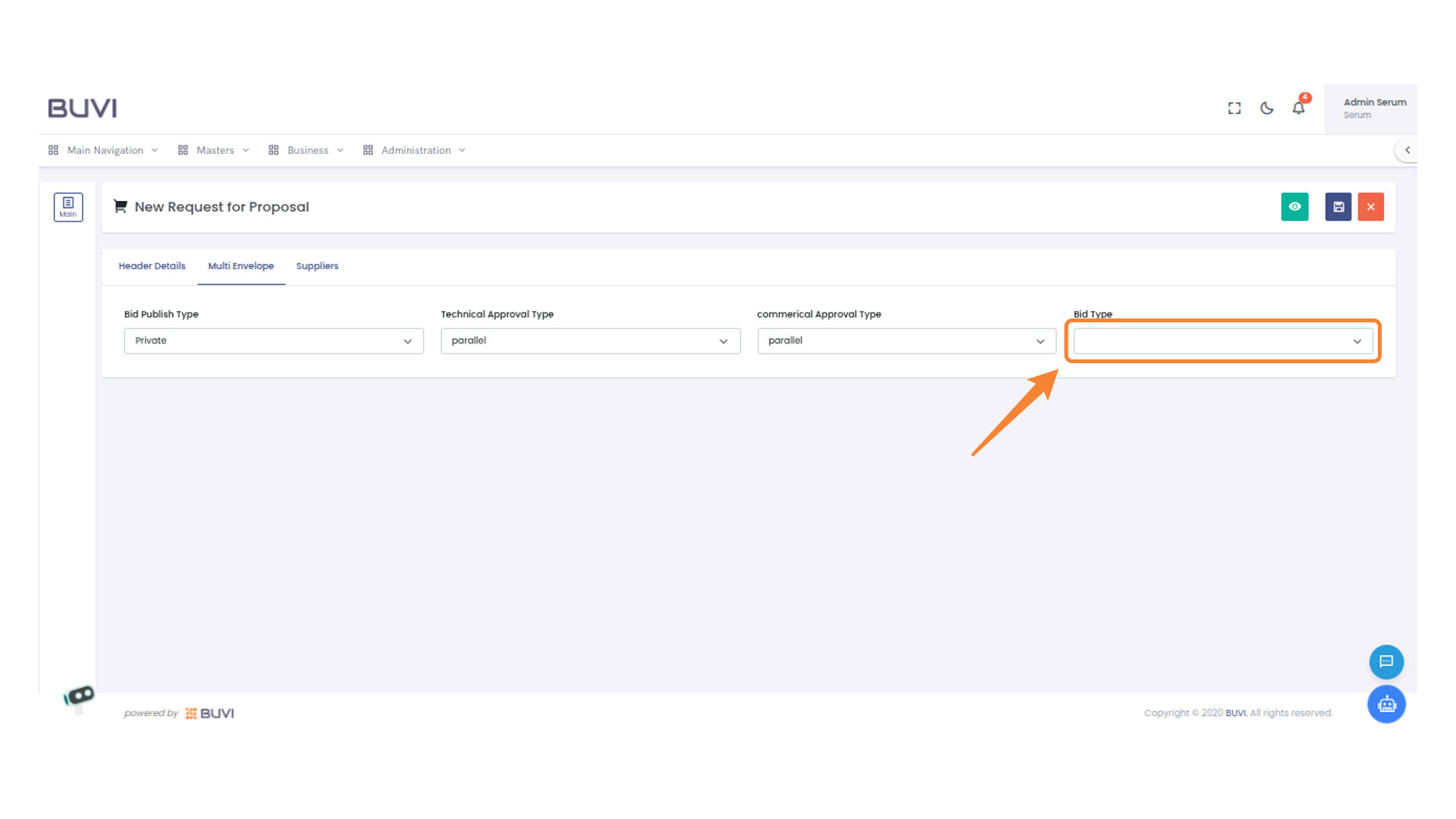
34. Bid Type Selection
Choose the appropriate bid type from the dropdown menu.
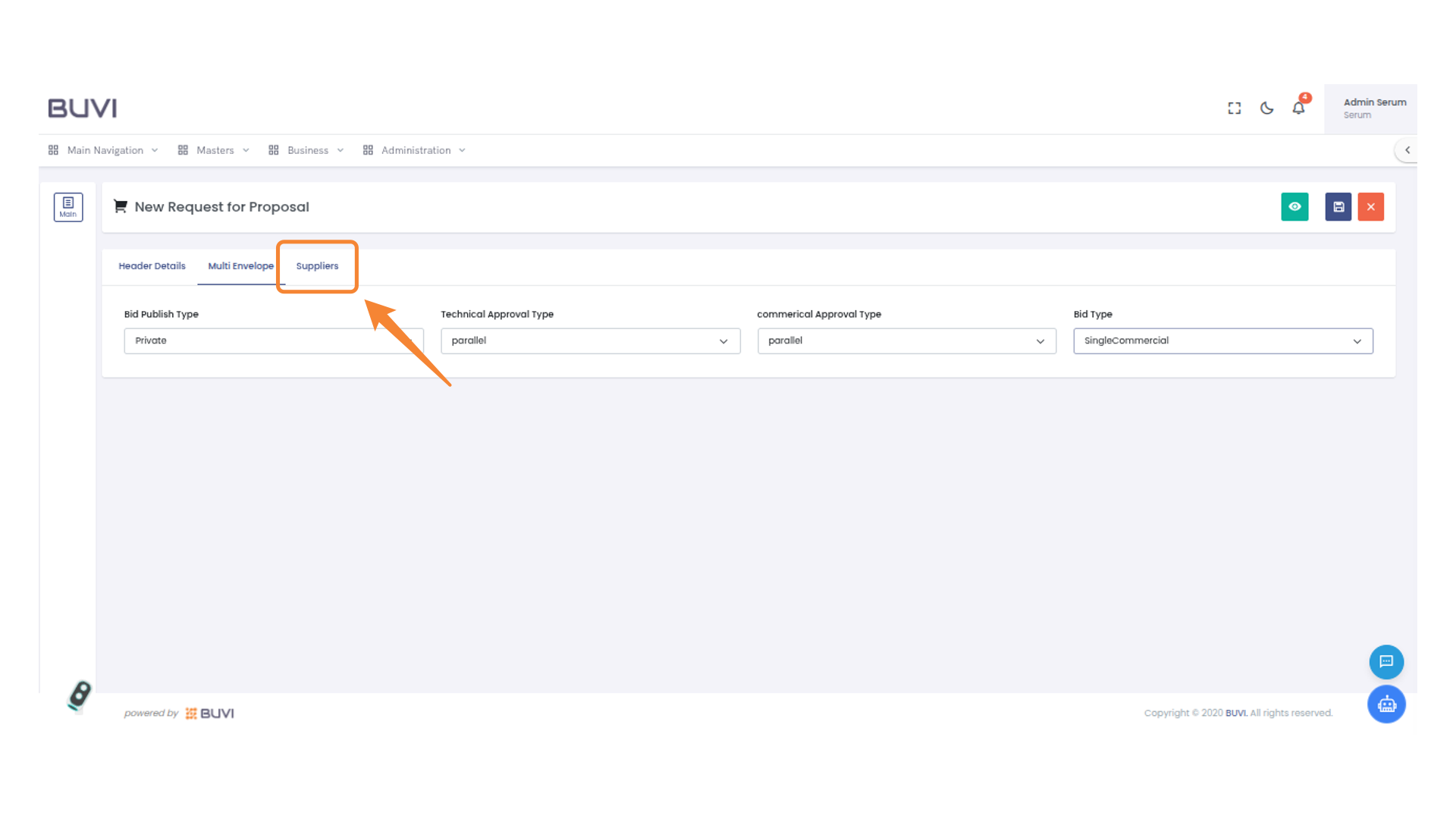
35. Suppliers Tab
Navigate to the Suppliers tab to view or manage supplier information.
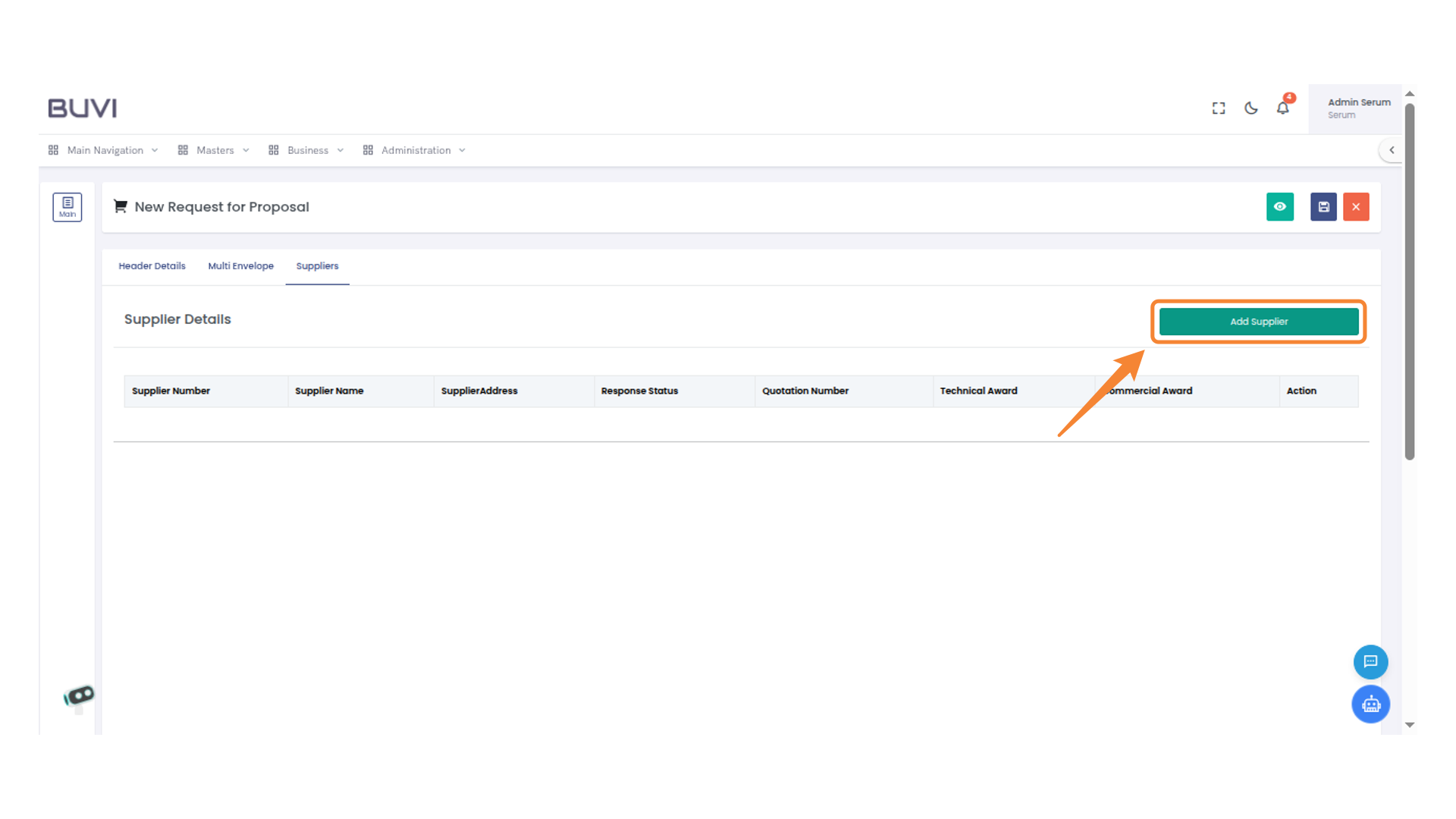
36. Add Supplier Button
Click the button to add a new supplier to the list.
37. Supplier Name Selection
Identify and select 'Nicomac' from the supplier list for further actions.
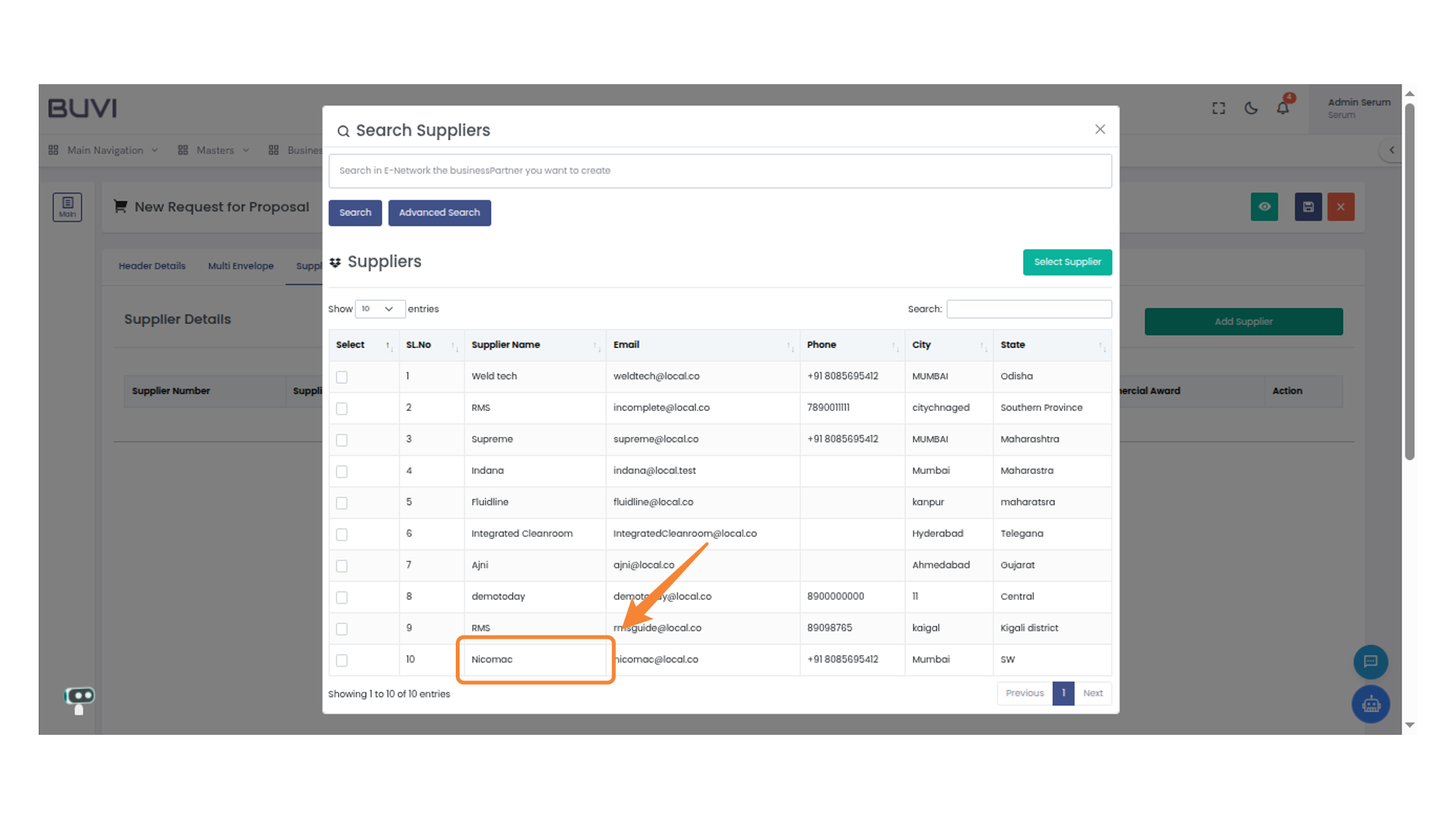
38. Supplier Selection Button
Select a supplier by clicking this button.
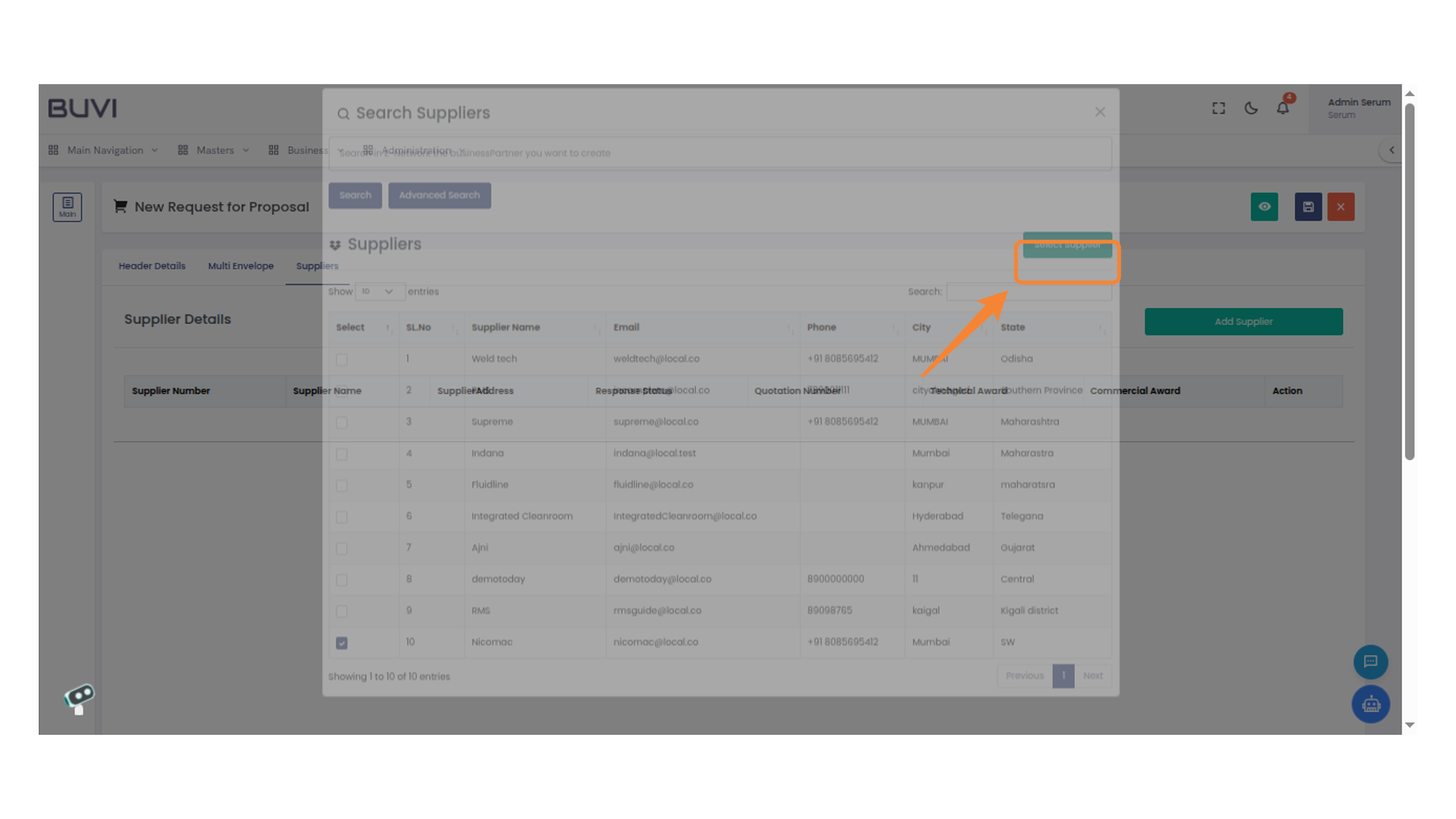
39. Save Changes Icon
Click here to save your current changes.

40. Confirmation Dialog Box
Click 'Save' to proceed with saving the document draft.

41. Multi Envelope Tab
Select the 'Multi Envelope' tab to manage related proposal settings and details.
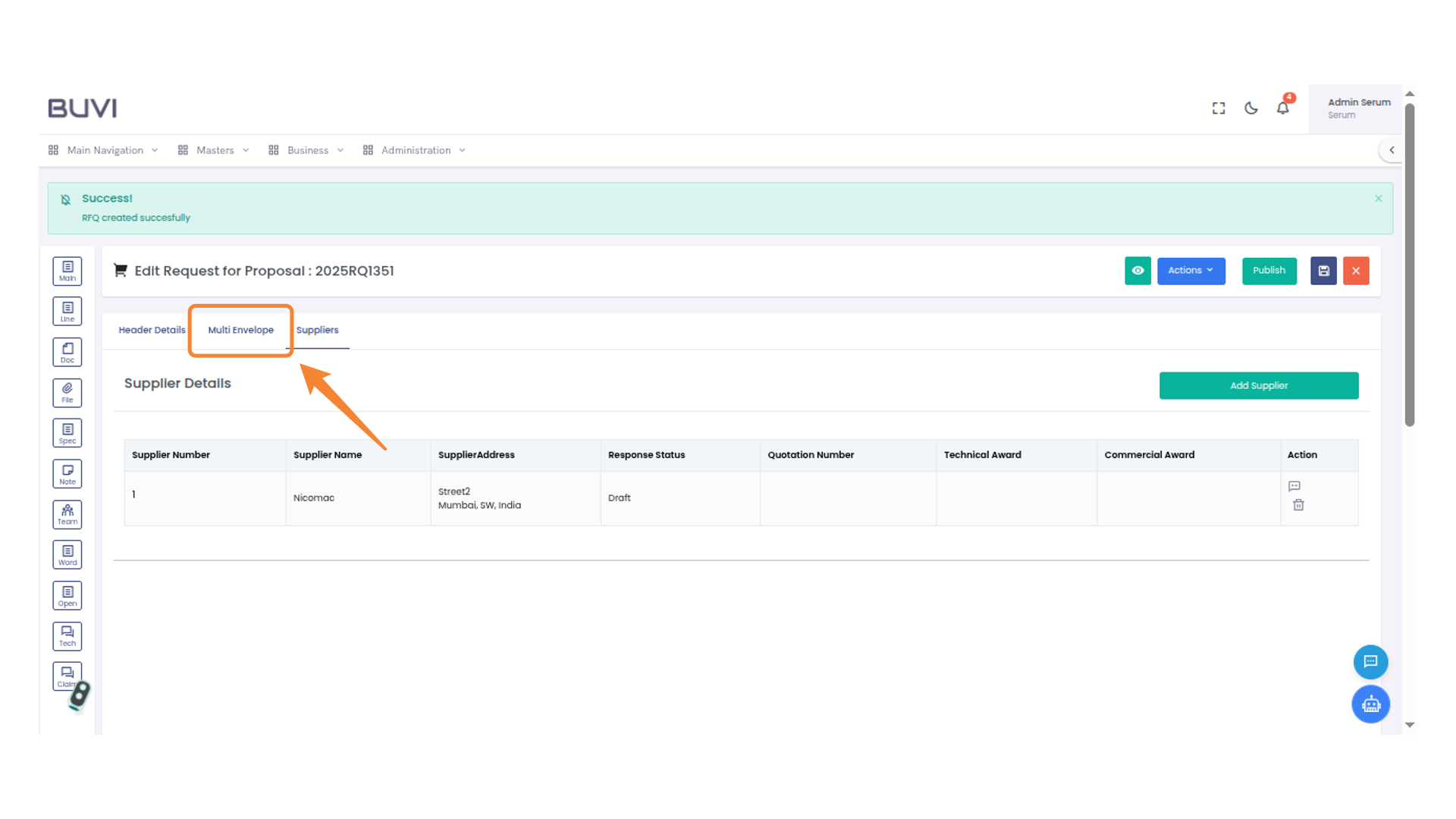
42. Commercial Opening Date
Set the commercial opening date by selecting the appropriate date from the calendar.
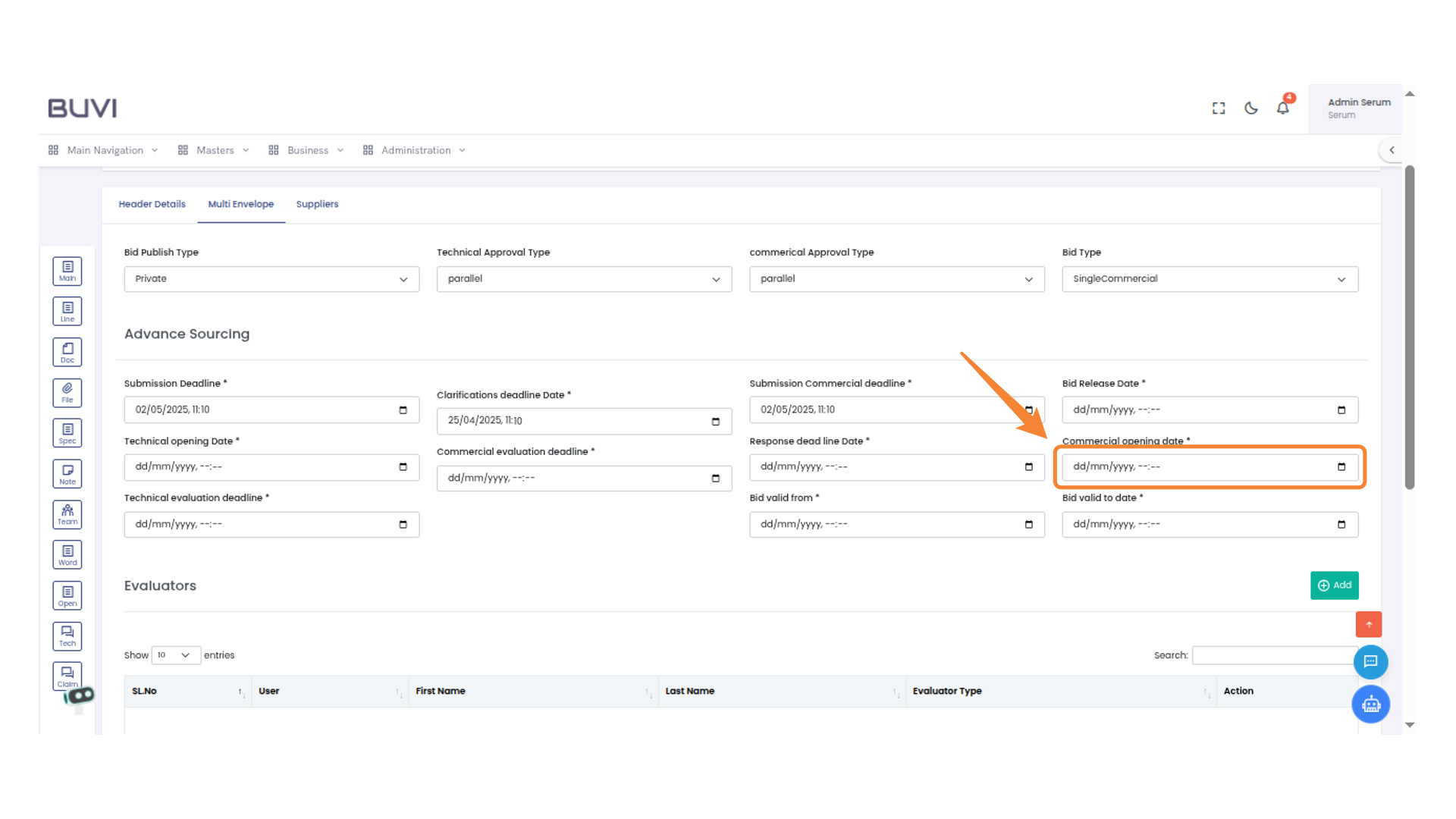
43. Add Button
Click the button to add a new entry.
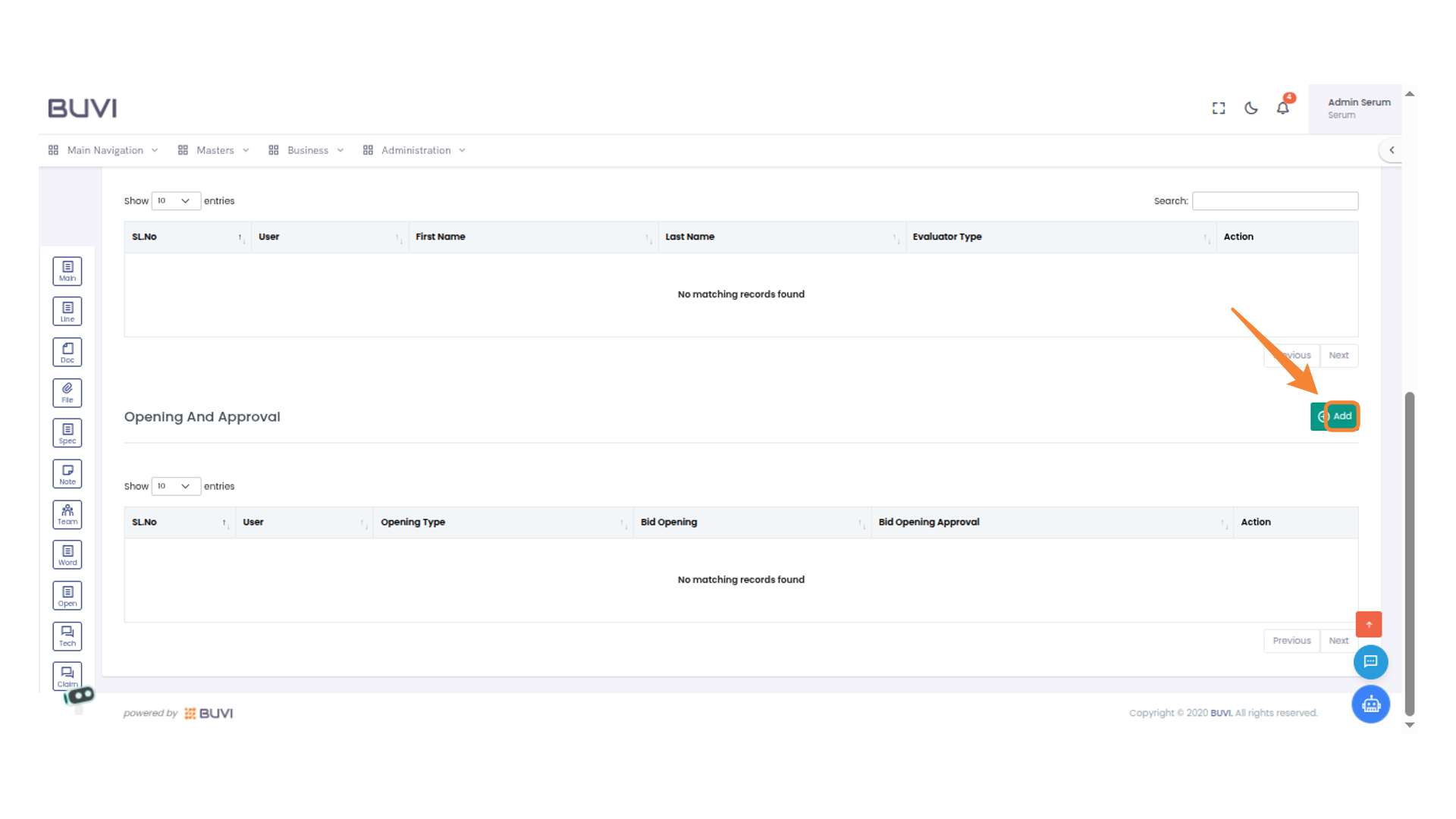
44. Add Opening and Approval Details
Add Opening and Approval Details and click on save
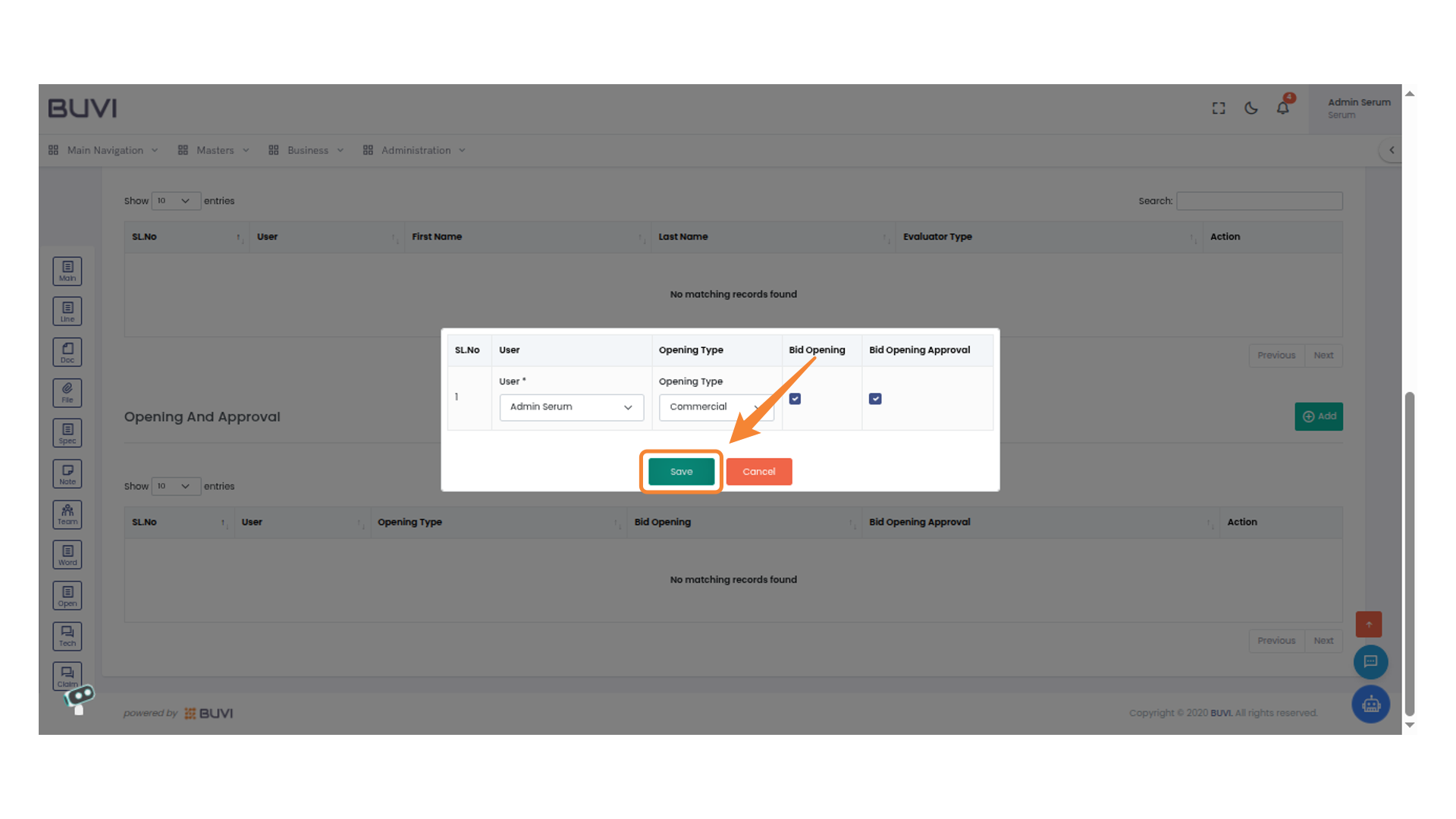
45. Add Button
Click to add a new entry to the list Evaluator List
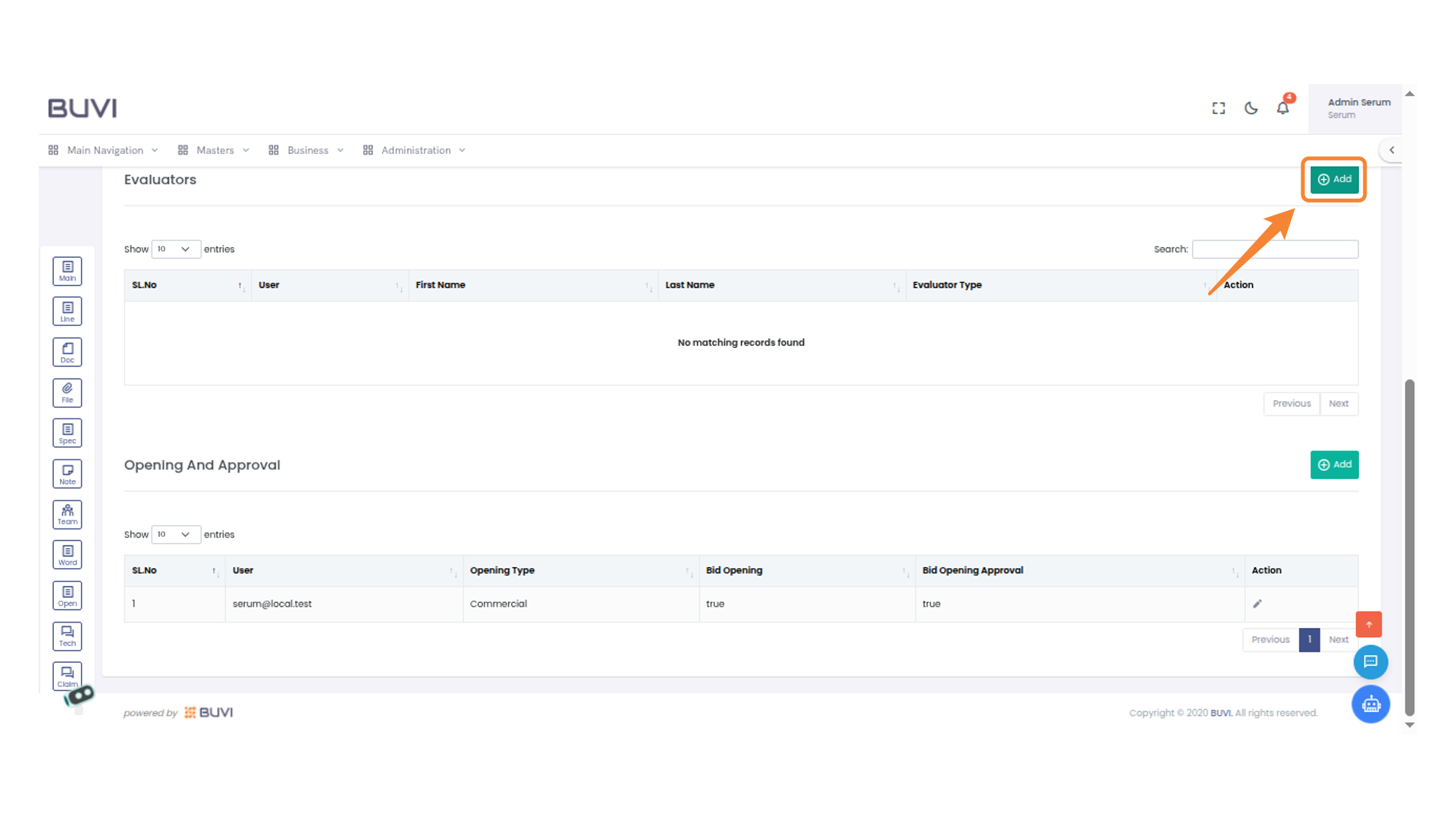
46. Save Button
Add Evaluator details and it task and click on save
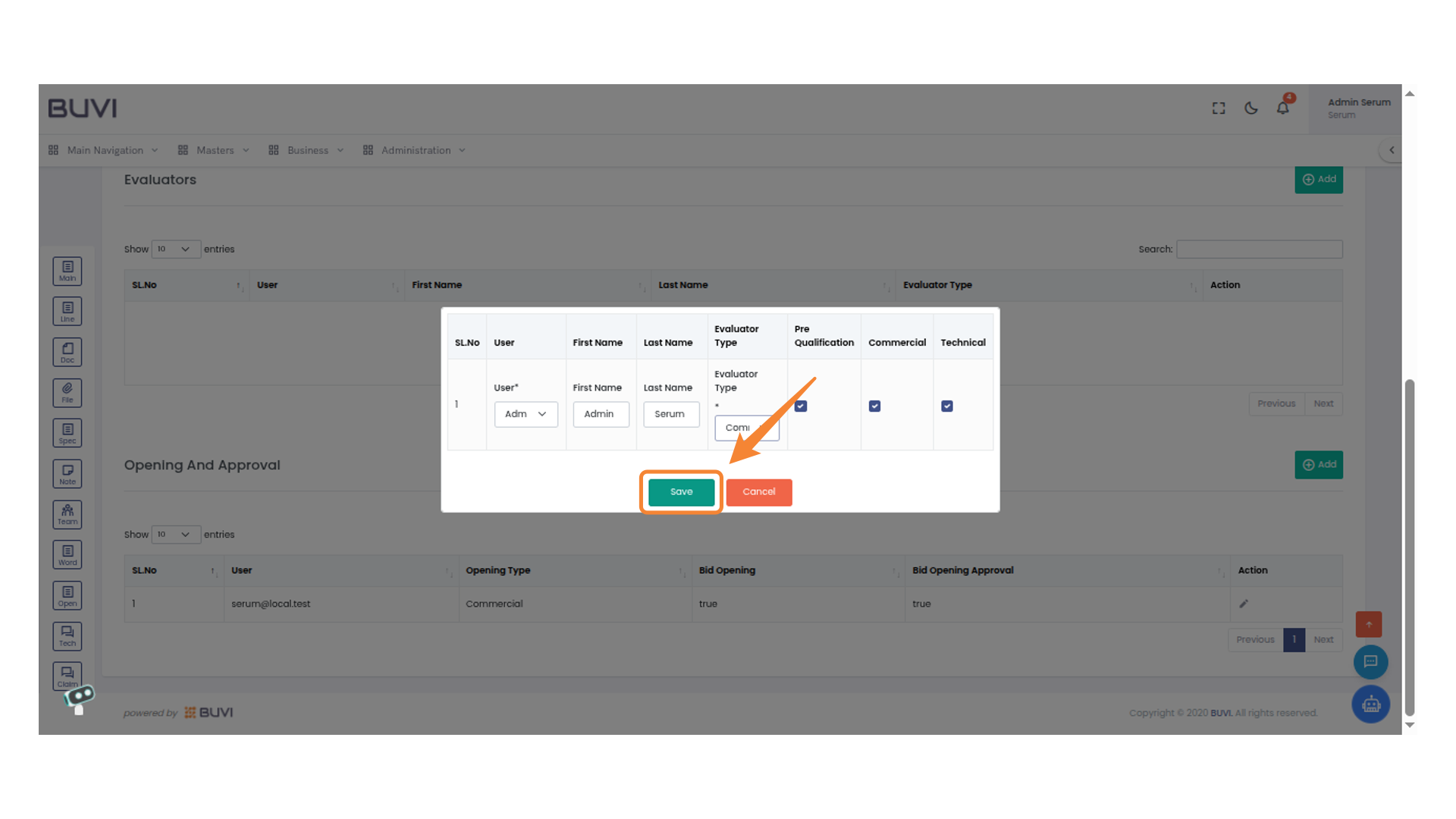
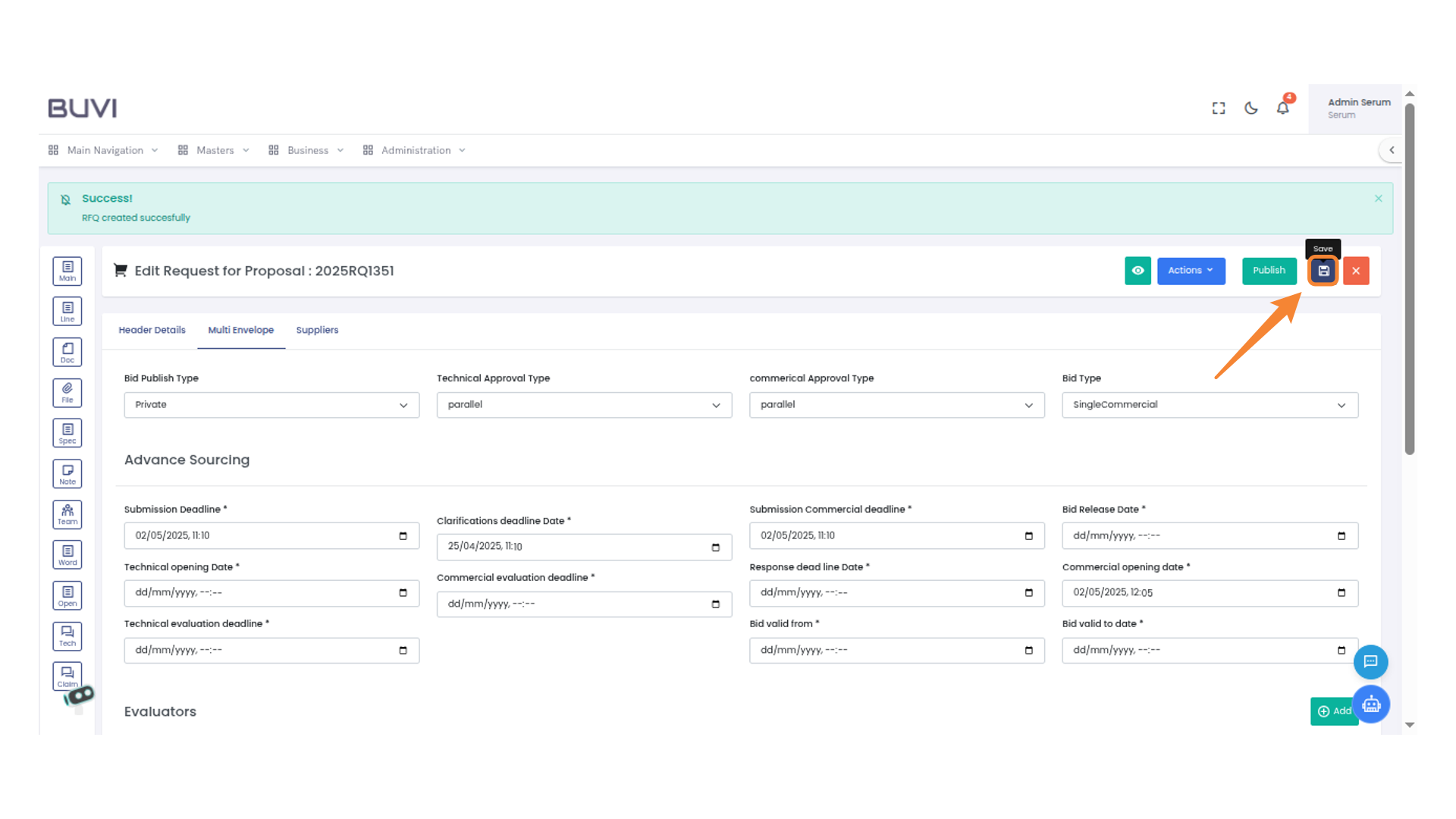
47. Save Button
Click to save your changes.
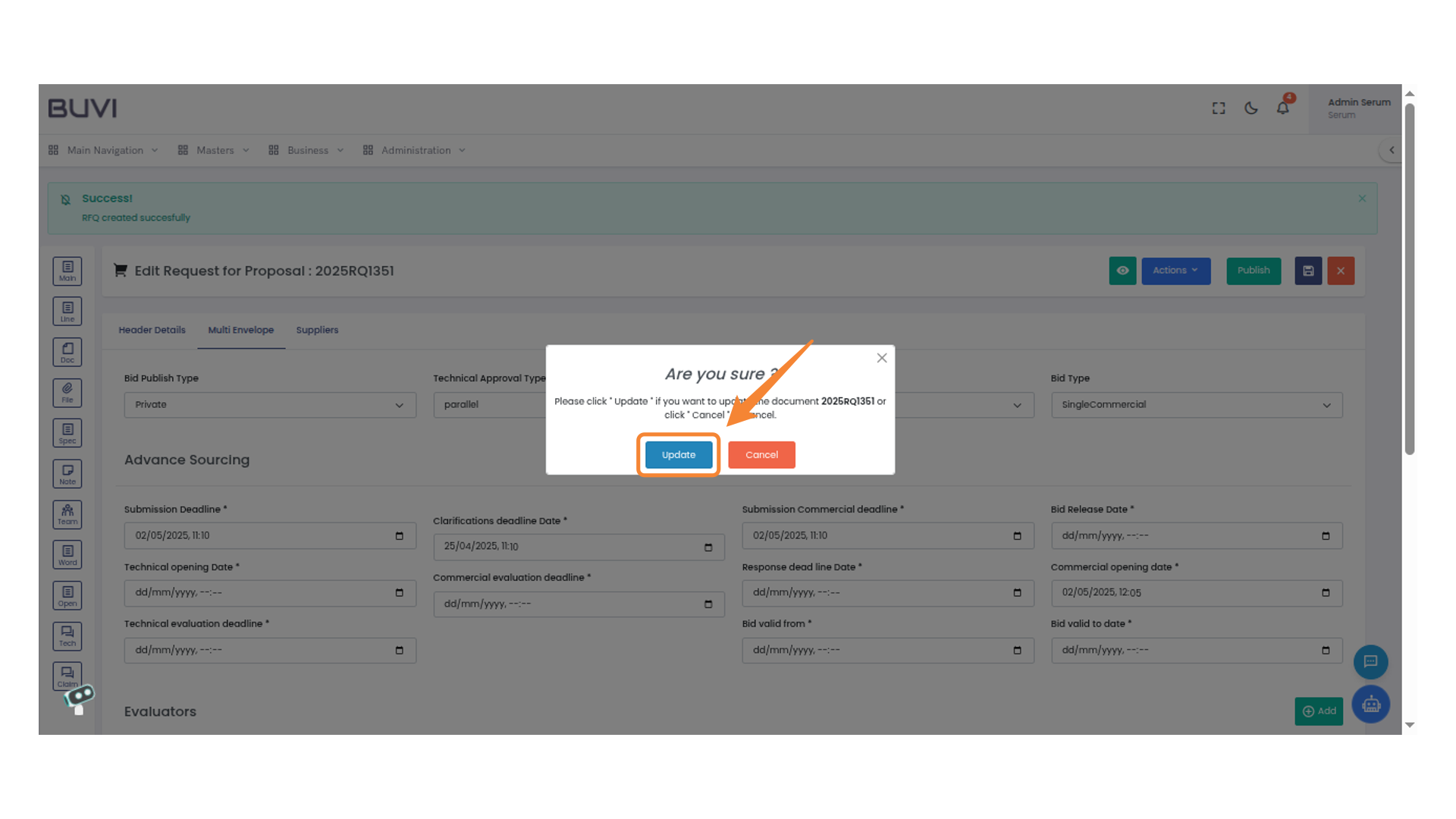
48. Confirmation Dialog Box
Click 'Update' to proceed with updating the document.
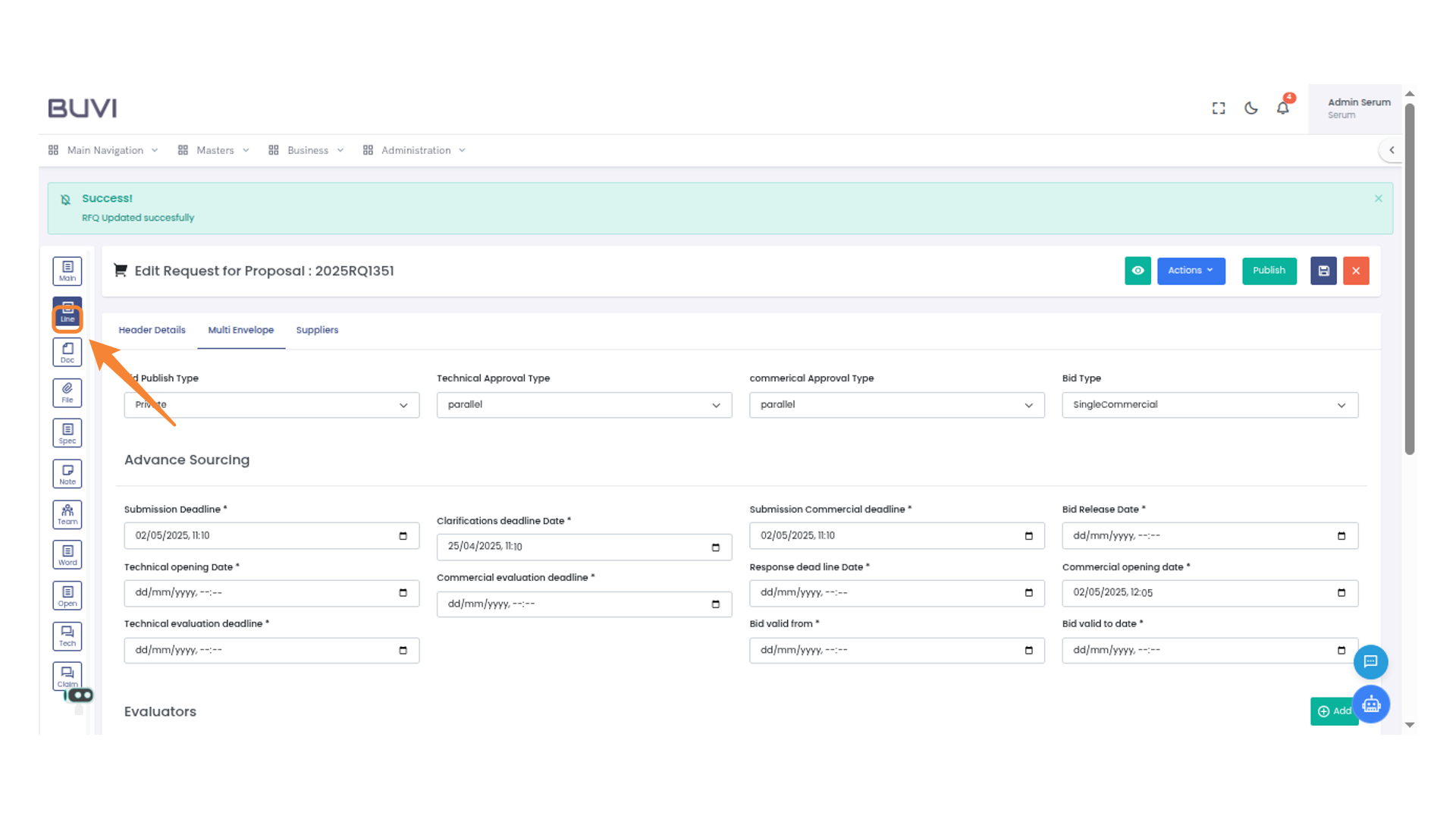
49. Line item
Click on Line item tab
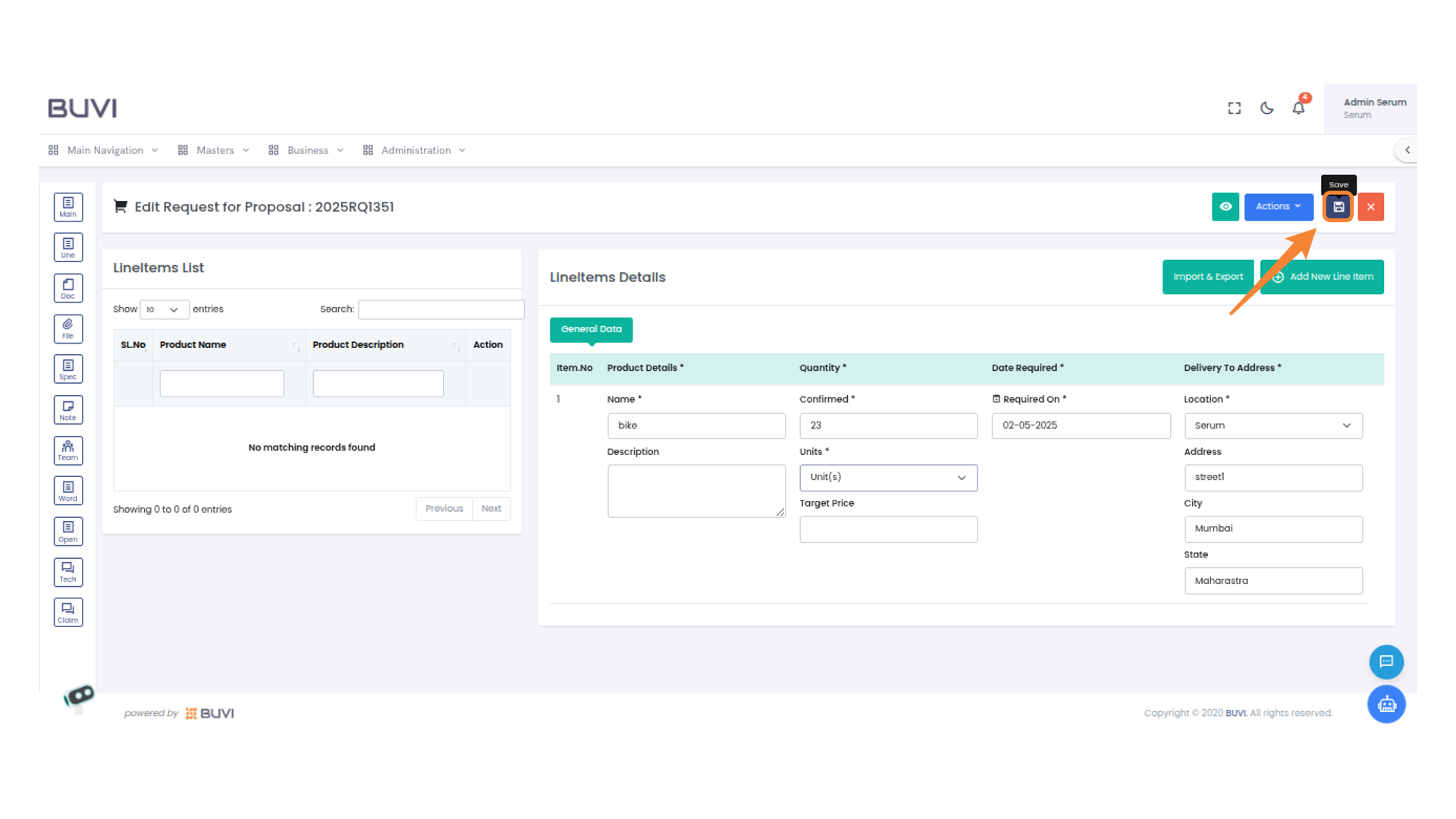
50. Add New Line Item Button
Click this button to add a new line item to the proposal.

51. Save Button
Add Line item details and click on save
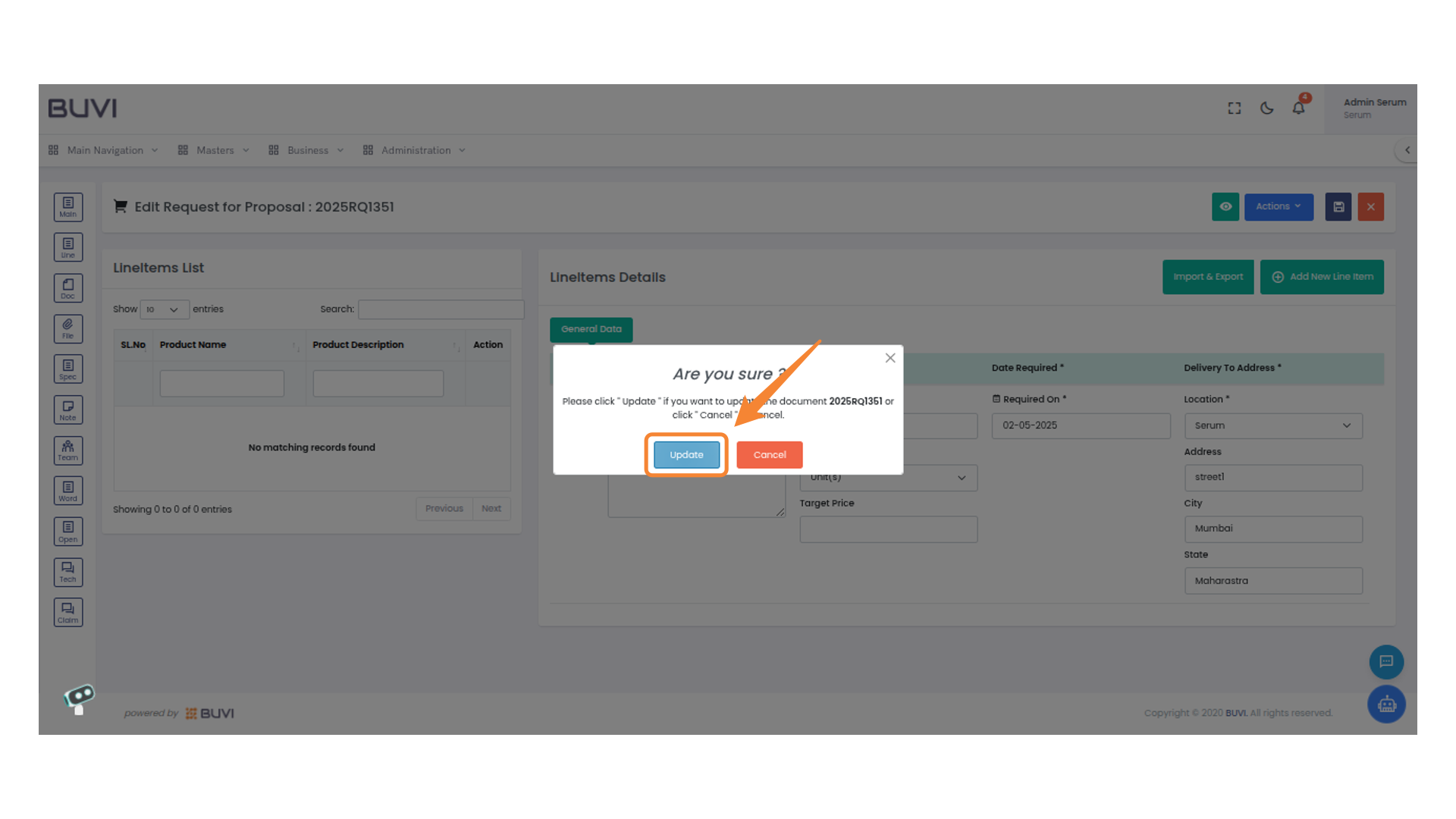
52. Confirmation Dialogue
Click the 'Update' button to proceed with saving changes to the document.
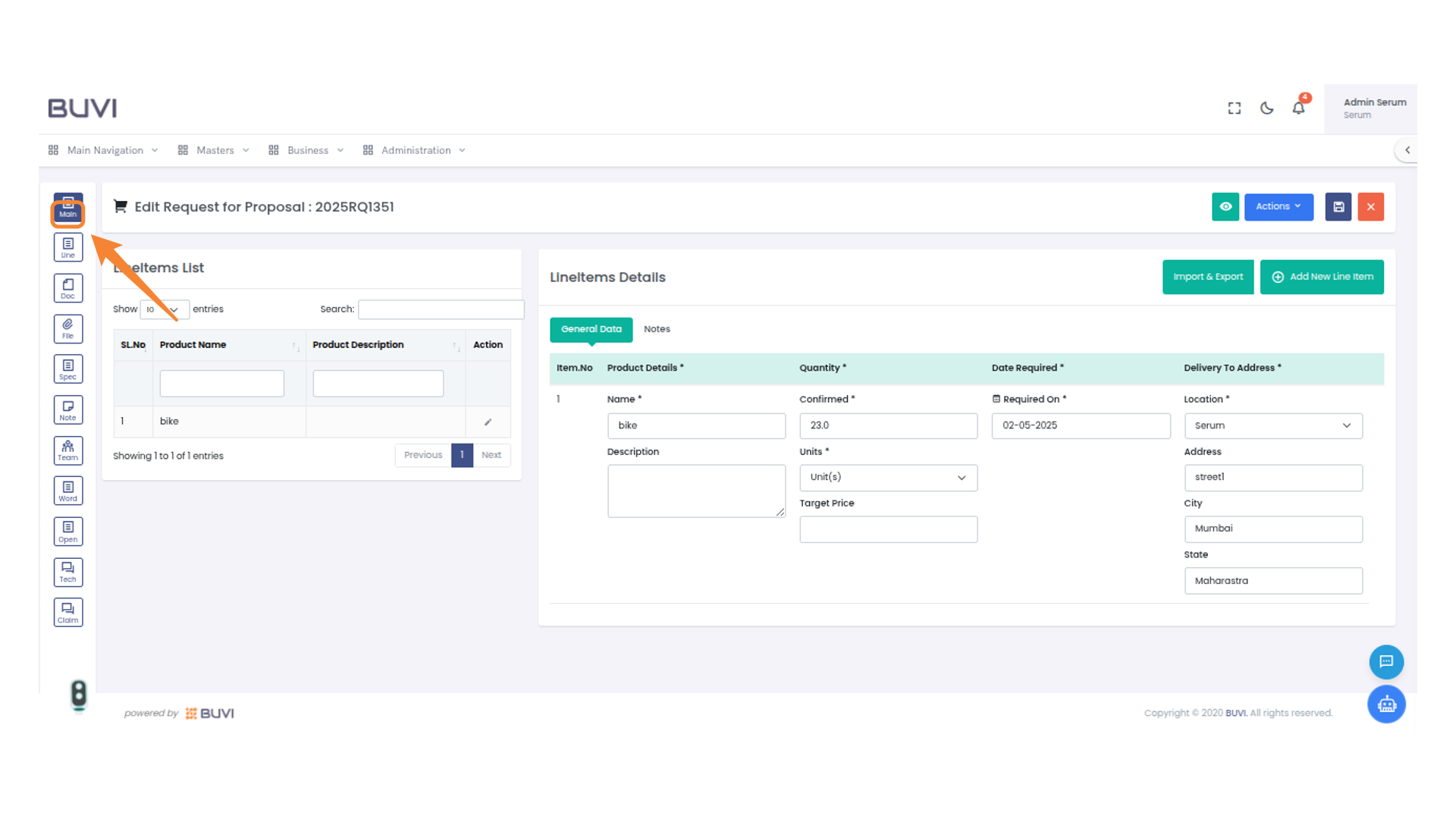
53. Main Menu Button
Navigate to the main menu options by clicking here.
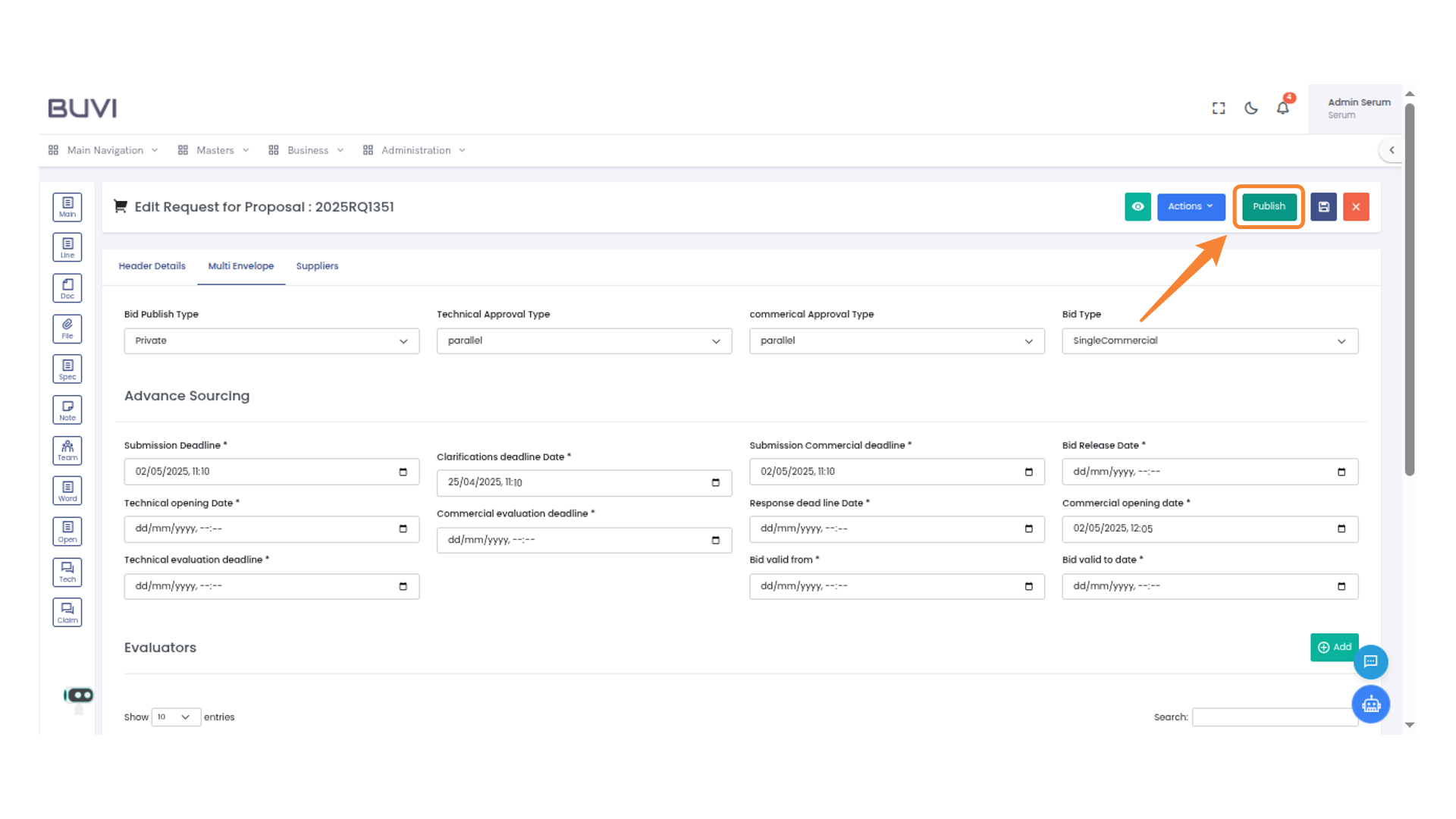
54. Publish Button
Click to publish the current proposal.
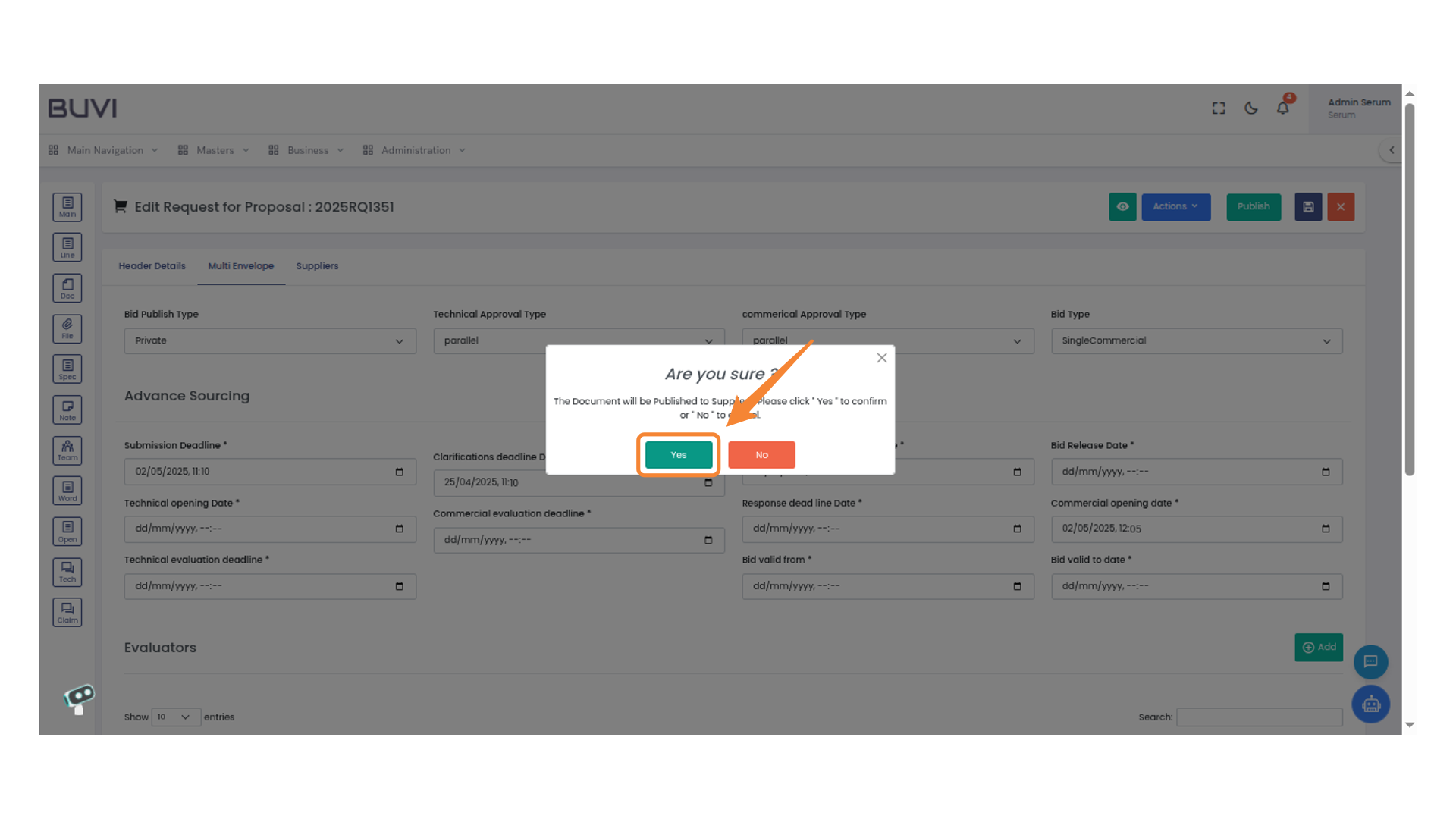
55. Confirmation Prompt
Click 'Yes' to confirm the publication of the document.
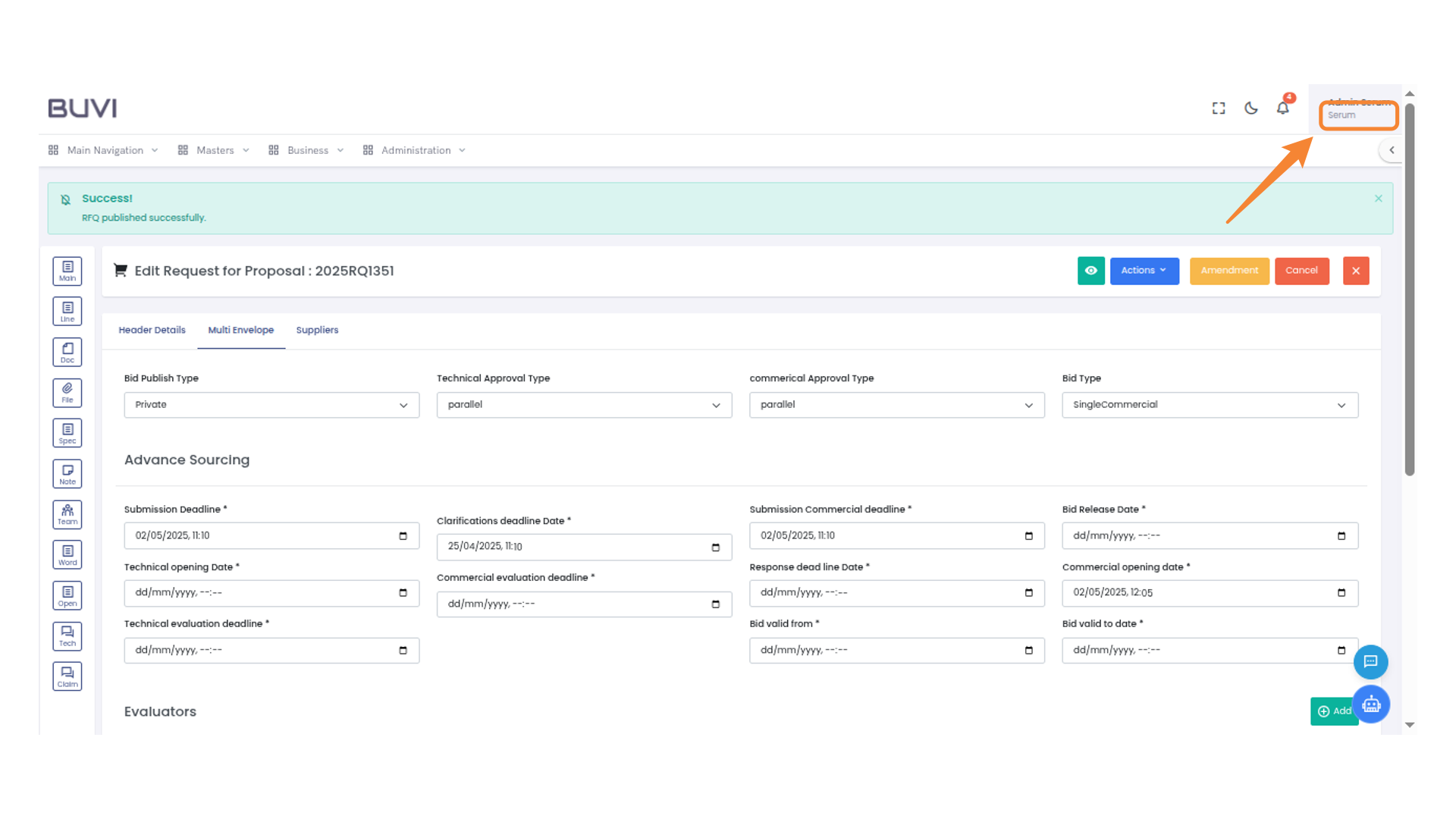
56. Logout from the application
Logout from the application
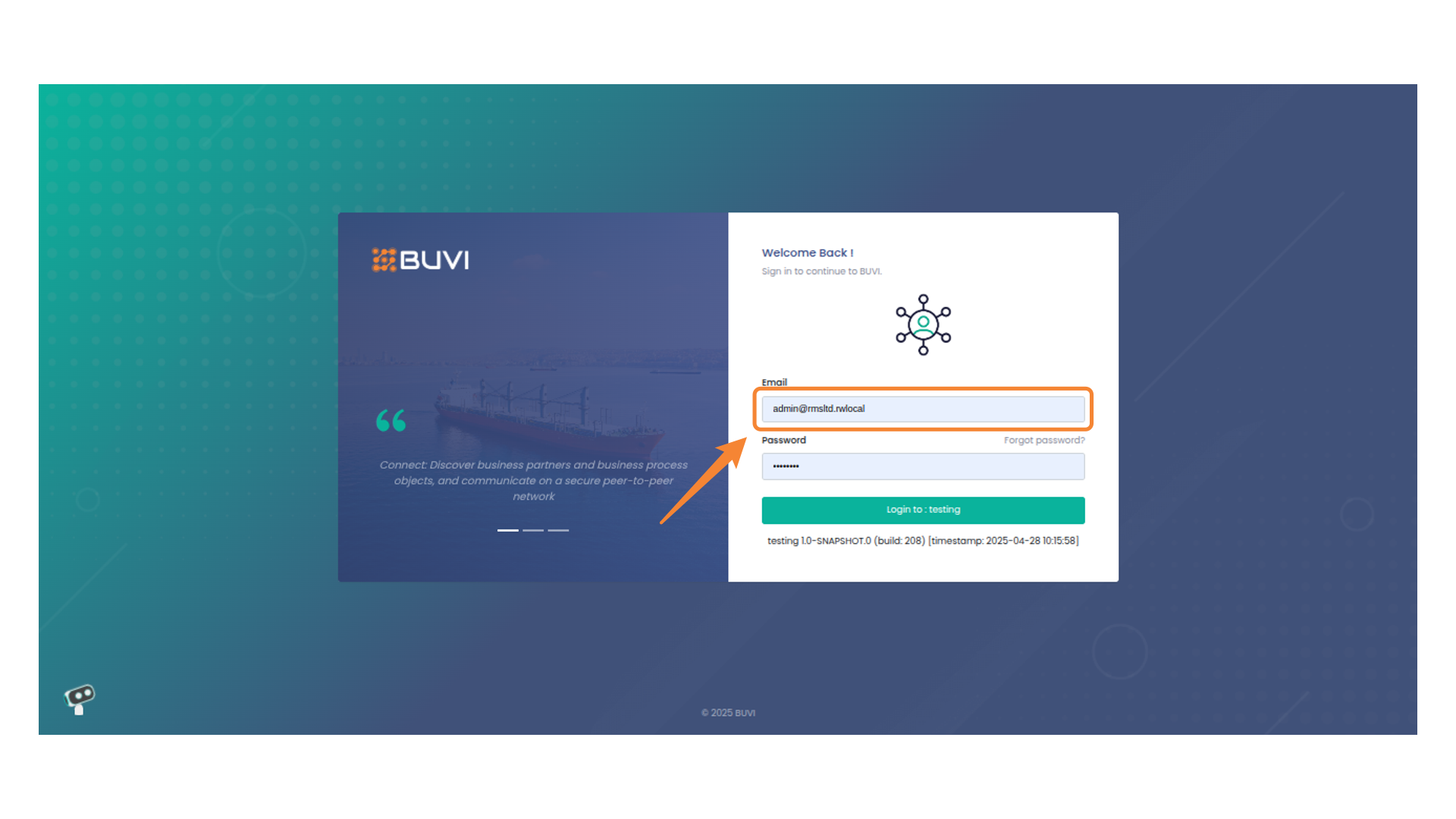
57. Email Input Field
Enter your email address in this field to log in.
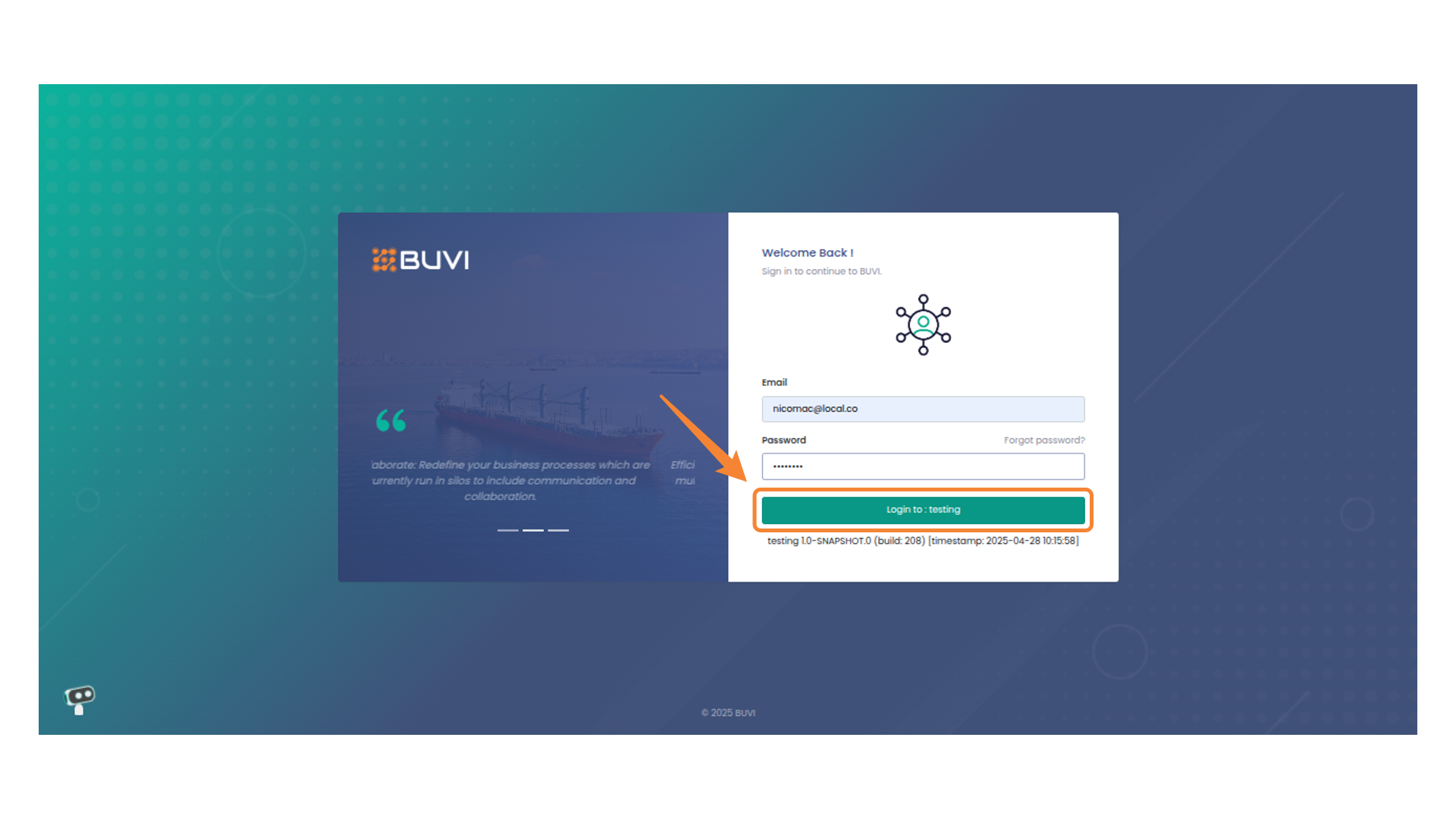
58. Login As Supplier
Click to Log in
59. Business Menu Dropdown
Click on Buiness Menu
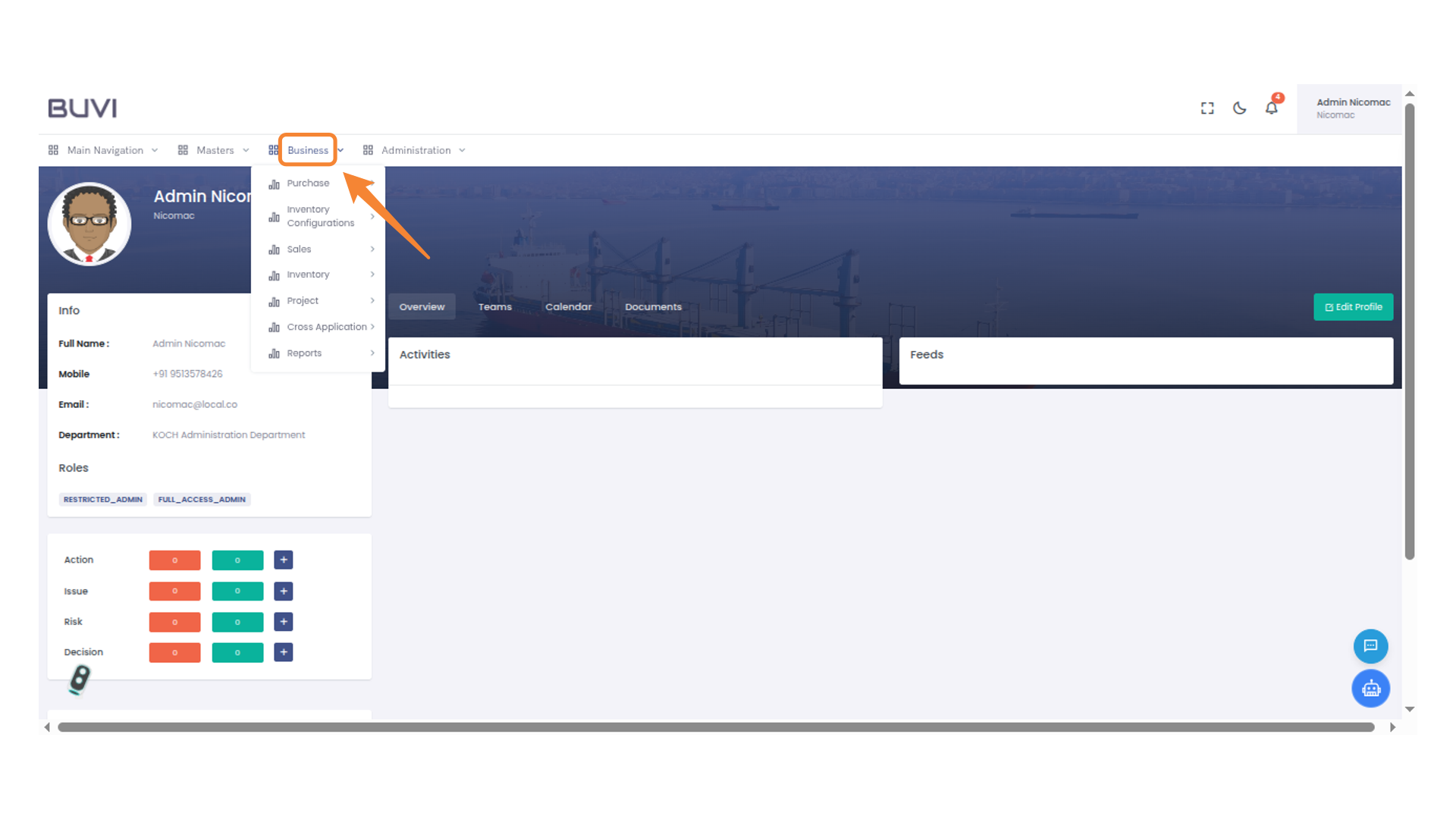
60. Sales Menu Option
Click on Sales menu
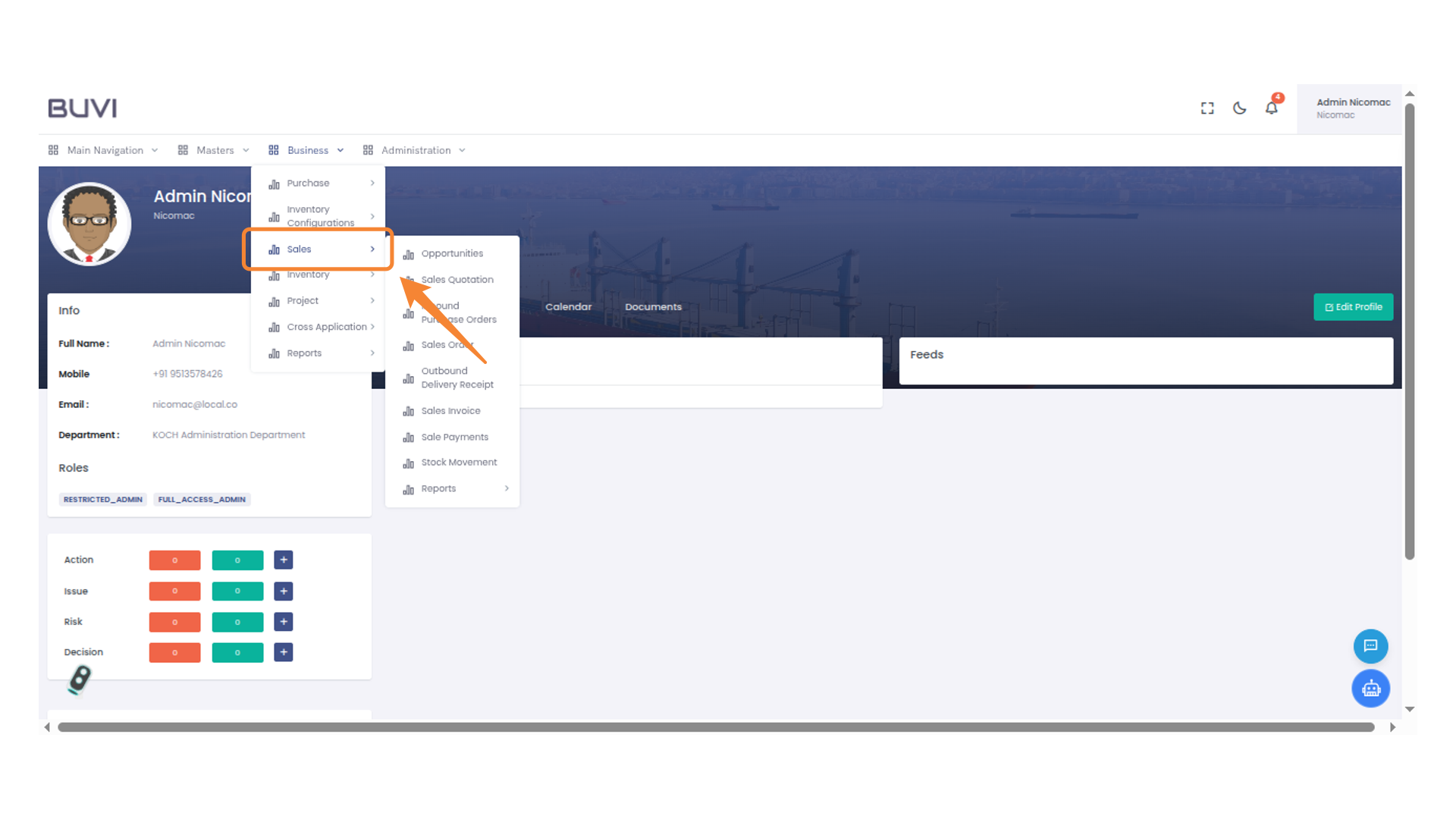
61. Navigating Opportunities
Click on Opportunity menu
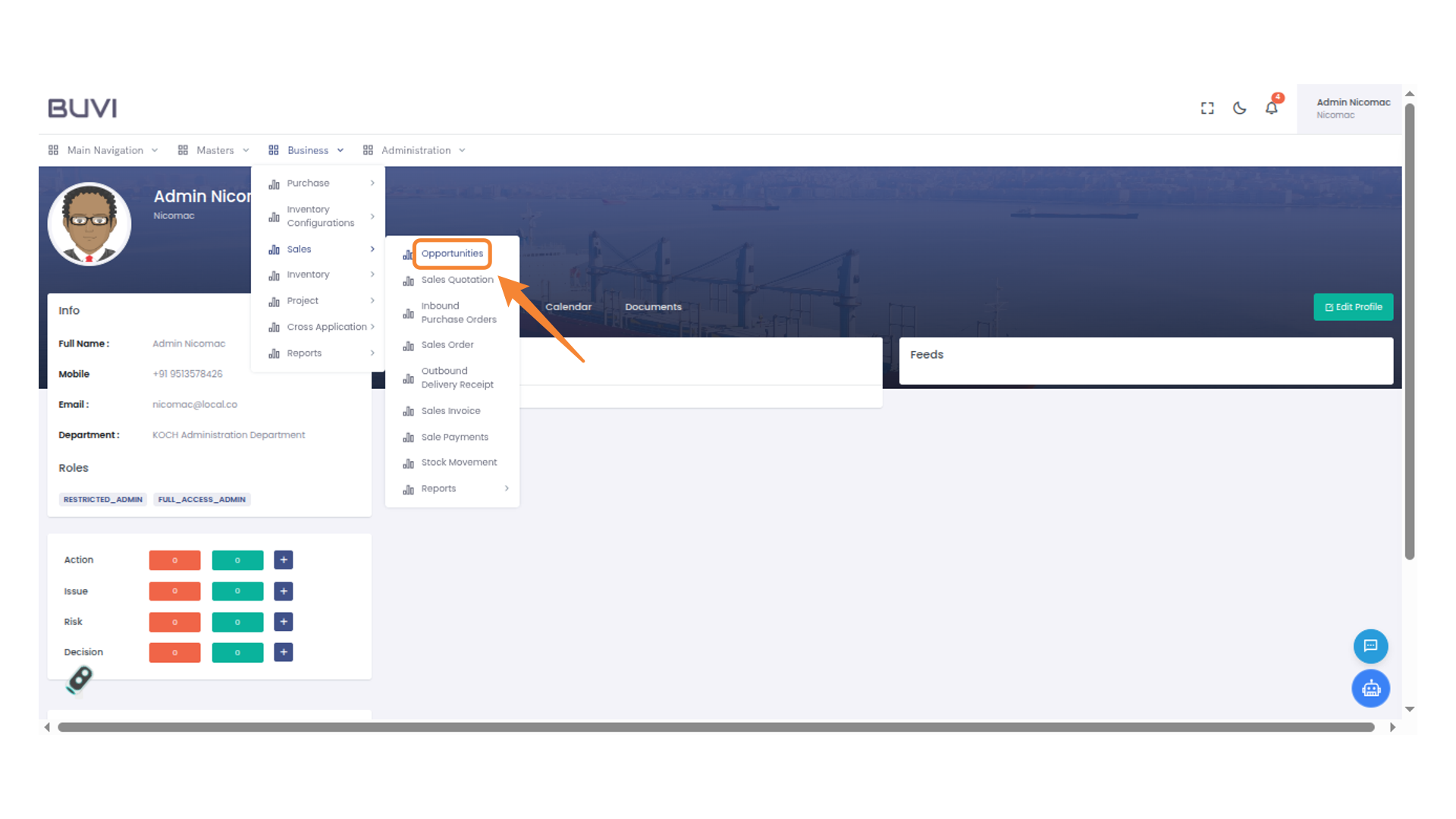
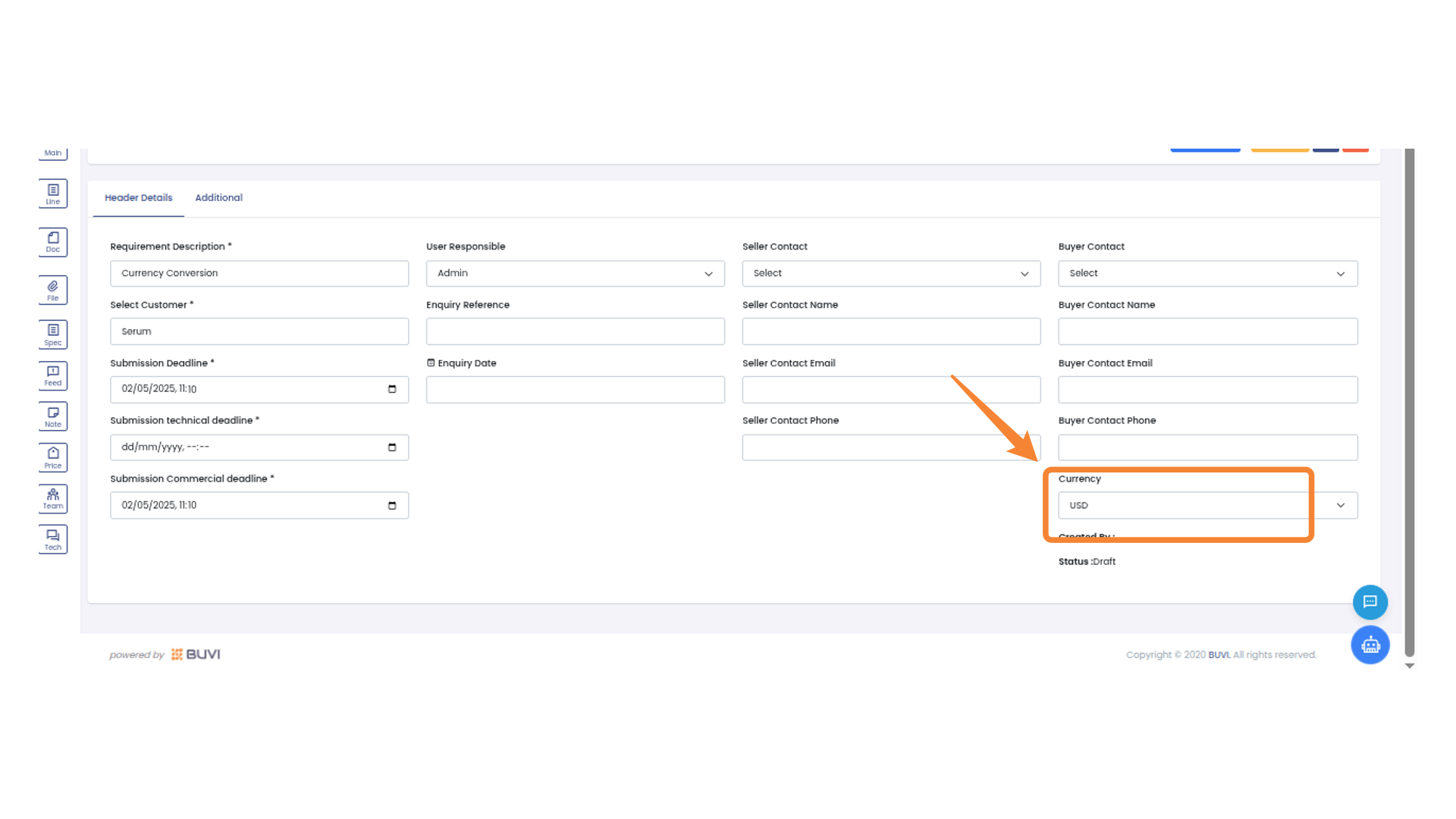
62. Currency Conversion Entry
check for the Opportunity
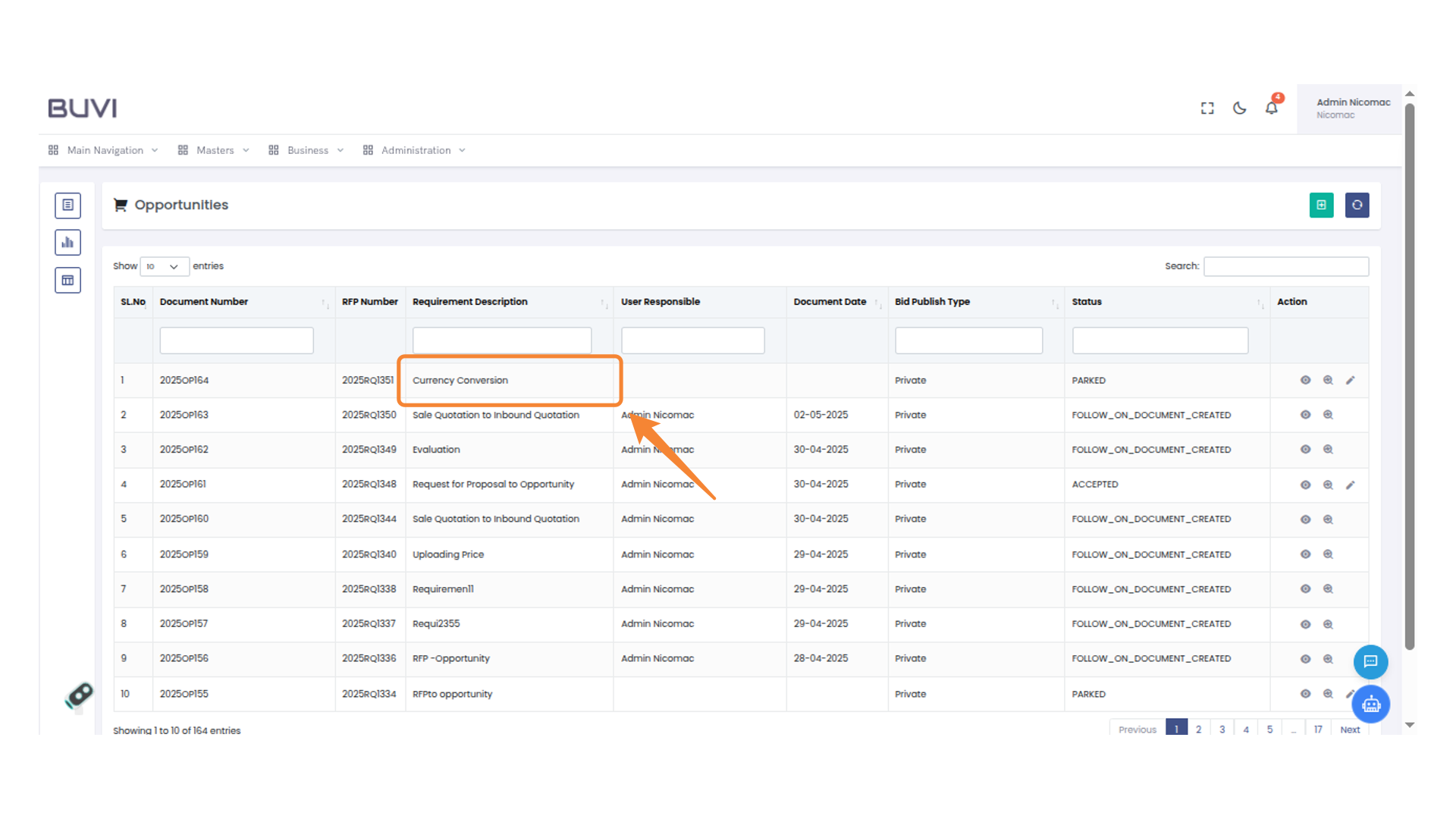
63. Edit Action Icon
Click to edit the selected entry.
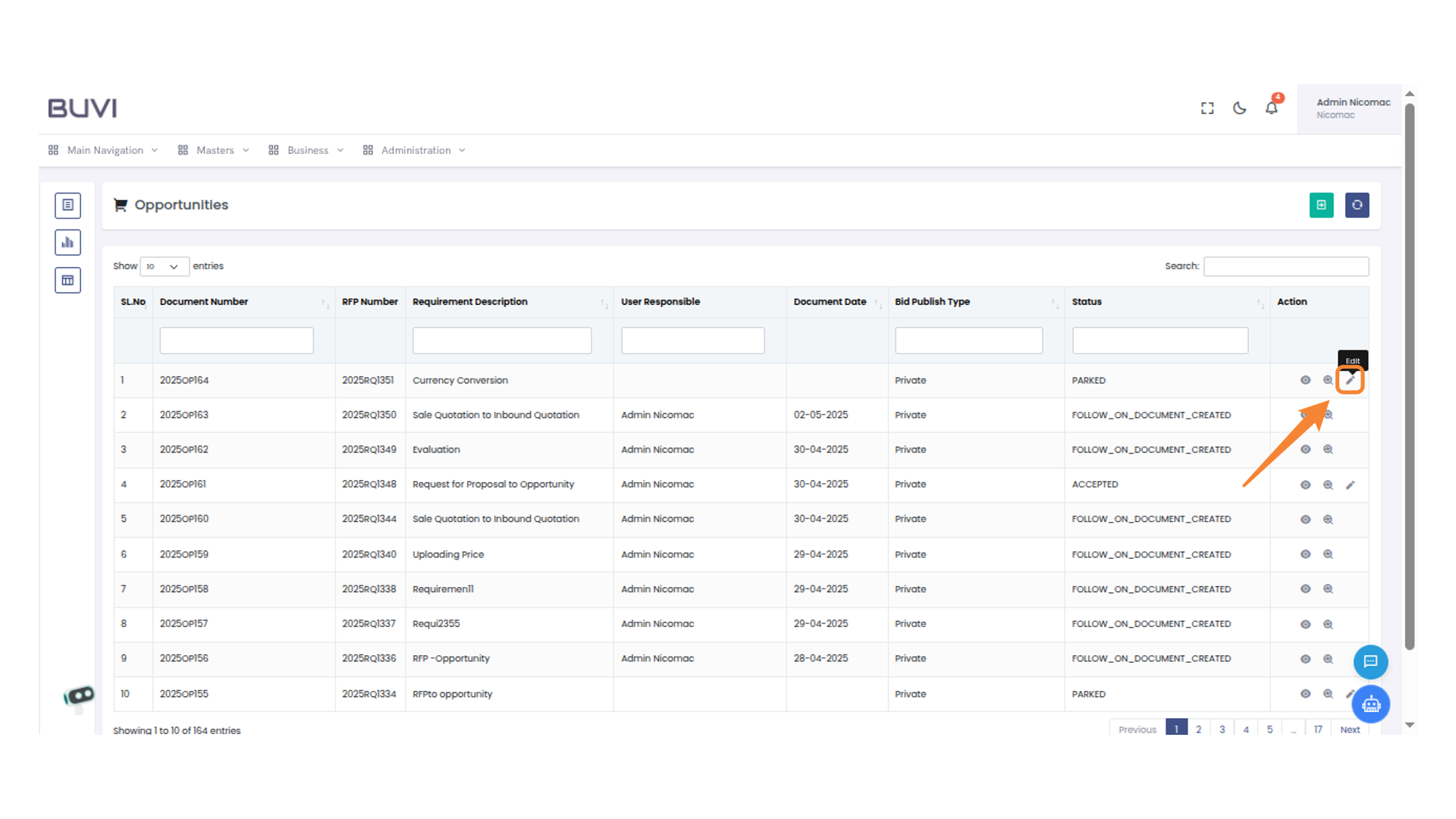
64. Change Selection
Change to required currency
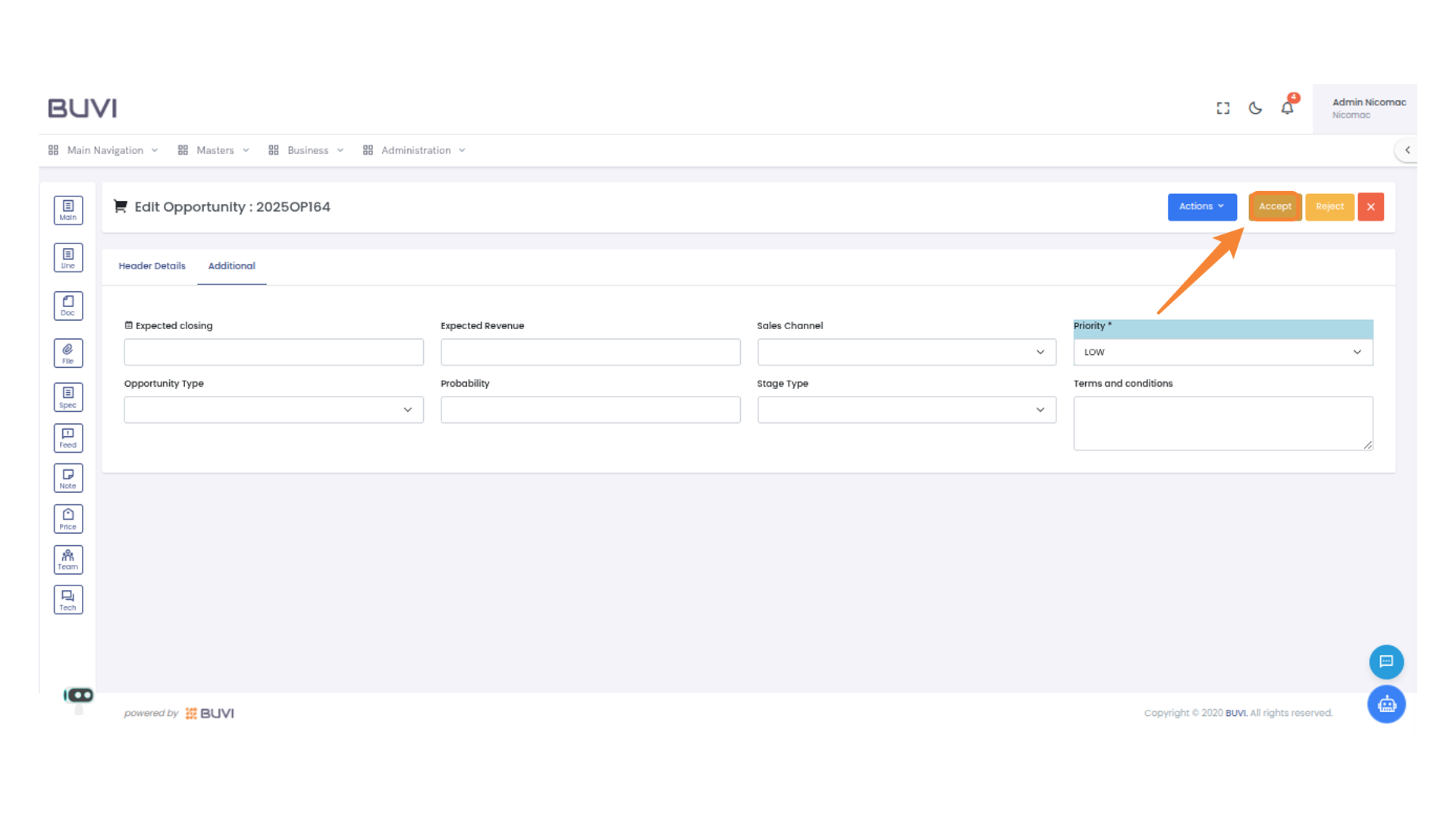
65. Accept Button Highlighted
Select the 'Accept' button to confirm the action.
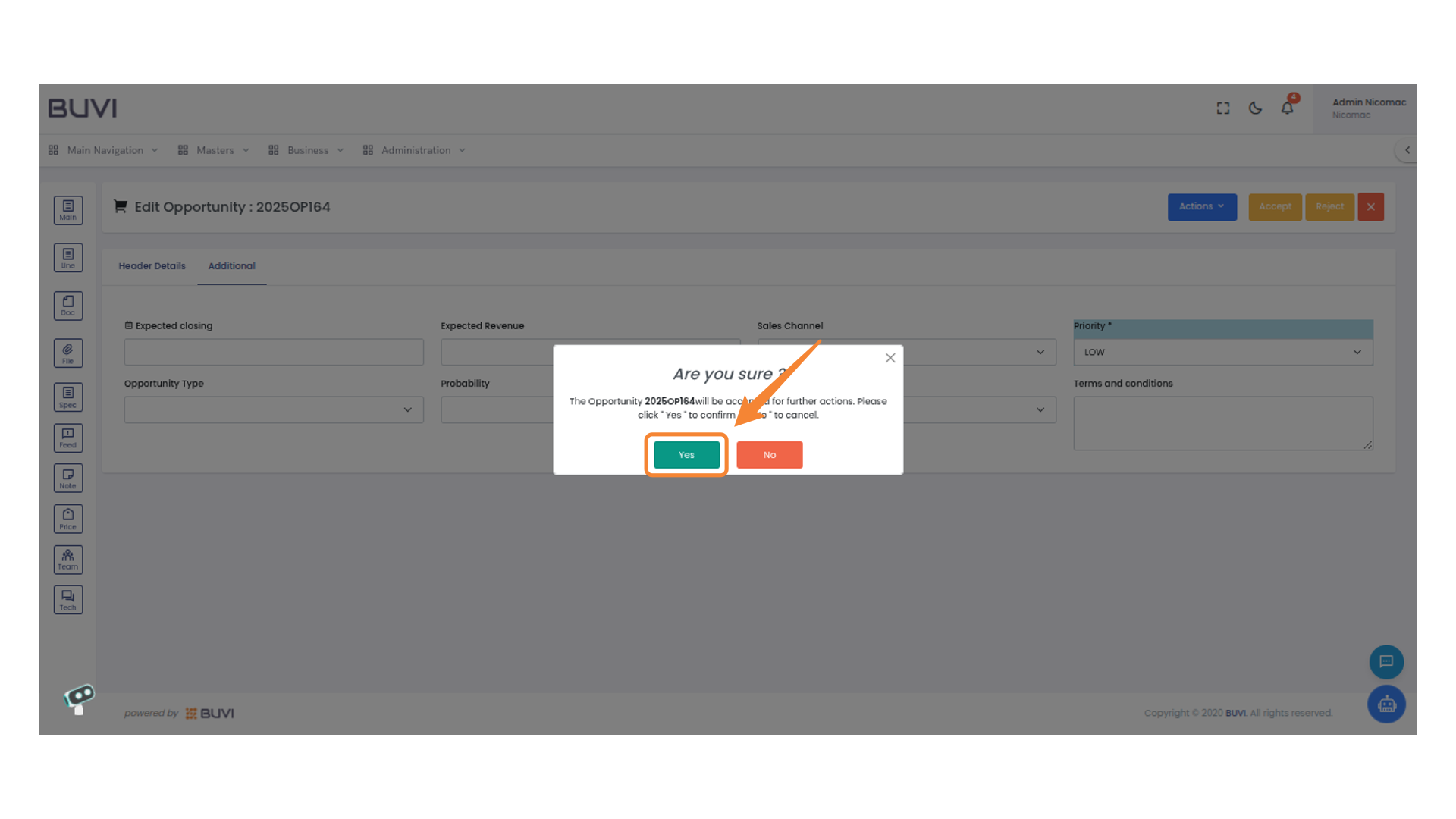
66. Confirmation Button
Click 'Yes' to confirm the action.
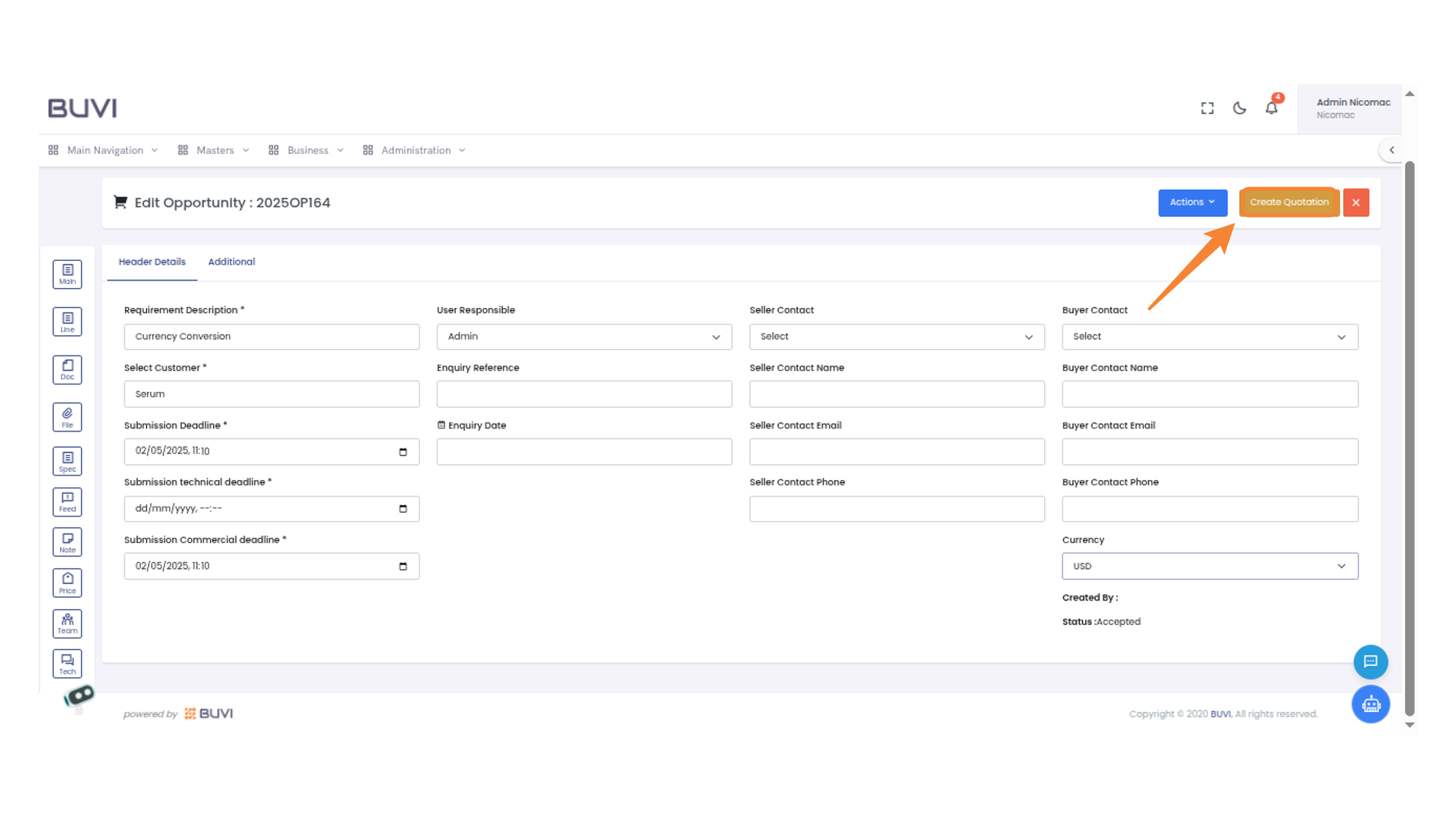
67. Create Quotation Button
Click to generate a new quotation for the current opportunity.
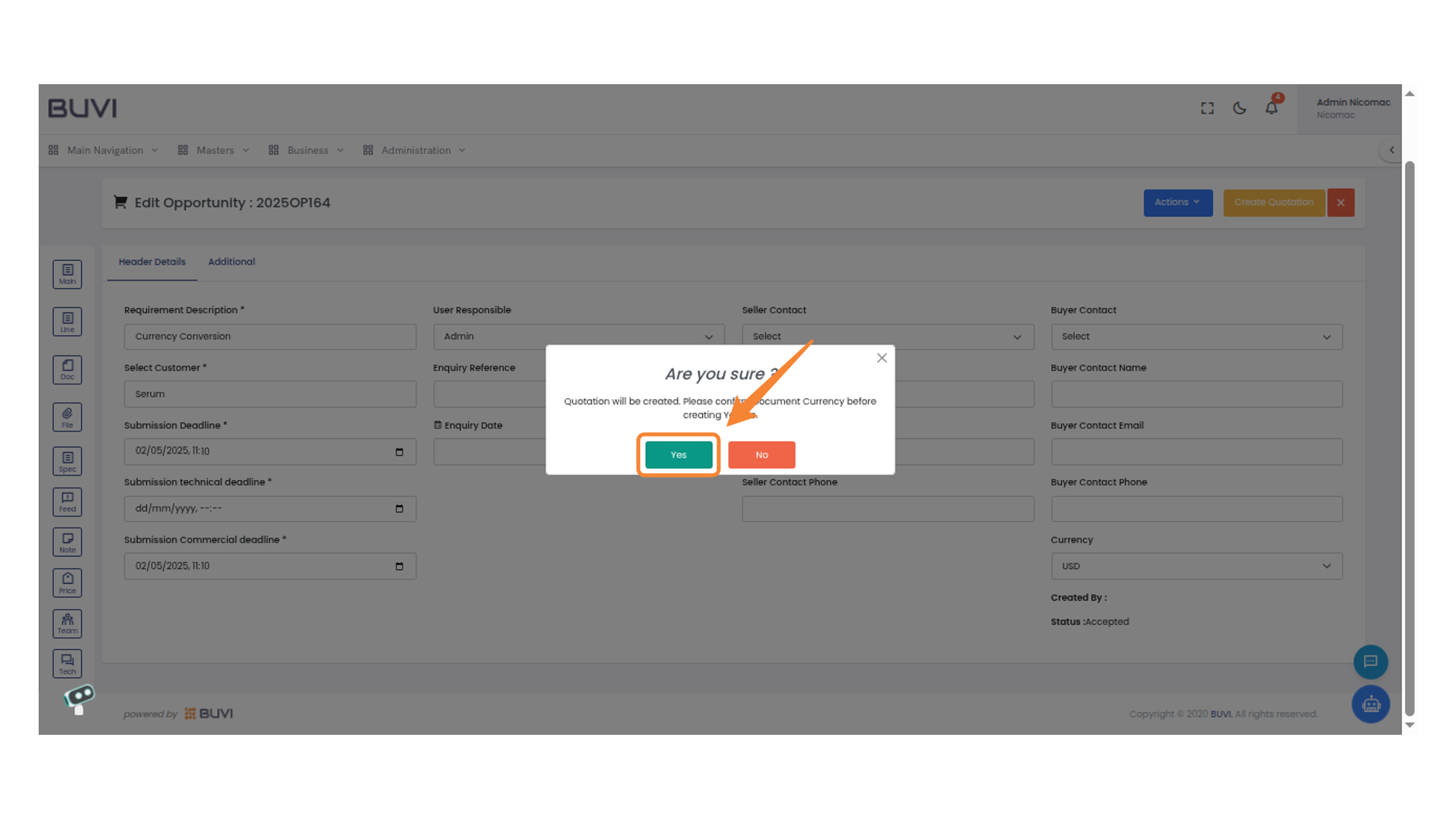
68. Confirmation Dialog
Click 'Yes' to proceed with creating the quotation.
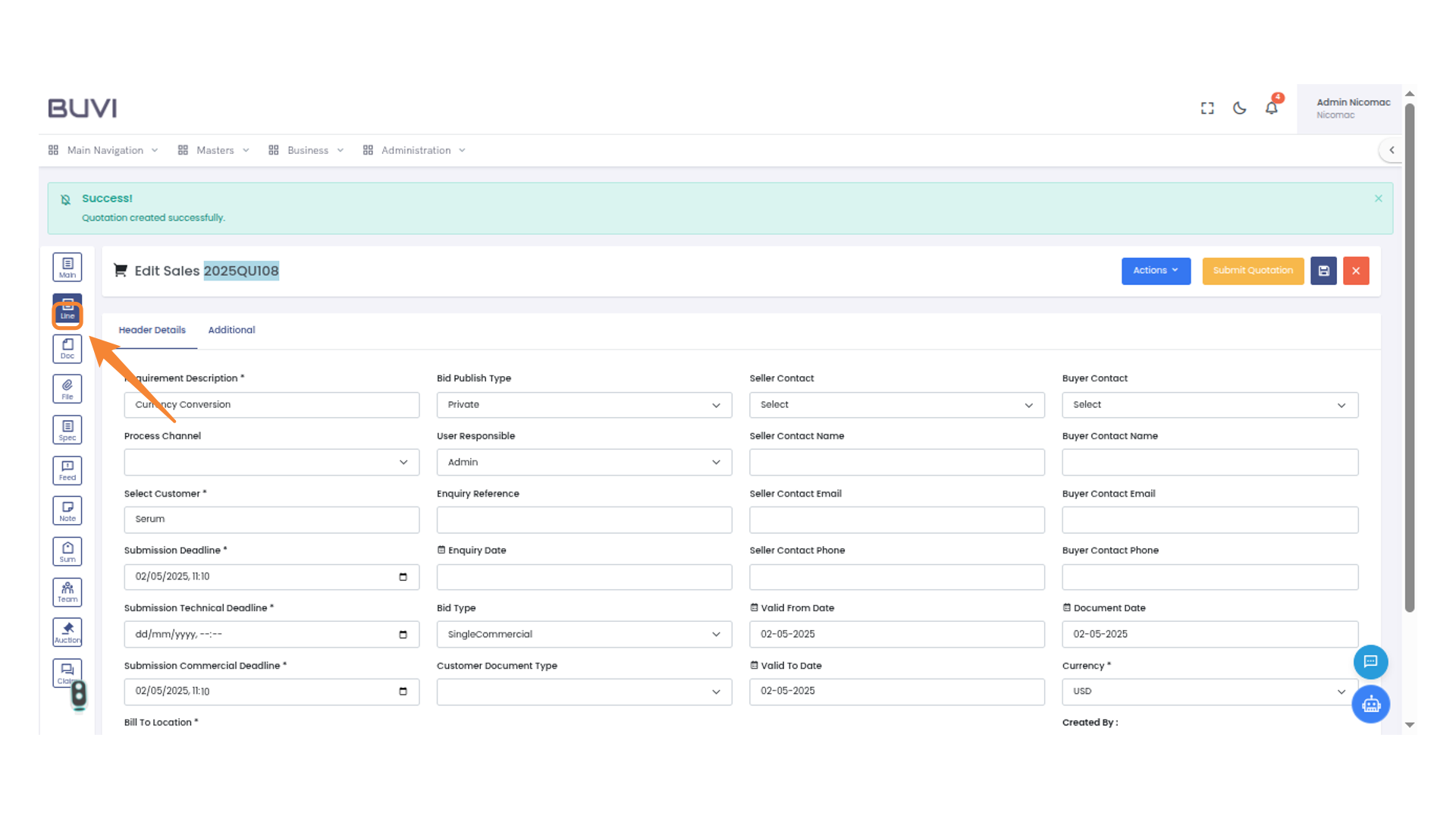
69. Navigation Icon: Line
Click on Line item tab
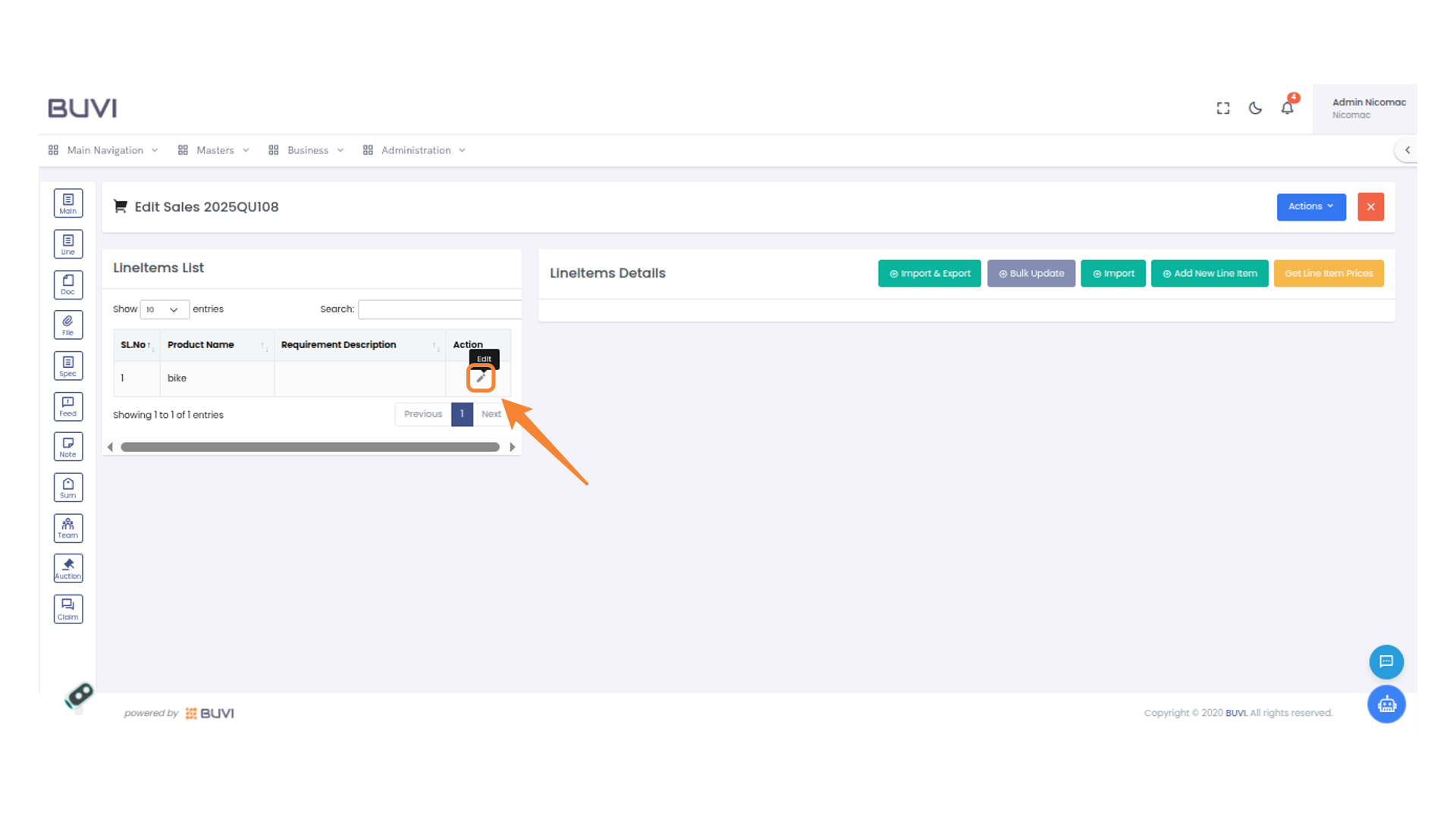
70. Edit Action Button
Click to edit the selected line item.
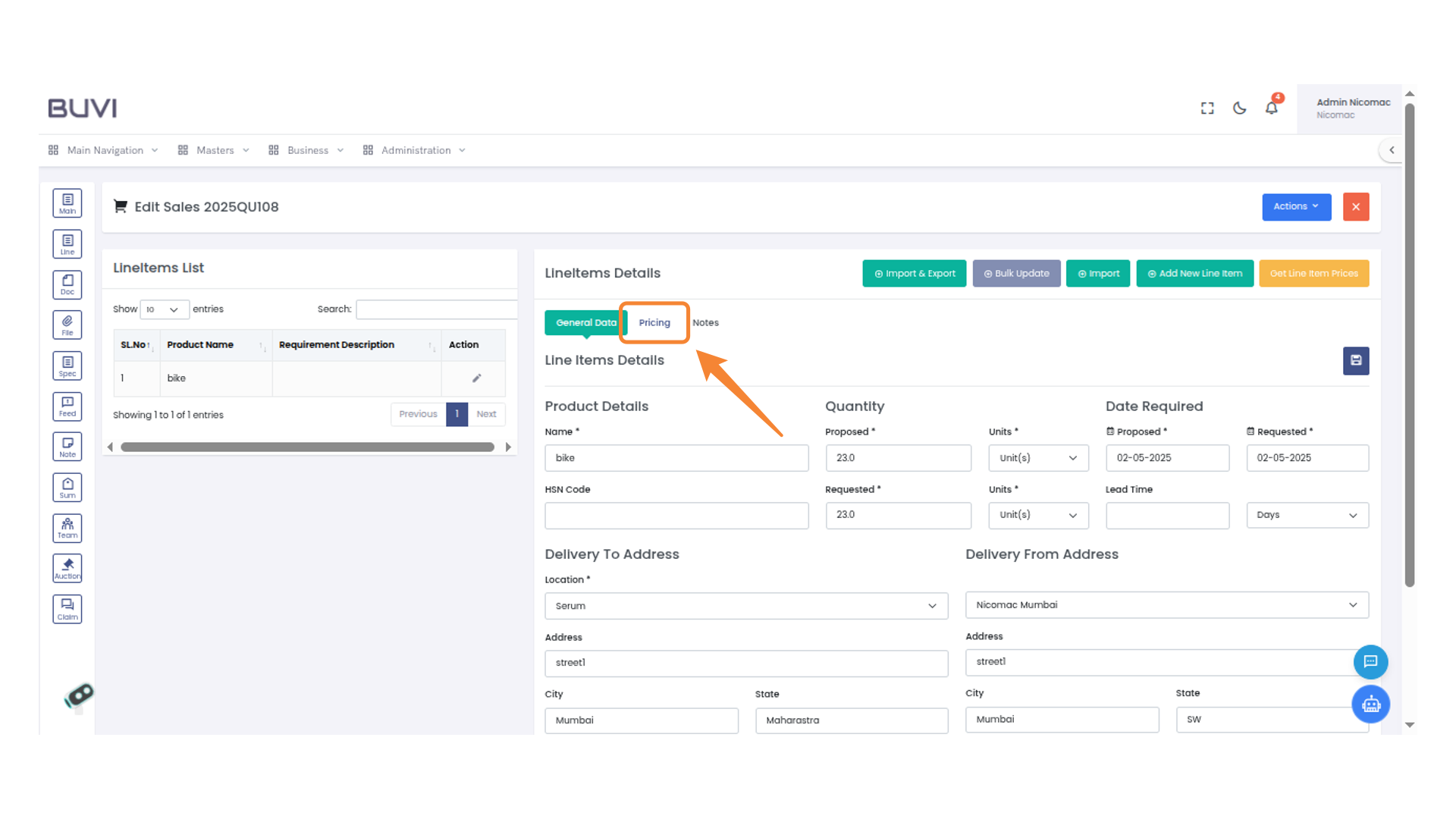
71. Pricing Tab
Access detailed pricing information by selecting this tab.
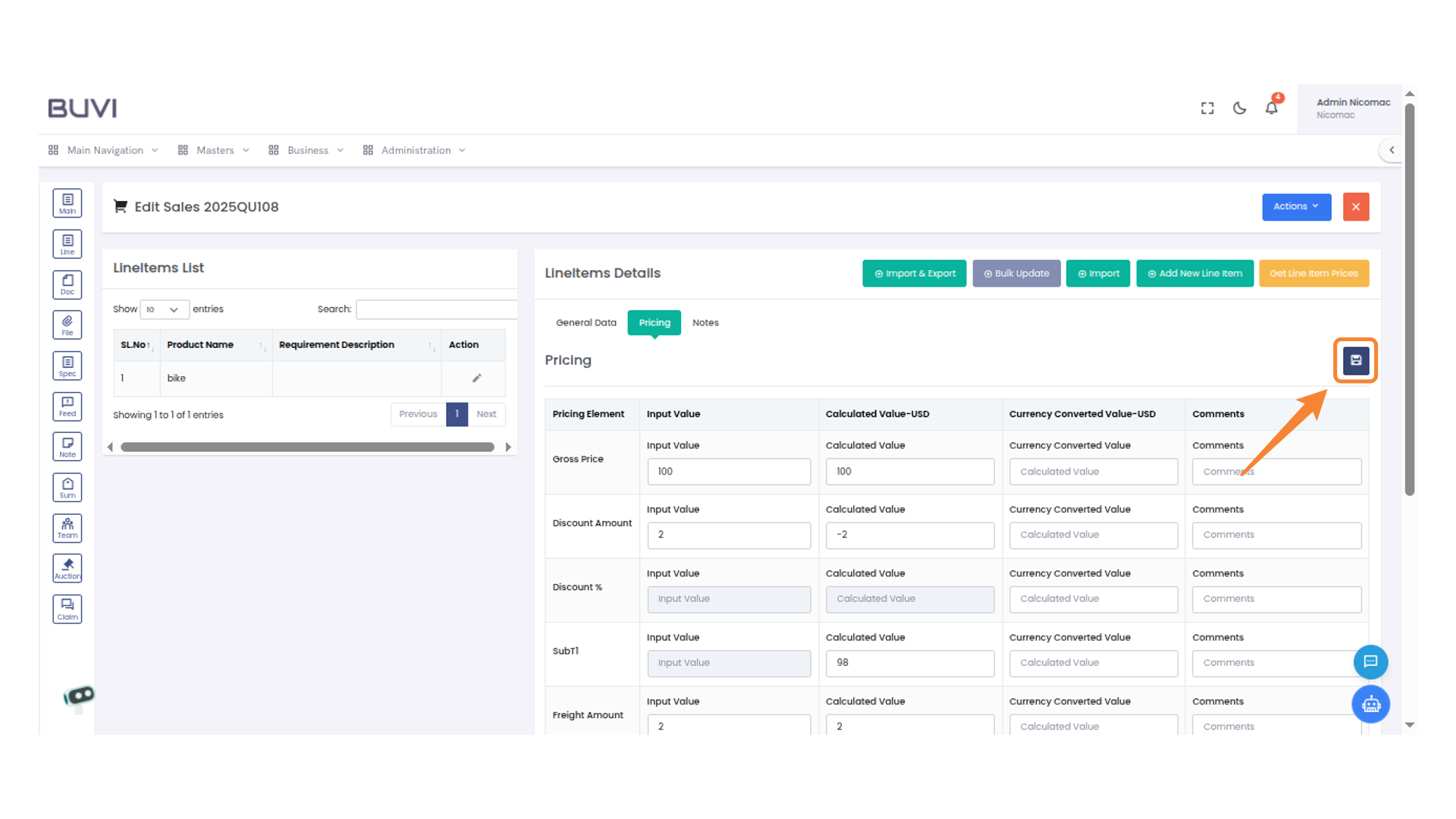
72. Pricing details
Enter the Pricing detail

73. Save Icon
Click to save the current changes made in the system.
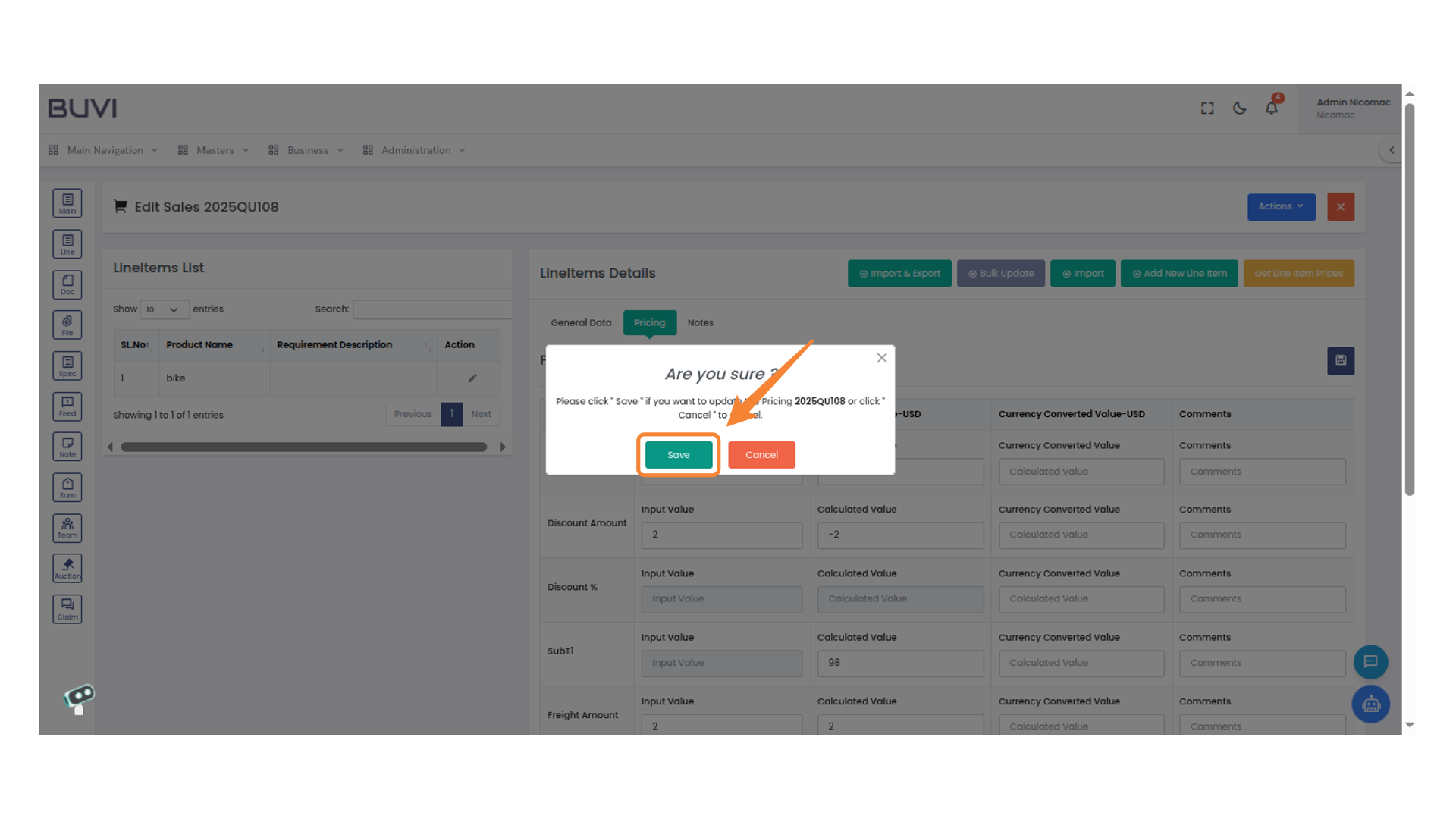
74. Confirmation Prompt
Click 'Save' to update the pricing or 'Cancel' to abort.
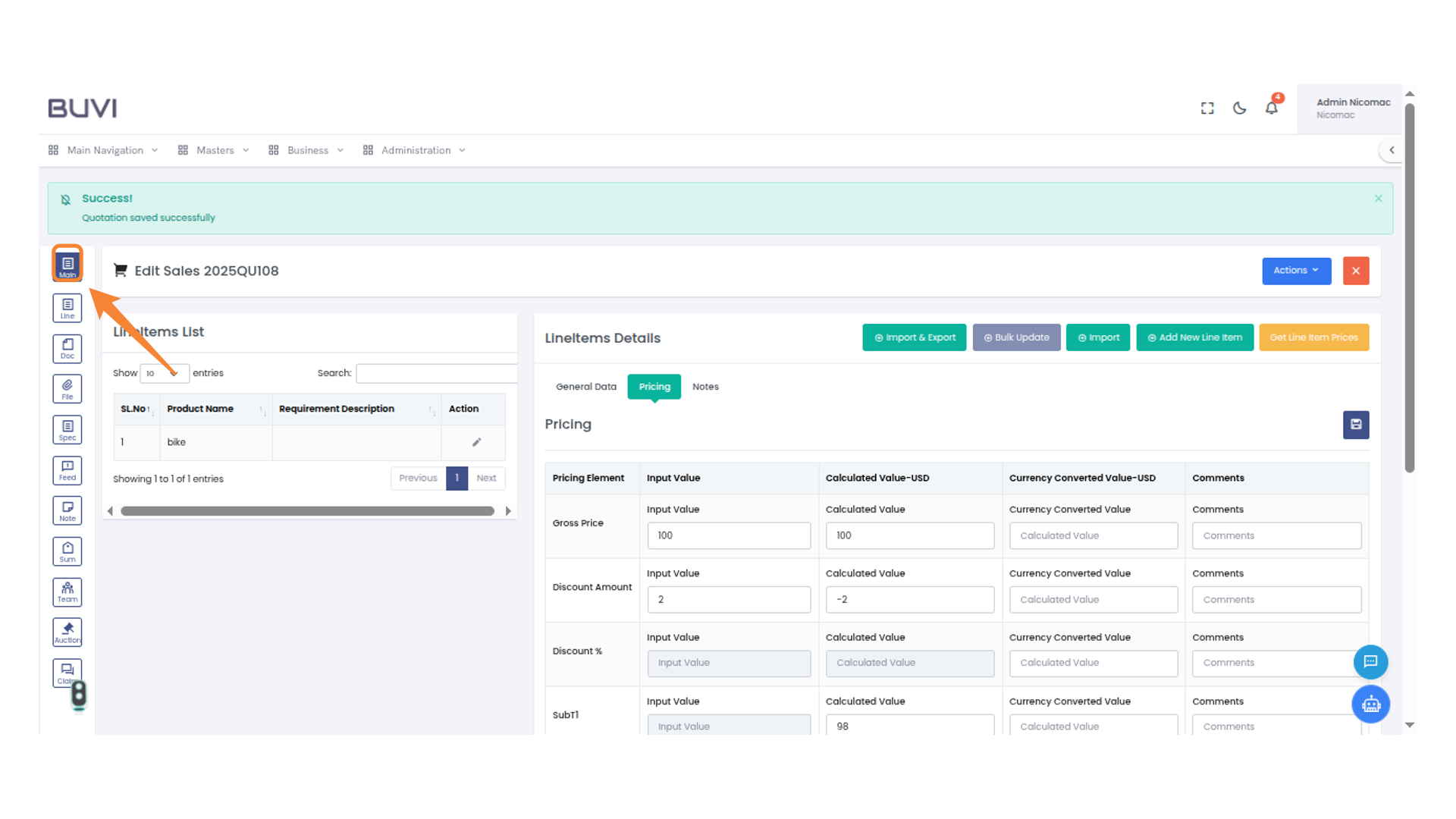
75. Main Menu Icon
Click on Header details tab
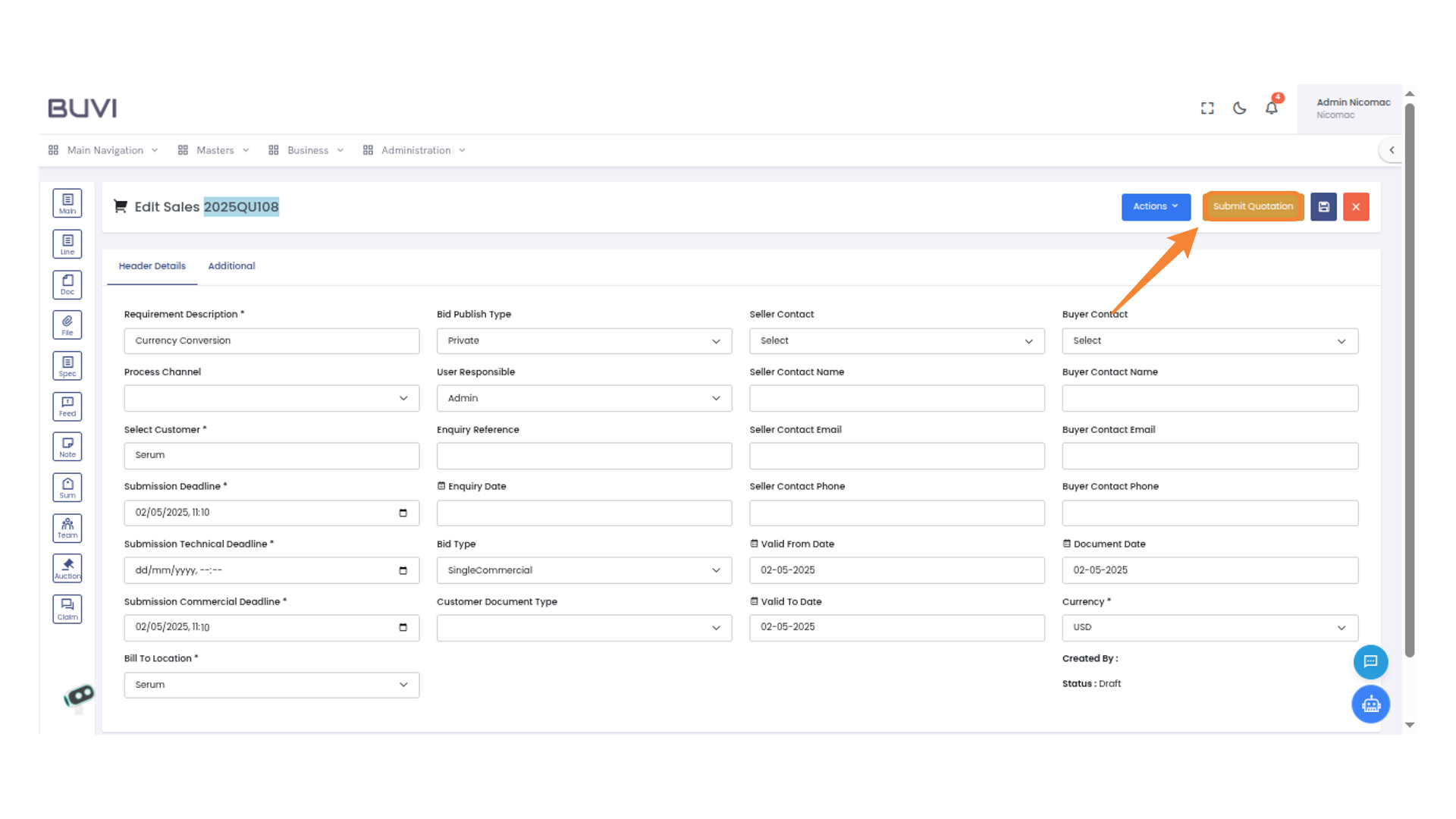
76. Quotation Submission Button
Click to submit your quotation details after completing the form.
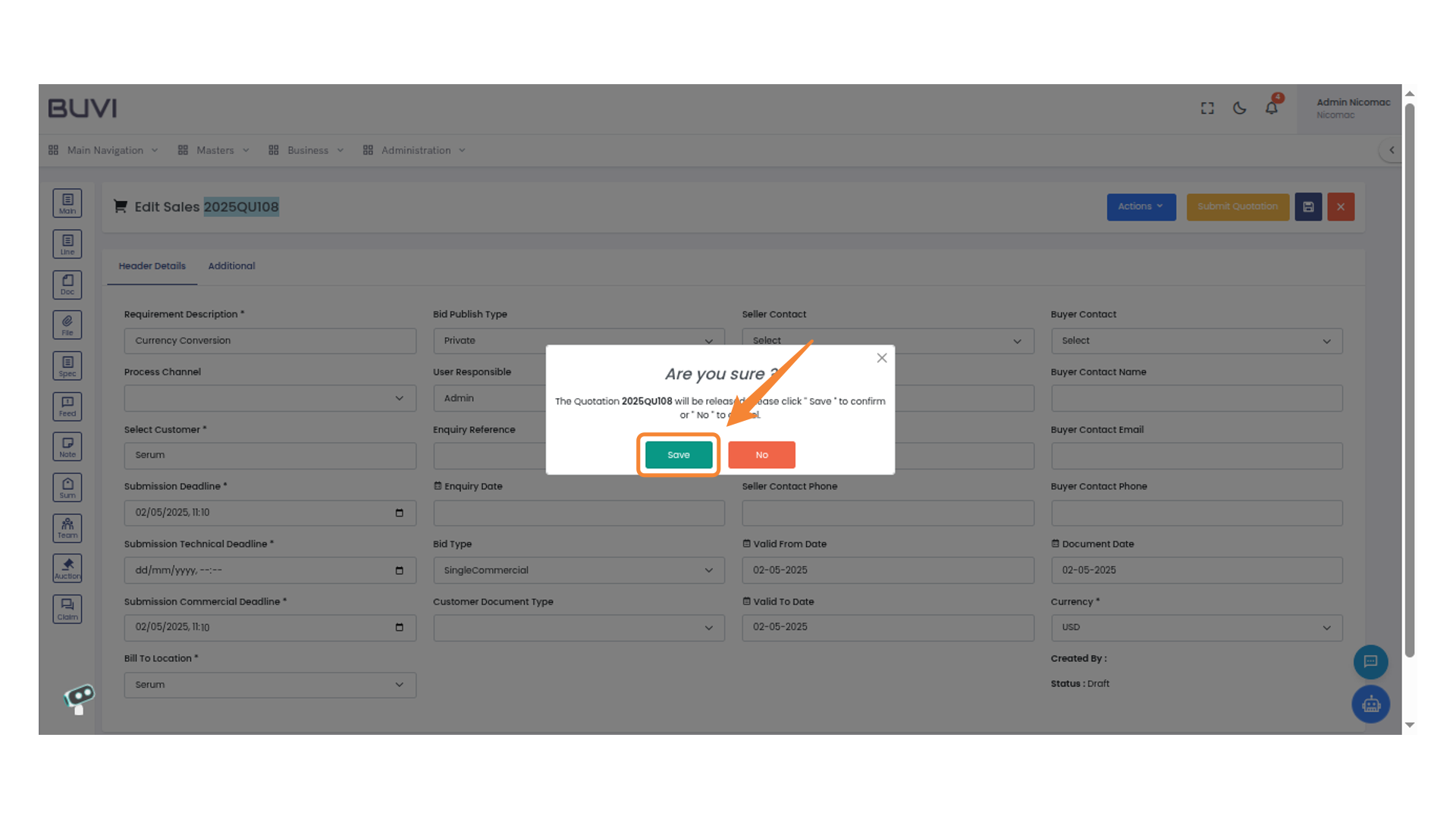
77. Confirmation Prompt
Click 'Save' to confirm your action.
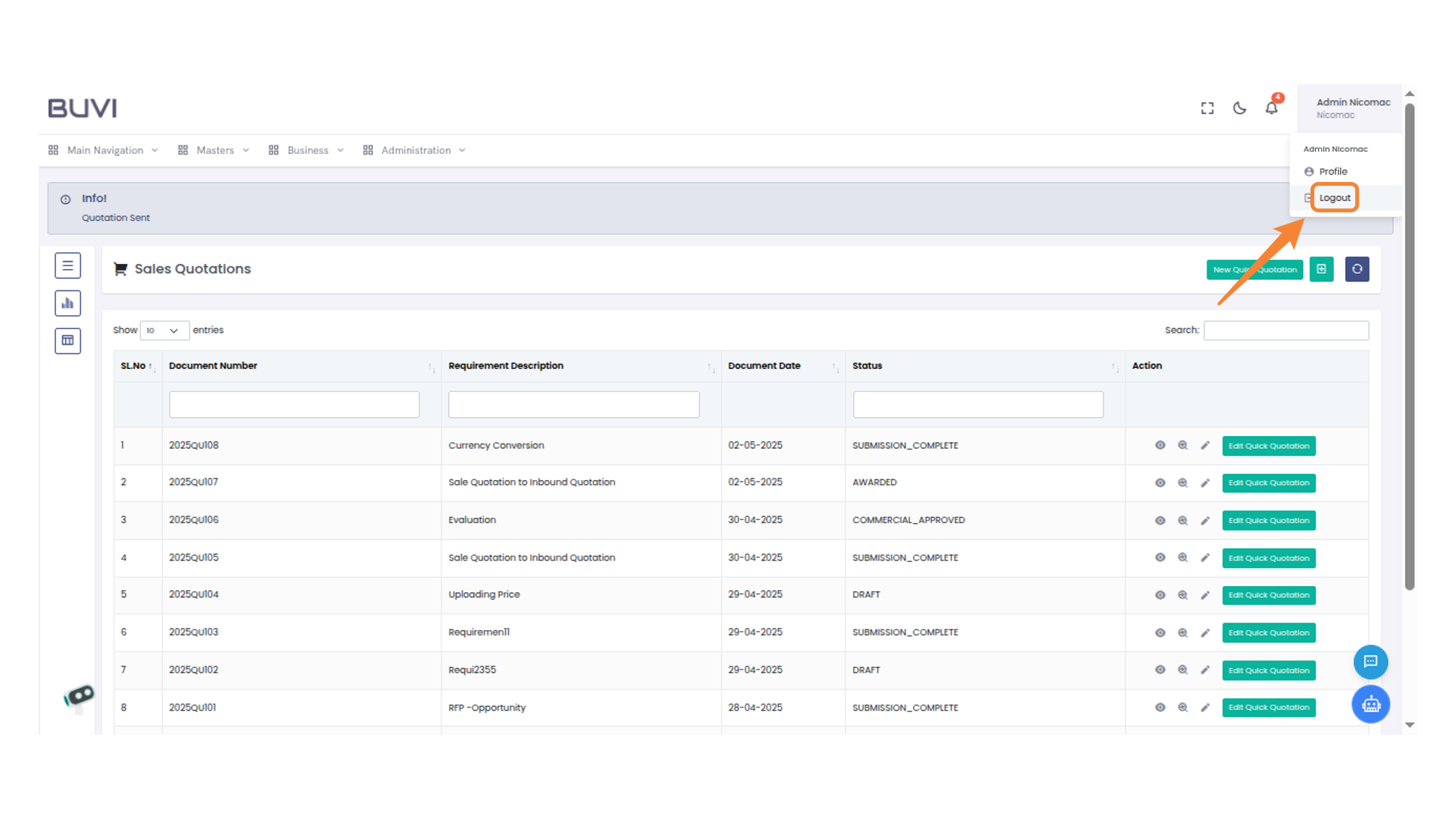
78. Logout Button
Click here to sign out of your account securely.
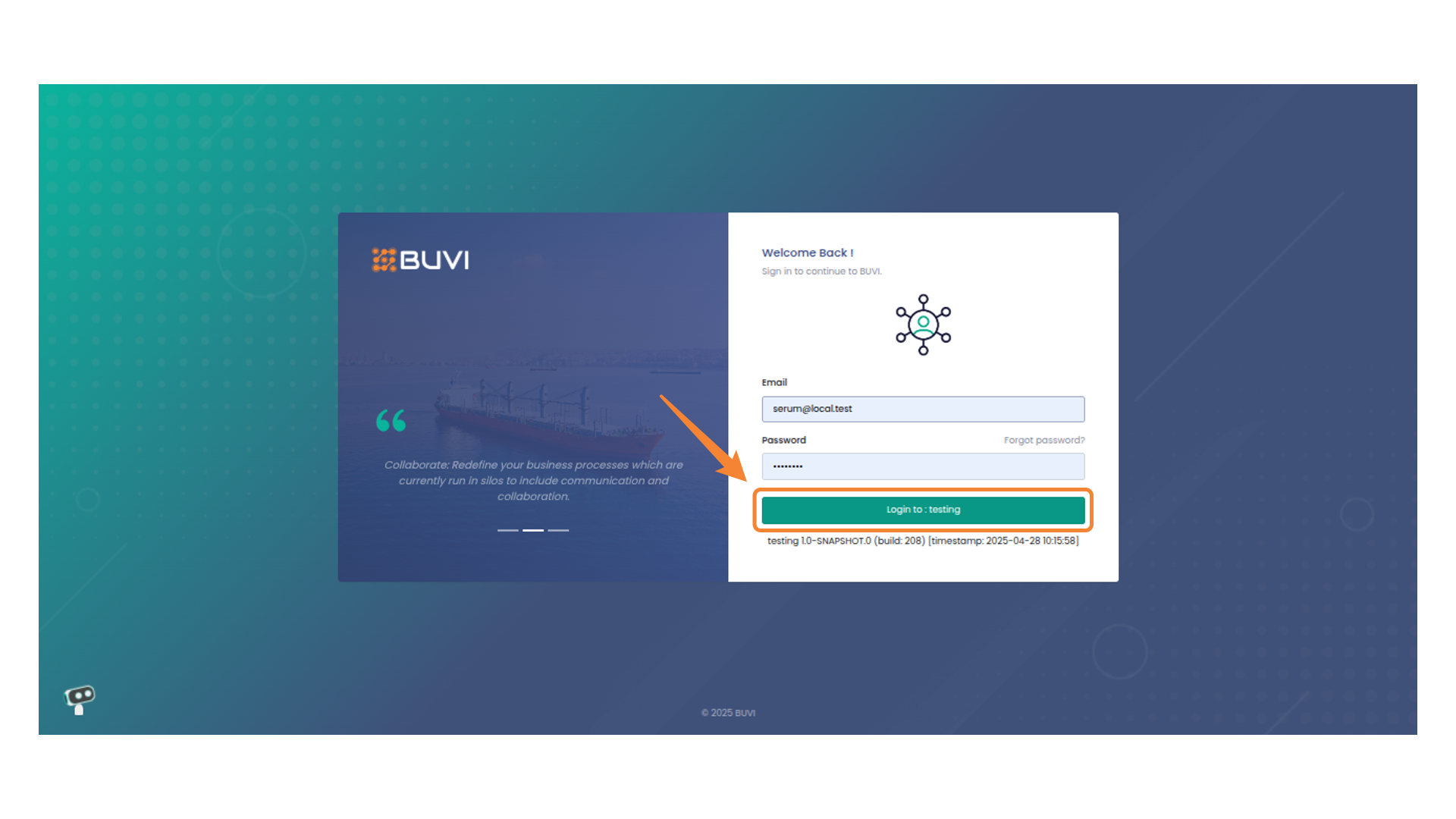
79. Login Button
Login to the application as buyer
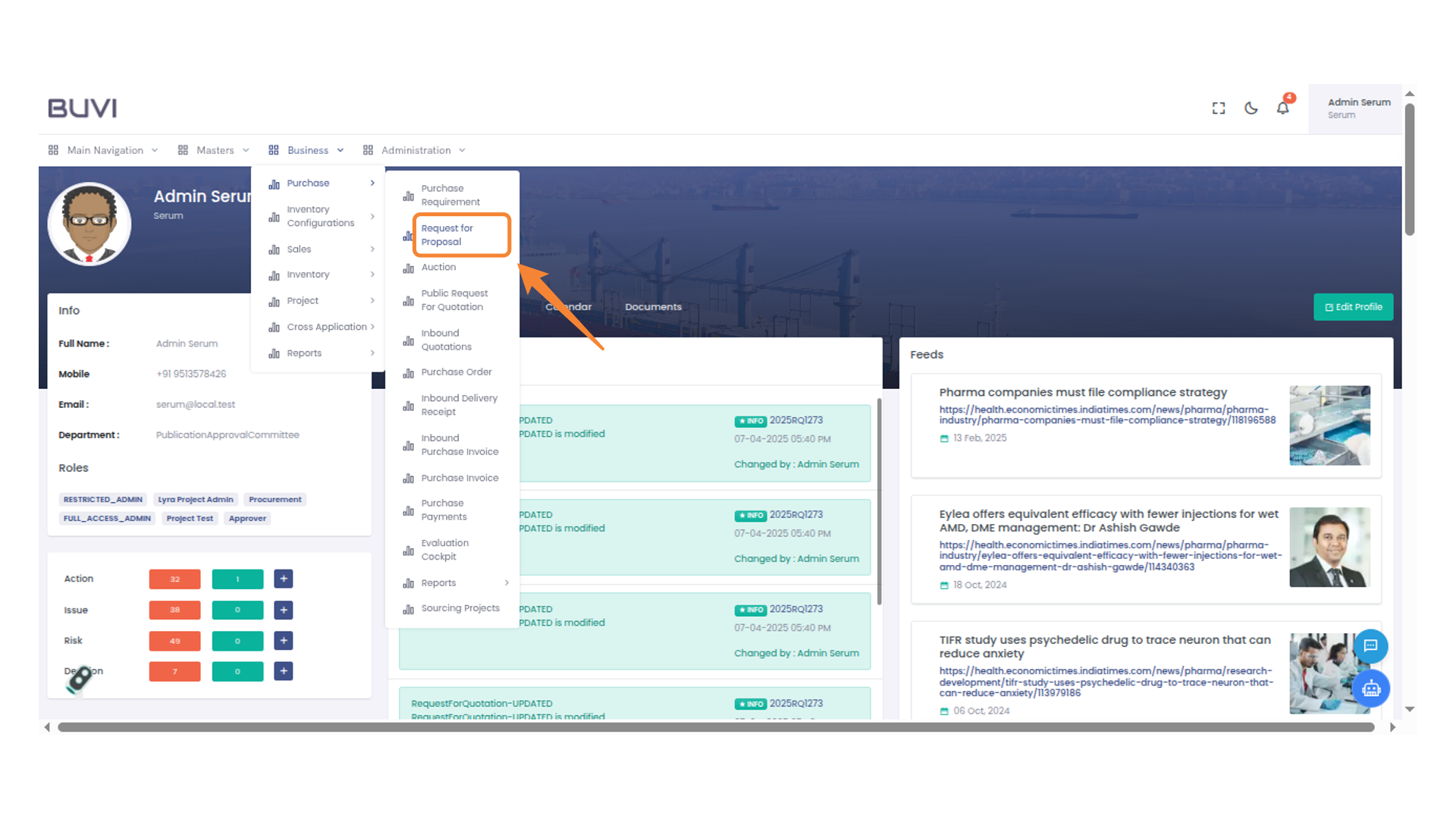
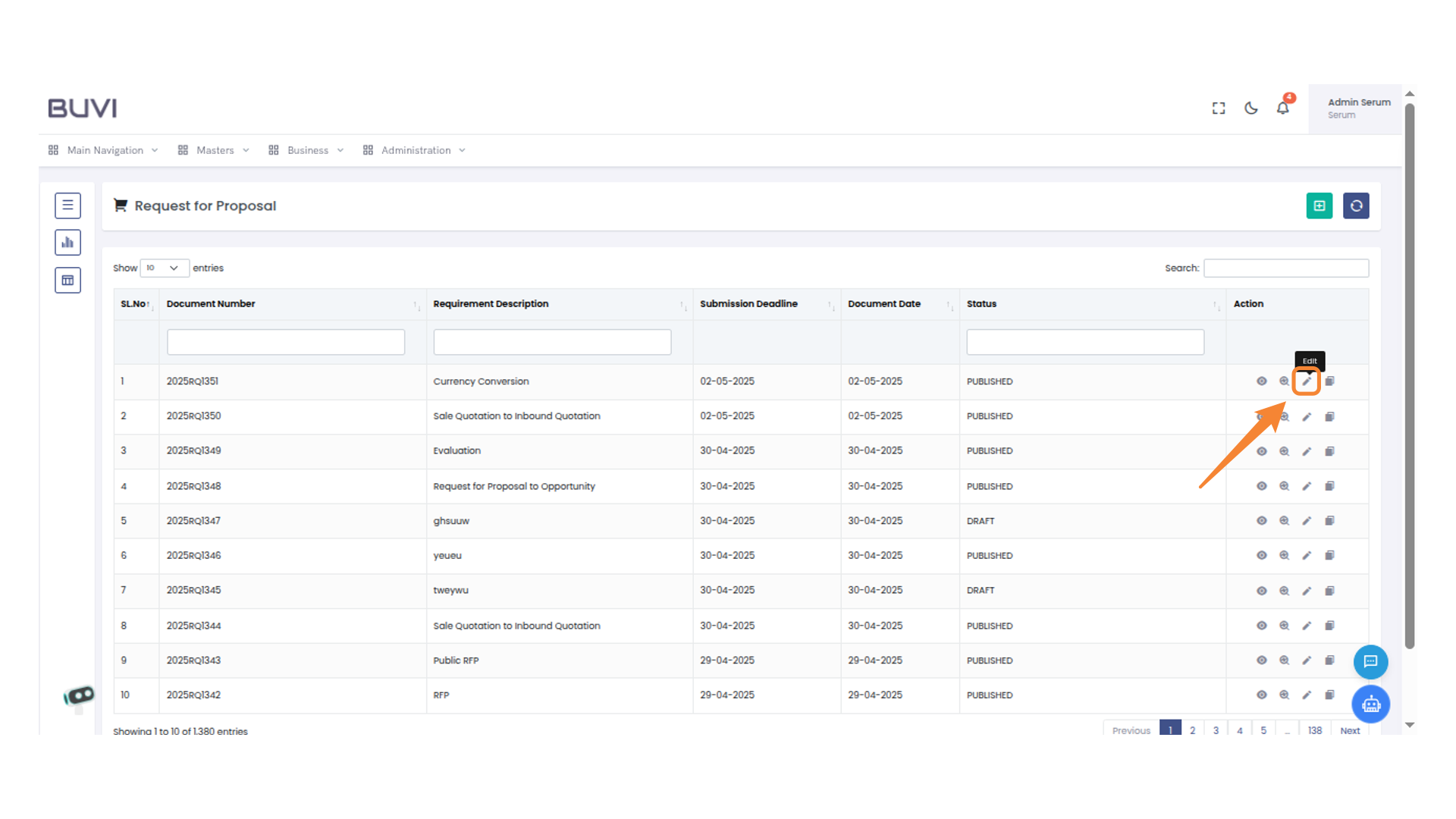
80. Request for Proposal Selection
Click on Request for Poposal menu under Purchase under Business
81. Edit Icon in the Action Column
Click to edit the selected document.
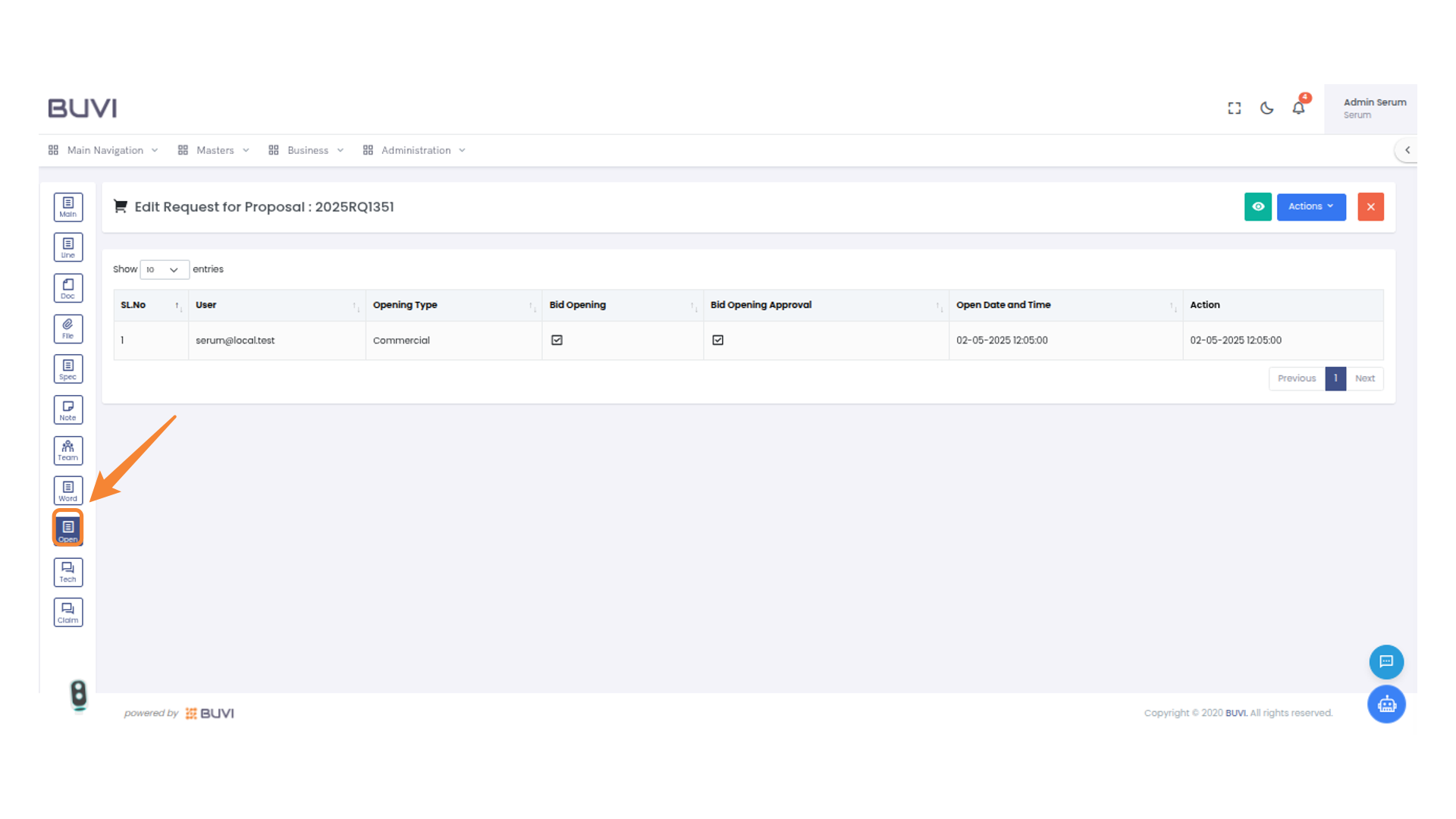
82. Open Document Icon
Click on Open tba
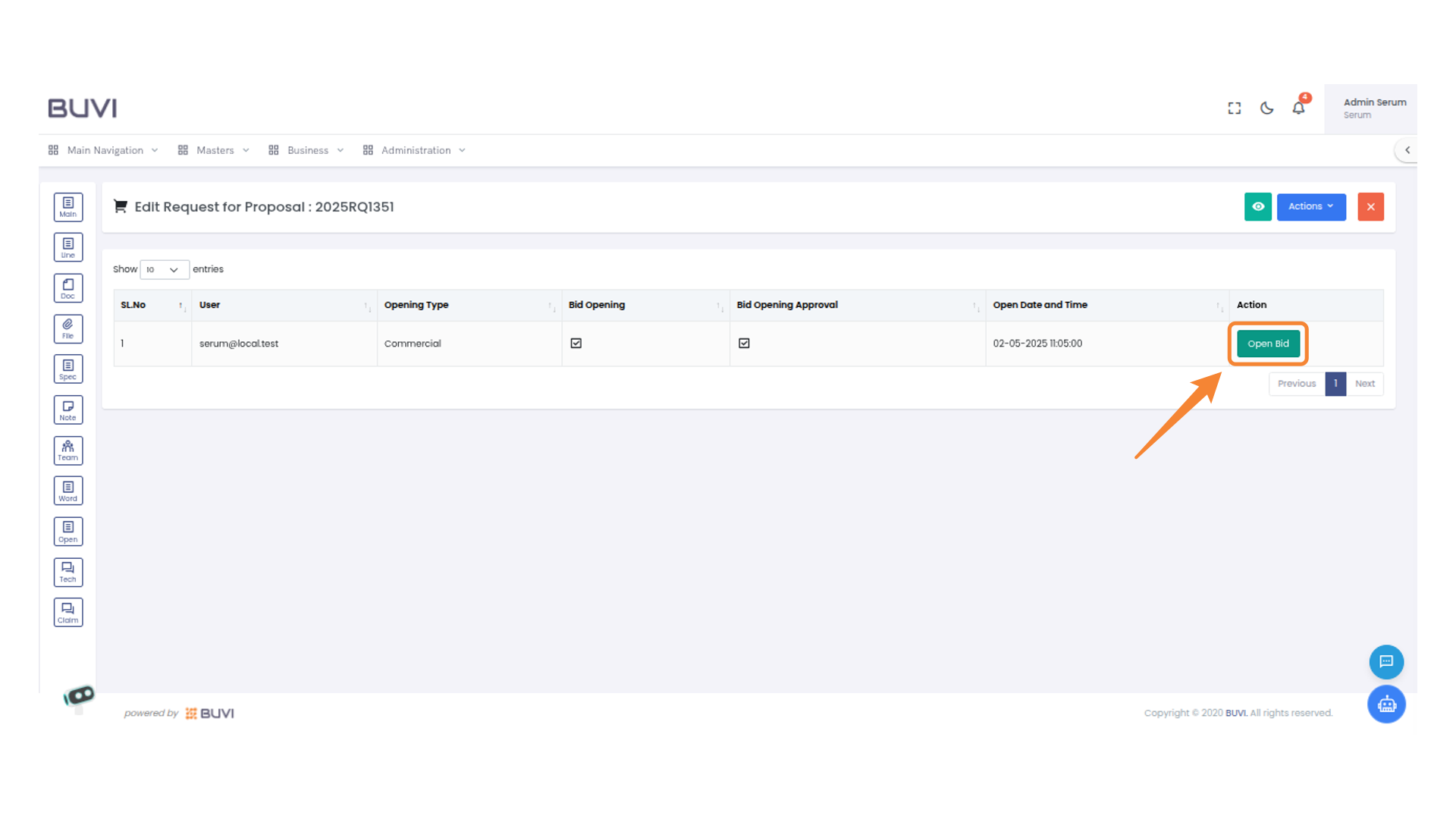
83. Open Bid Button
Click to initiate the bid opening process.
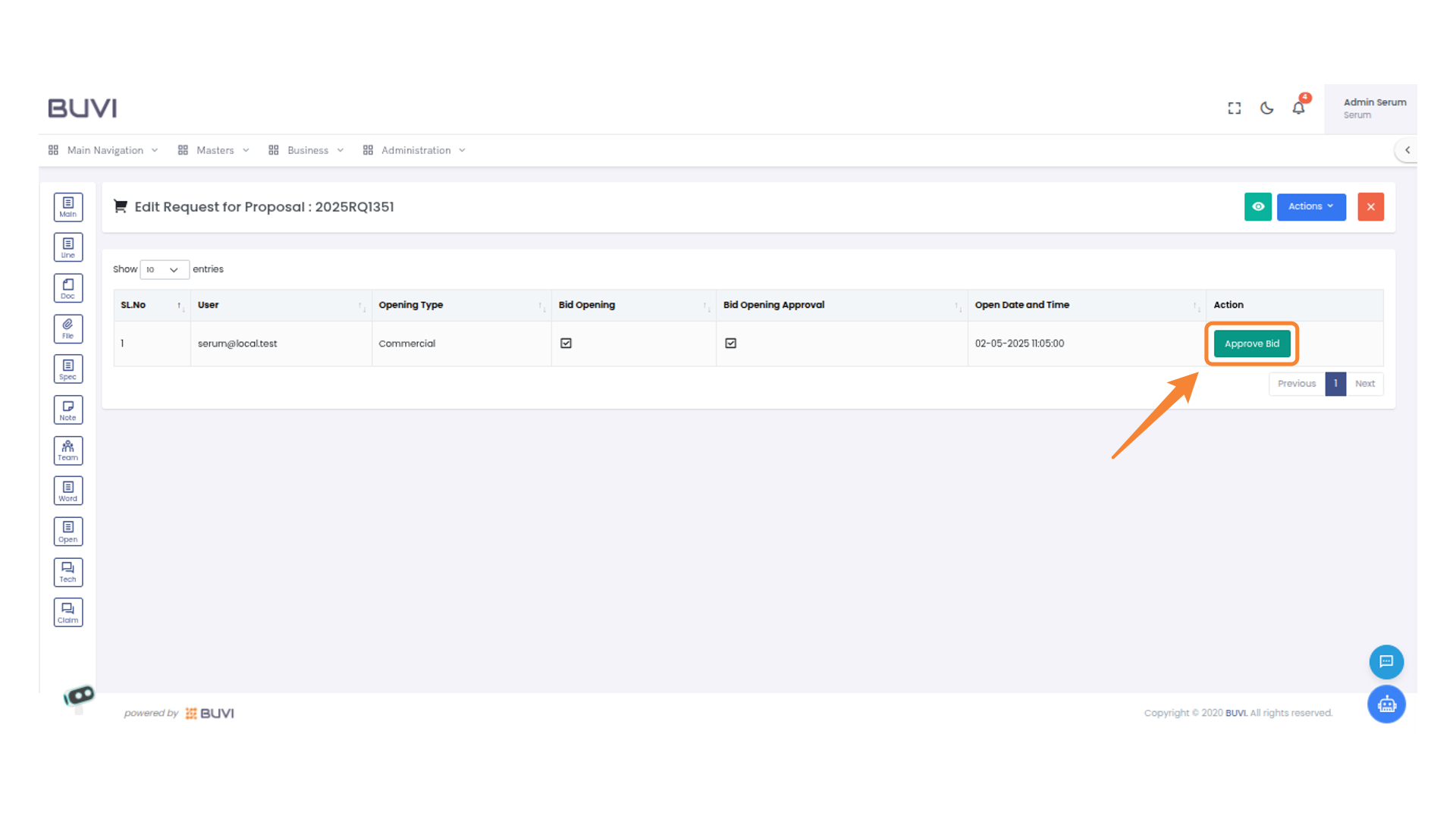
84. Approve Bid Button
Click to approve the selected bid and proceed with the action.
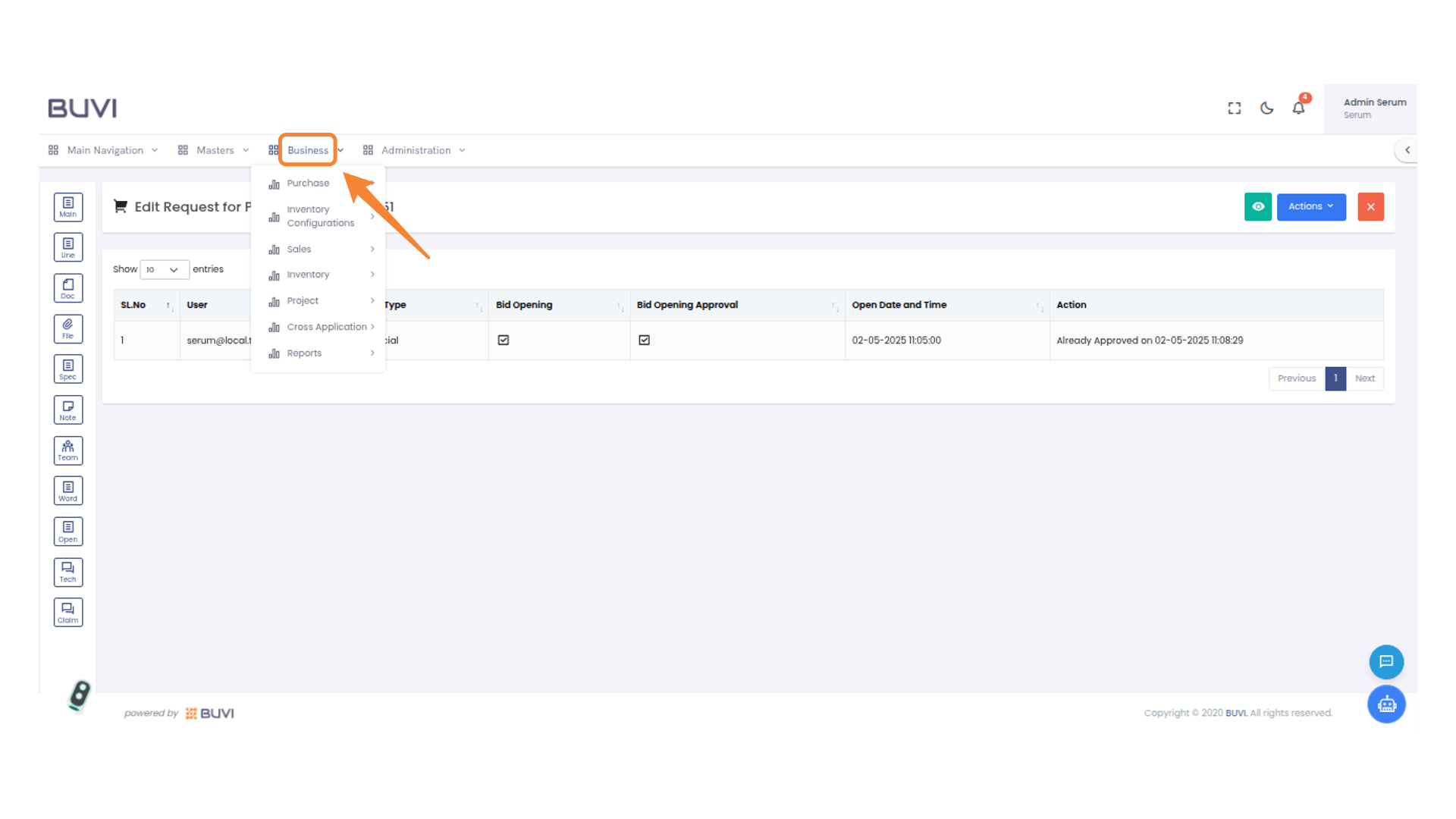
85. Business Menu
Click on Business menu
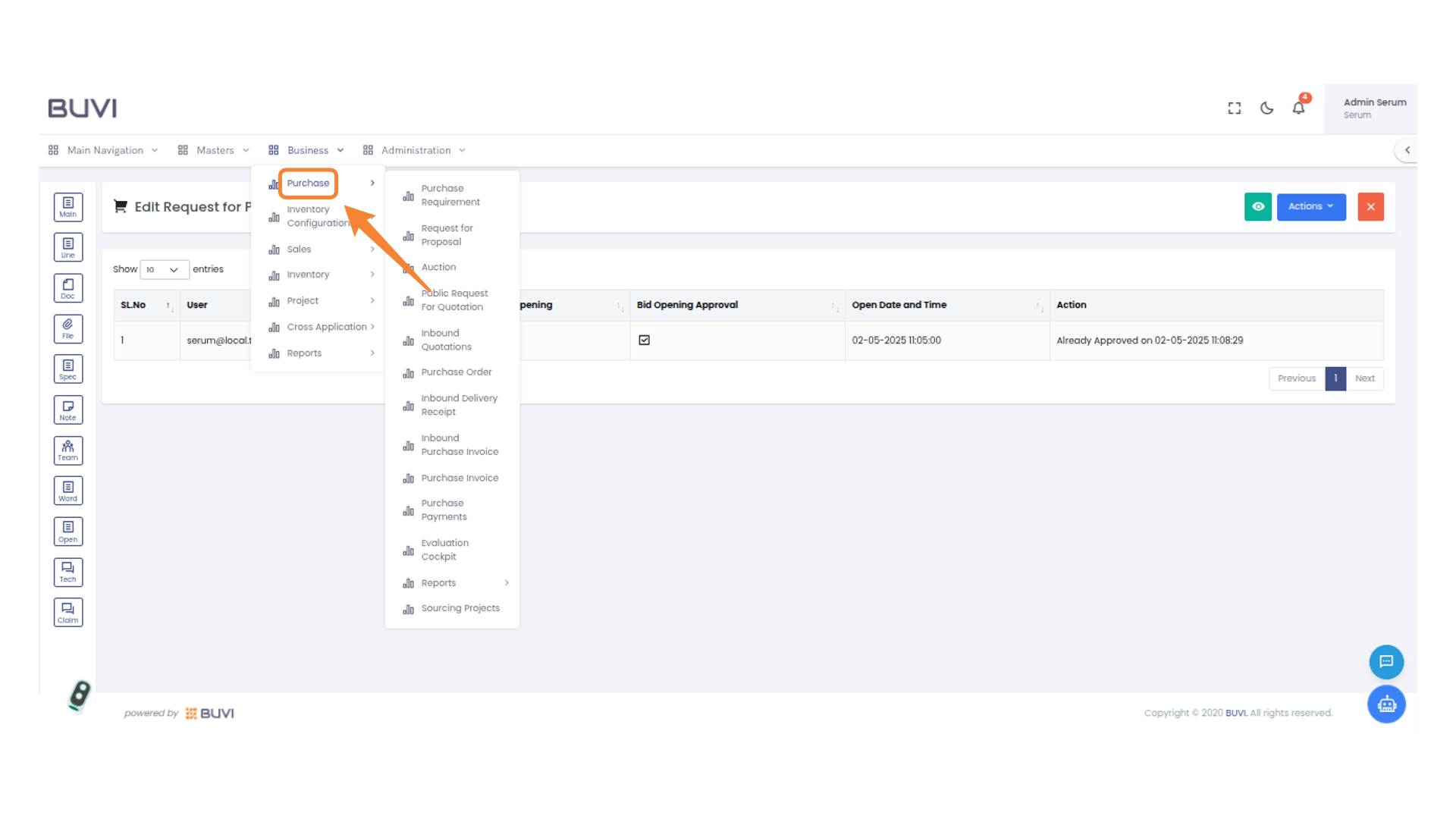
86. Purchase Menu Highlighted
Click on Purchase menu
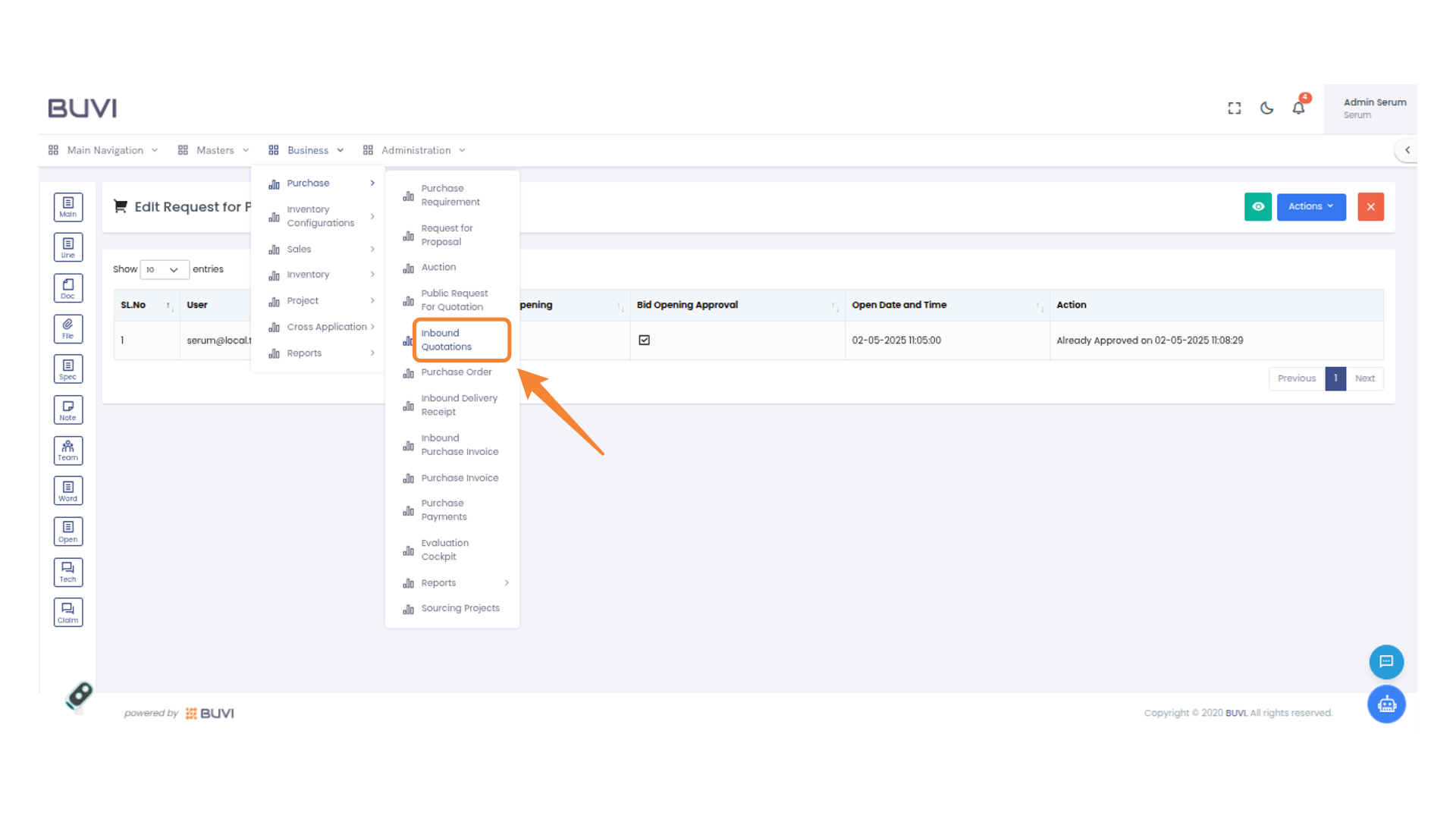
87. Inbound Quotations Menu
Click on Inbound Quotation menu
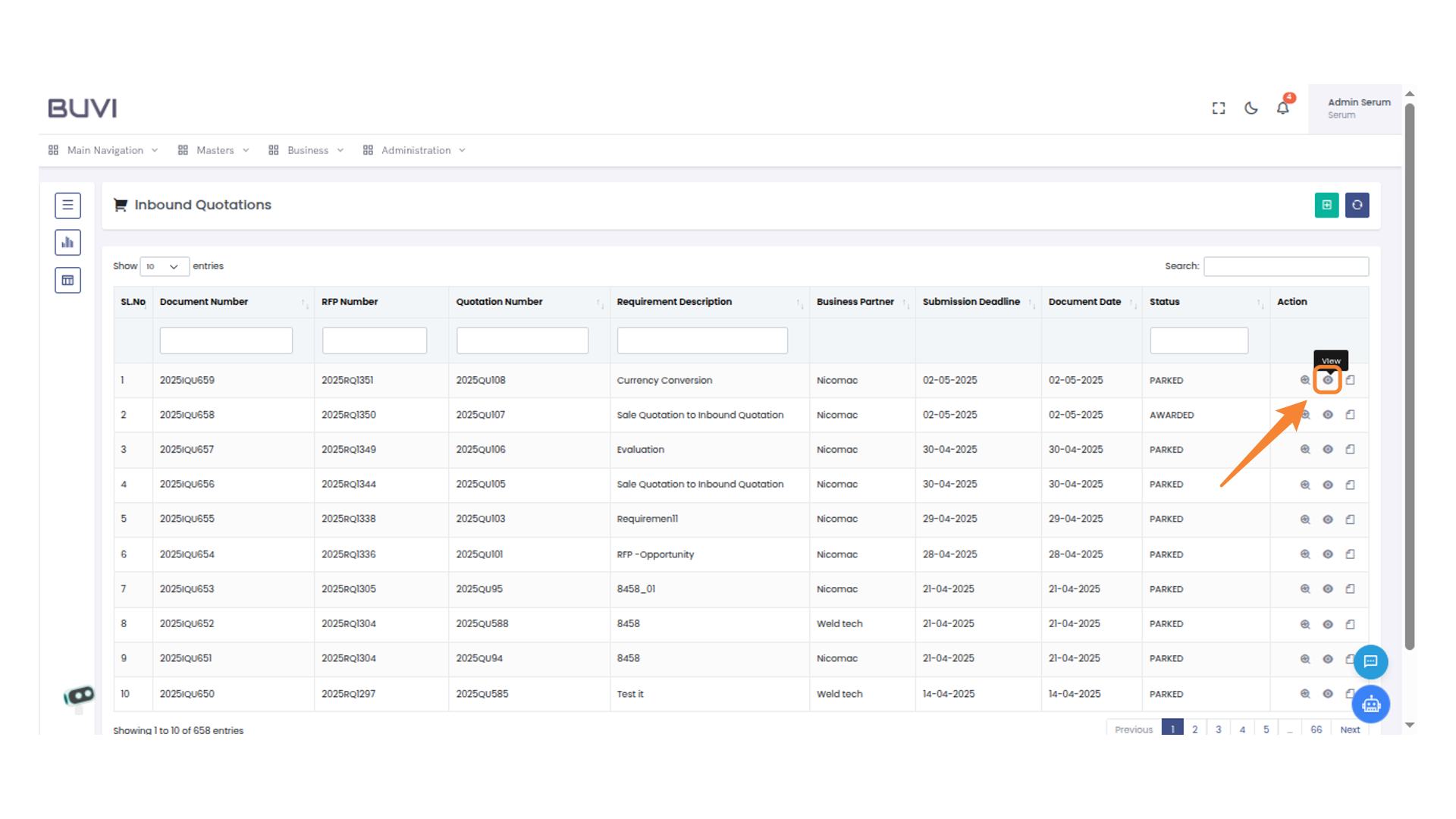
88. View Details Button
Select this button to view the details of the quotation.
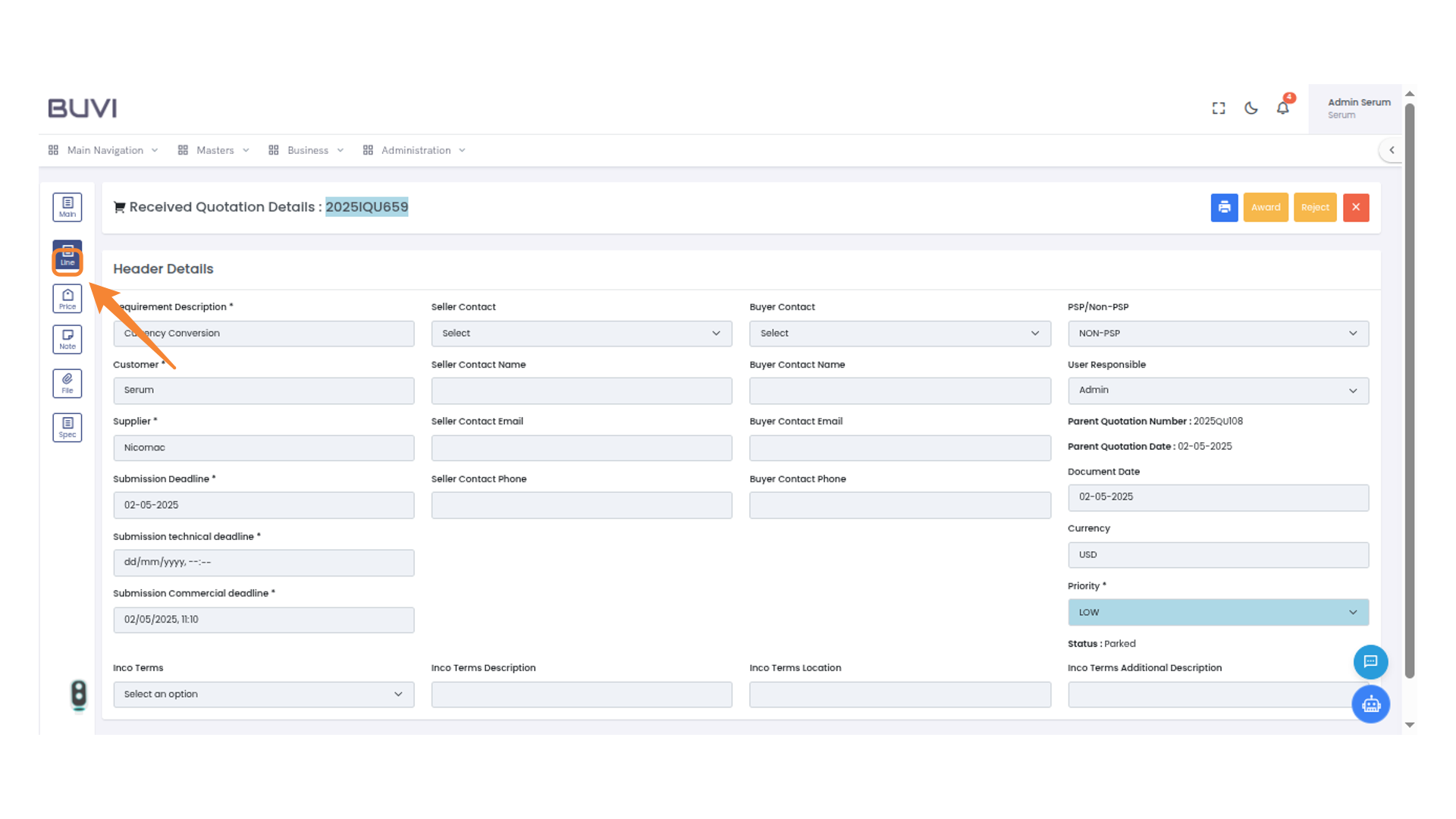
89. Line Icon
Select this icon to view line details within the interface.
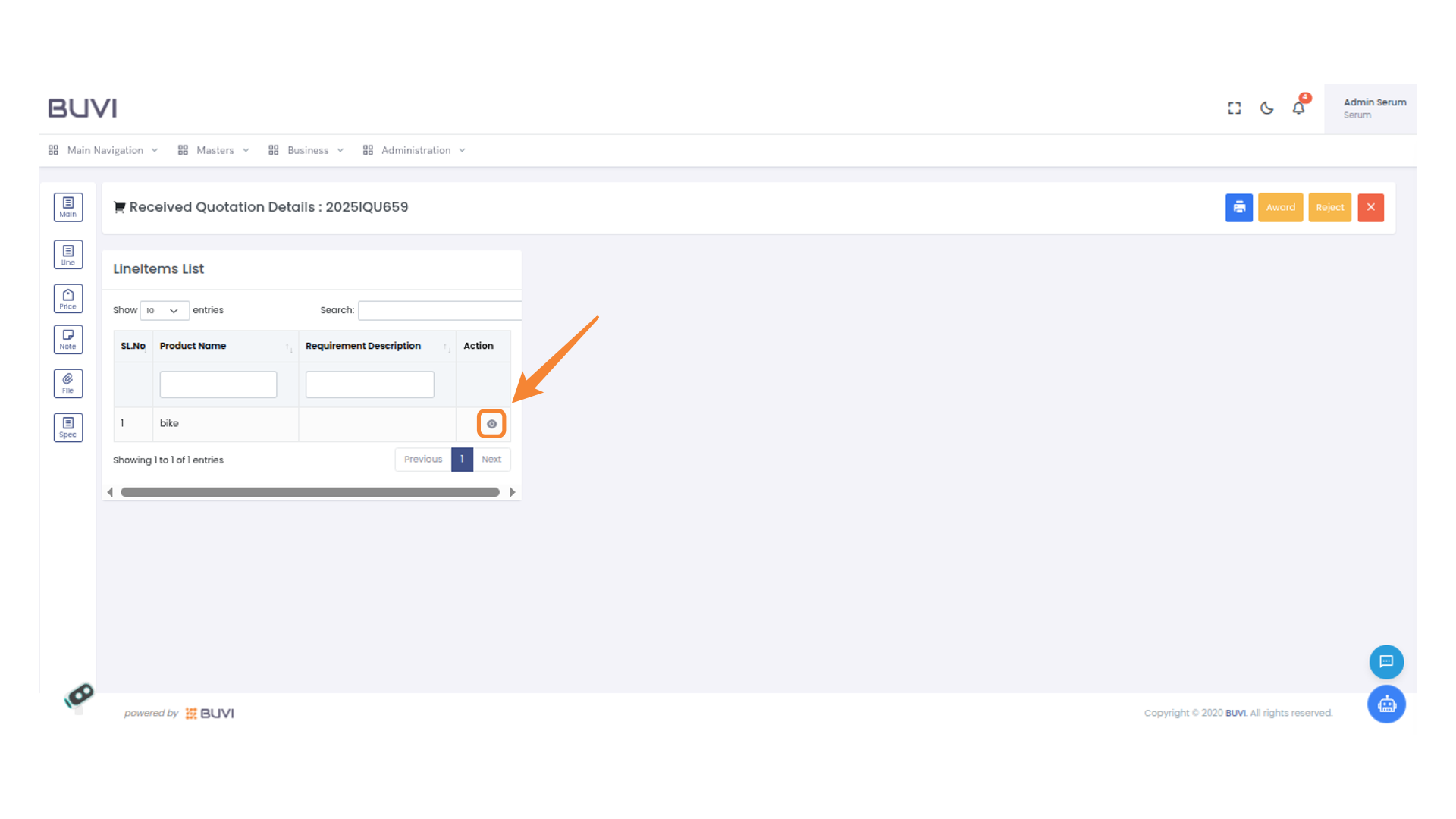
90. Action Icon
Click the icon to initiate an action related to the listed product.
91. Pricing Section Highlighted
Click the 'Pricing' tab to view detailed pricing information and calculations.
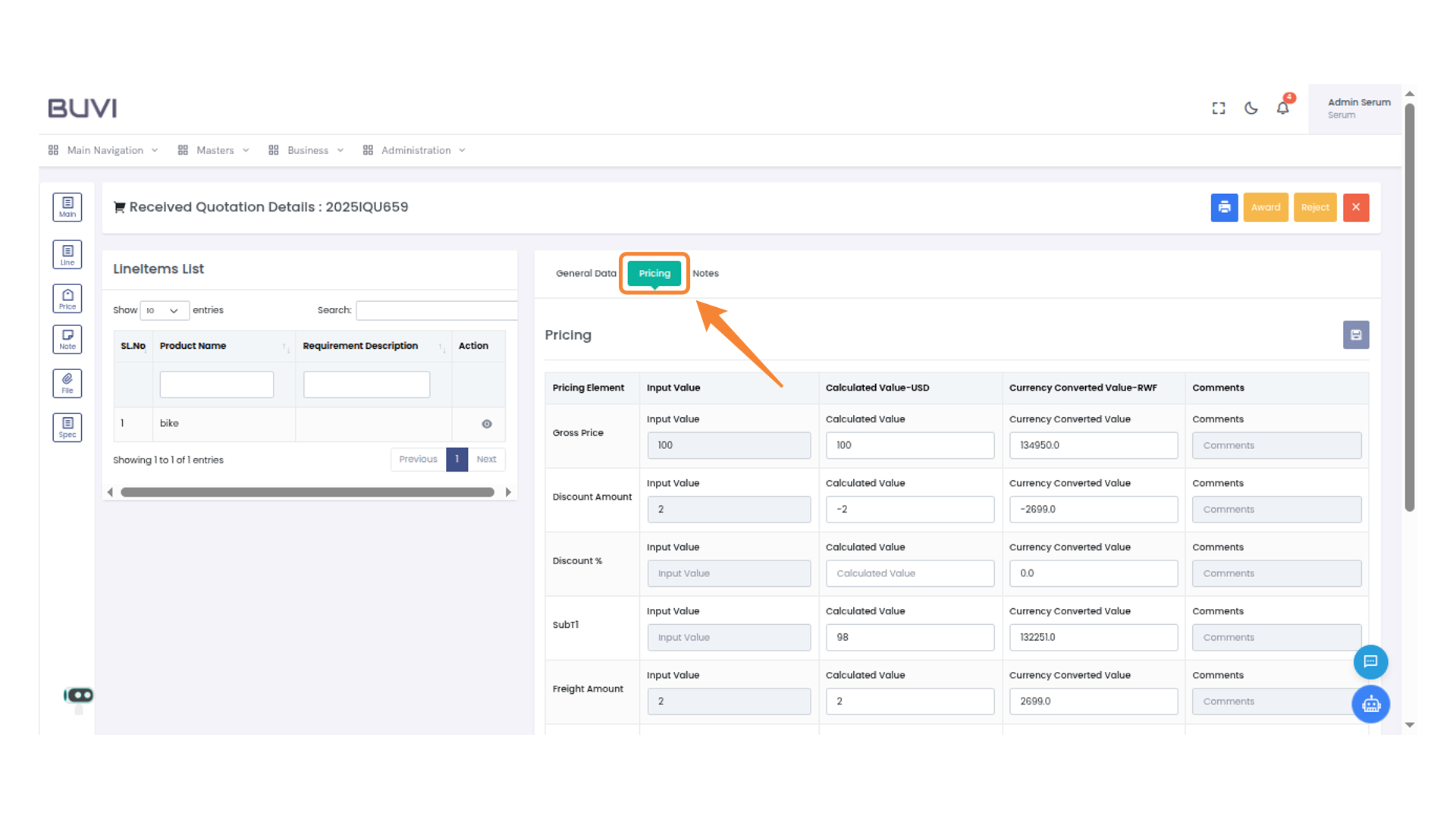
92. Currency Converted Value Display
Review the currency conversion amount for accuracy and consistency.